Professional Plus
What Professional Plus adds over Professional, what it costs, how to upgrade or move a team to it, and what happens if you move back.
Last updated 8 days ago
Professional Plus is the plan above Professional, for large requests, scanned documents and busy teams. It has everything in Professional, plus room for 2,000 documents, files up to 10 GB, scanned PDFs and images made searchable, and the ✦ features in People and identifiers that help you work through a long list of names.
It costs £50 a month per person, billed monthly through Stripe. Professional stays at £25 a month, and you can move between the two from your account page.
Who it is for
Large requests. More than 500 documents in total, or a mailbox export bigger than 3 GB.
Scanned documents. Photocopied letters, signed forms and referrals that arrive as images, so search and redaction cannot see their words on Professional.
Long lists of names. A request with hundreds of people to decide about, where sorting them one at a time takes days.
What it adds over Professional
Unlimited projects, clean exports with no watermark, sharing and live collaboration are the same on both plans.
What each feature does
✦ Suggested details
Open a person in People and identifiers and it lists the details written next to their name in your documents: email addresses, phone numbers, postal addresses, dates of birth, other names and job titles. Add the ones that are theirs and they are redacted along with that person. For the requester, it suggests other addresses and names they go by, so their own data stays in. See Suggested details.
✦ Smart categorise
Sorts the names you still have to decide into groups: Not a person, Shared inboxes, Your staff in their role, Pupils and parents, External professionals and Likely same person. Each group comes with a suggested next step and the reason for it. You pick the names, confirm, and one Undo reverses the lot. See Smart categorise and Same person?.
✦ Likely same person
Spots one person written in different ways, such as "Mr Hartley" and "Owen Hartley", so you can join them and decide once. Matches on the same full name or a shared address are on every plan. ✦ adds the harder ones. See Smart categorise and Same person?.
Scanned documents made searchable
When you upload a scanned PDF or an image, its words are read by OCR as it imports, so search, People and redaction all see them. Pages OCR could not read are listed in Audit Logs so you can check them by eye. See Making scanned documents searchable.
Files up to 10 GB
Plus takes files up to 10 GB. Files over 3 GB are in beta. If one doesn't import, its row in the file list will say so, and splitting it into smaller files gets it in. See Large files up to 10 GB (beta).
How the ✦ features treat your documents
Suggestions only. Nothing is redacted, left in or added to a person until you confirm it.
Request details are protected. Nobody in Request details is ever suggested for redaction.
Off until switched on. Both stay off until the project owner switches on suggested details for a project, in Project settings.
What is read. Names and email addresses, plus short passages from your documents around a person's name. Anthropic's Claude reads them, run for us by Google Cloud inside the EU. Your documents are not used to train models.
Checked against your documents. A suggested detail is only shown if it appears word for word near that person's name.
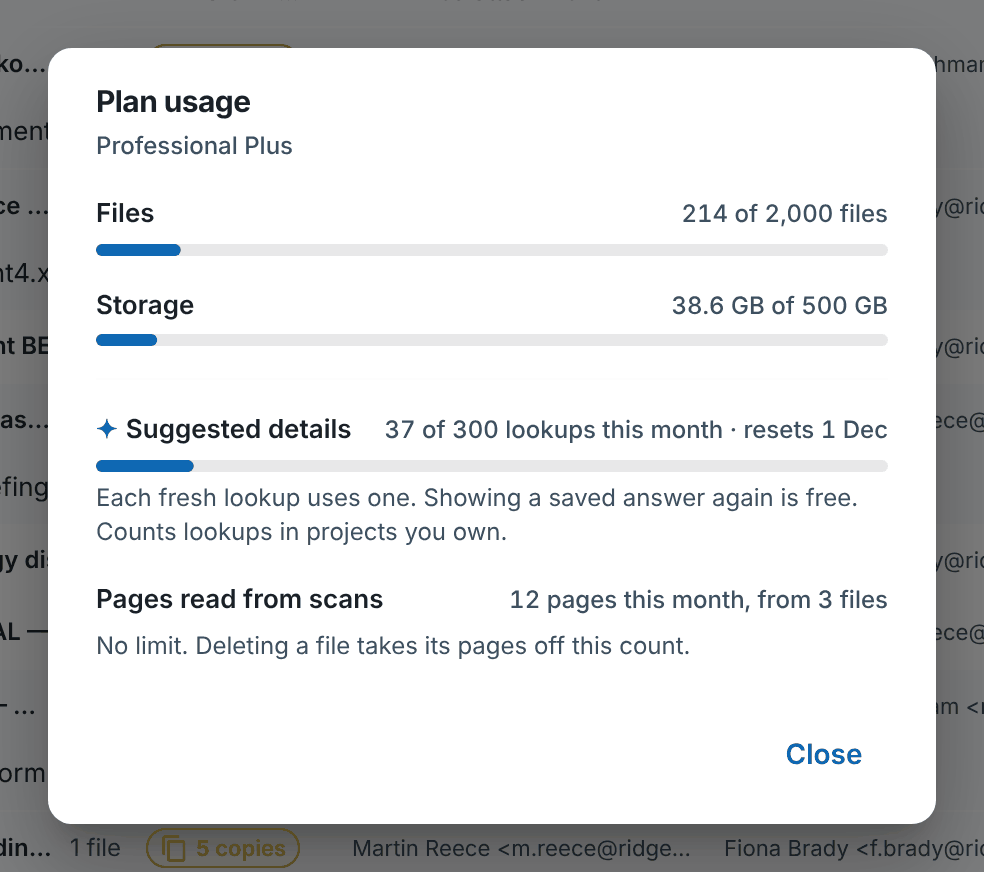
300 lookups a month. Each project owner gets 300, and a lookup counts against the owner of the project it runs in, whoever runs it. One person's suggested details uses one. Smart categorise uses one for every 150 names it sorts, and a batch that fails is given back.
Kept for 30 days. Saved suggestions, and the short quotes they came from, are deleted after 30 days, or sooner with the project.
To see how many lookups you have left, open the account menu in the top right of the console and choose Plan usage.
How to upgrade
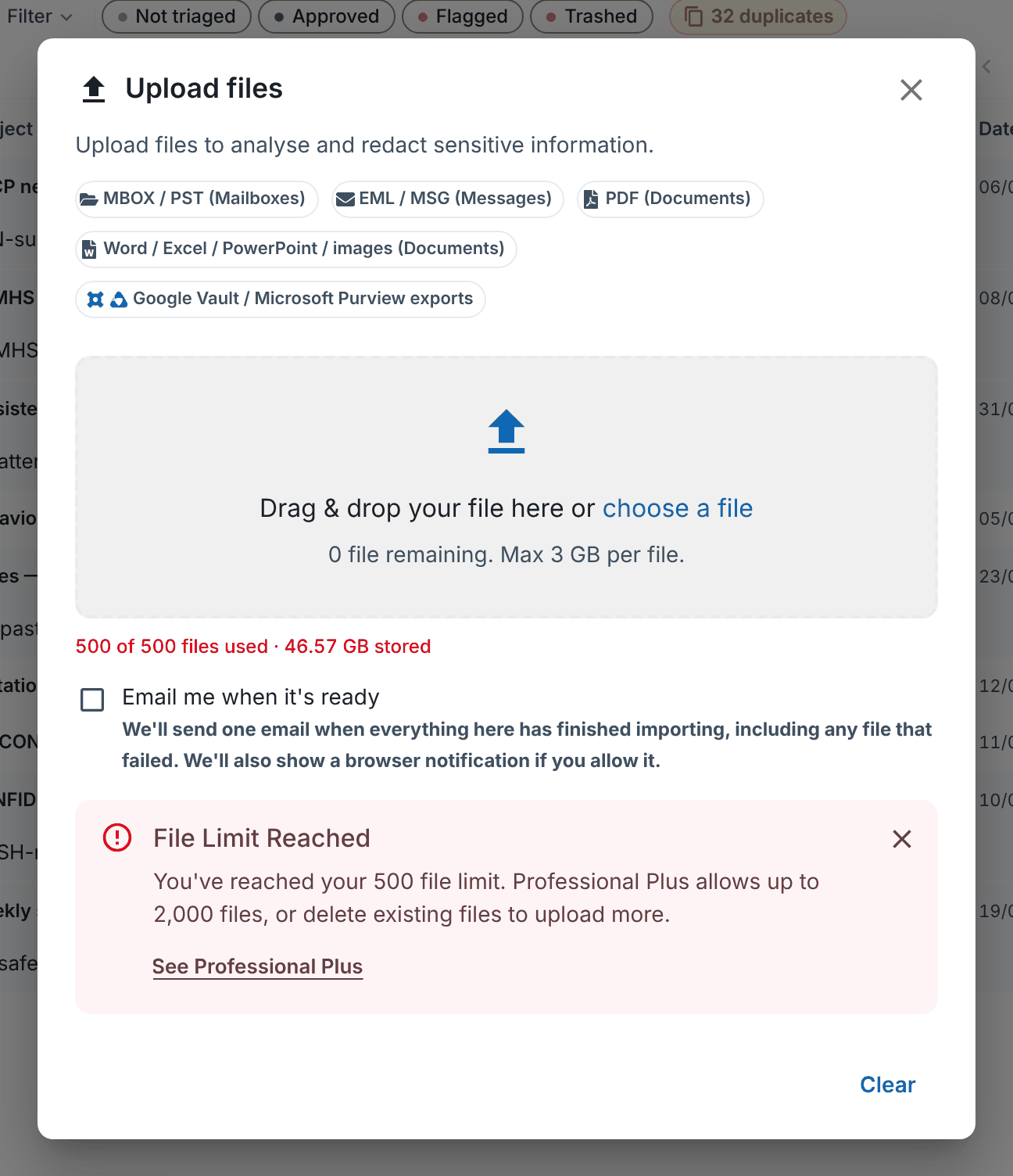
You will see the way up where Professional runs out. For example, when you reach 500 files the upload dialogue shows File Limit Reached, and See Professional Plus takes you to your plan.
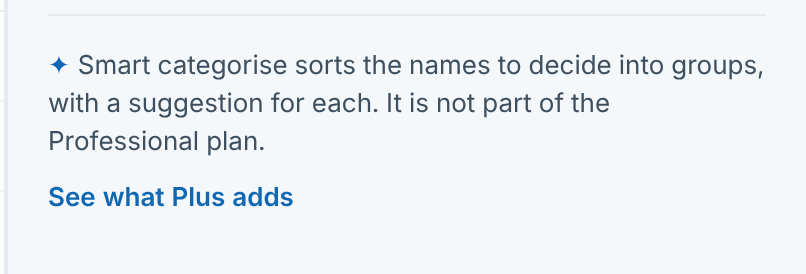
In People and identifiers, the ✦ line under the list says Smart categorise is not part of the Professional plan, with See what Plus adds to compare the plans. Plan usage and the note about scans in Search & Redact point to Professional Plus too.
If you are on Professional
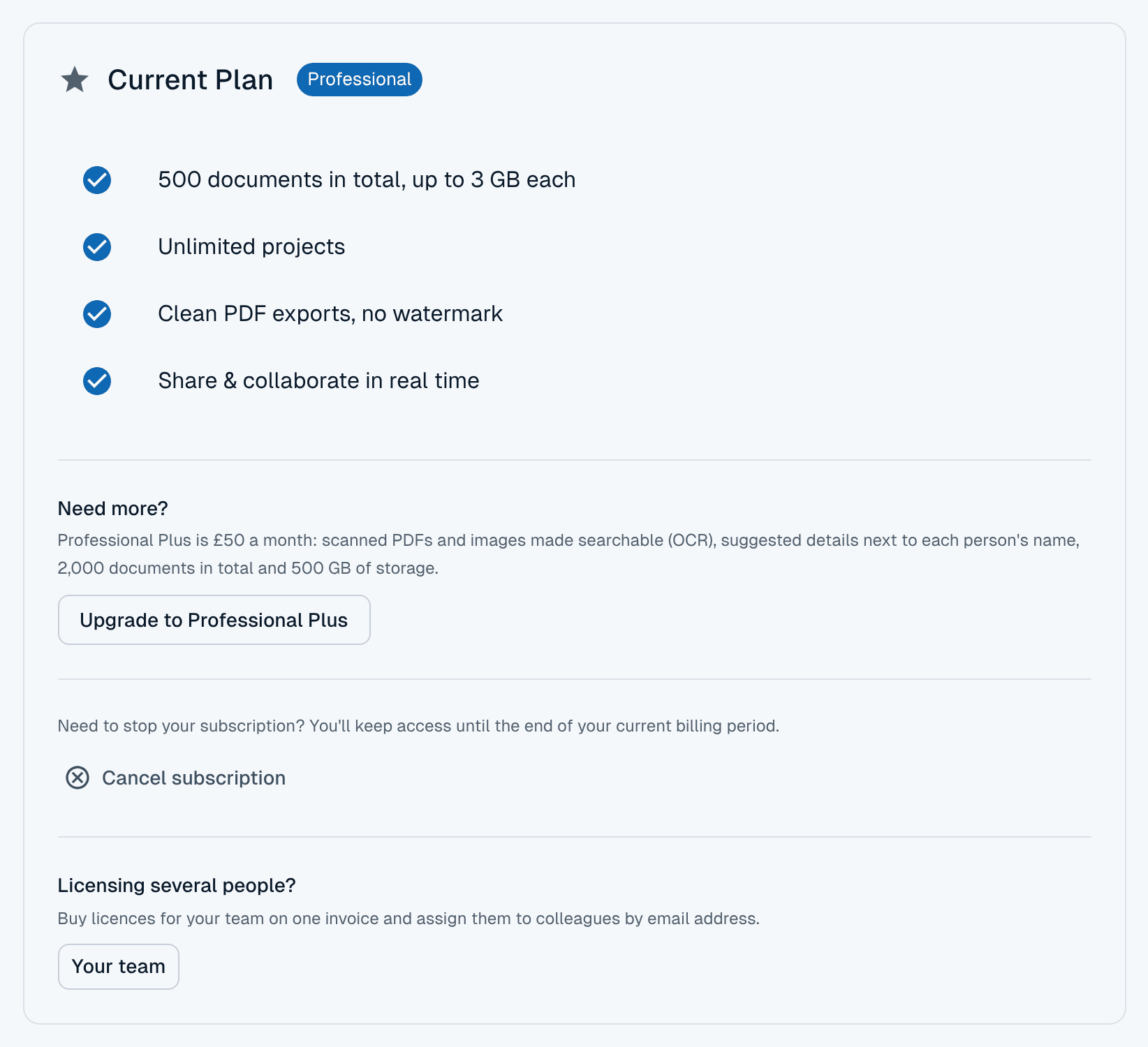
Go to redactbox.co.uk/account/subscription, or choose Subscription from the account menu in the console.
On the Current Plan card, find Need more? and click Upgrade to Professional Plus.
The Move to Professional Plus? dialogue says what it costs. Click Upgrade now.
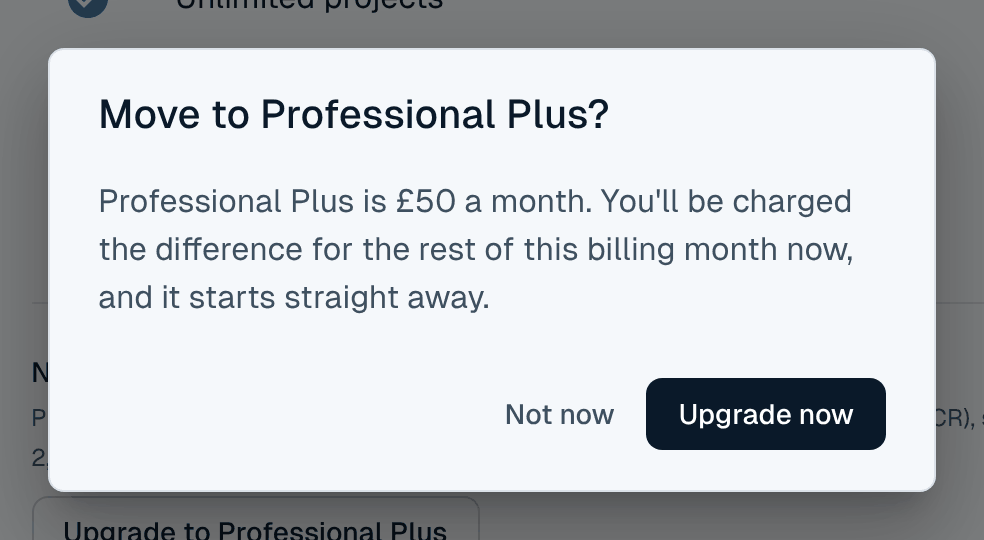
You pay the difference for the rest of this billing month straight away, and Plus starts as soon as that payment goes through. If your bank asks you to confirm it, use the link in the email from Stripe. Until the payment is made you stay on Professional, and nothing changes.
If you are on the Free plan
Go to the Pricing page and click Buy now on Professional Plus. You pay by card through Stripe, and Plus starts when the payment goes through.
Tip: If your plan is billed by invoice, or has a discount or an older price on it, the upgrade can't be done from the page. Email support@redactbox.co.uk and we will move you.
In a shared project
A project follows its owner's plan. When the owner is on Professional Plus, everyone who can edit the project uploads to its limits, their scans are read by OCR, and they can use the ✦ features there, even if their own plan is Professional. Lookups count against the owner's 300. See Sharing projects and collaborating.
Professional Plus for teams
Team licences can be Professional Plus too, at £50 per licence per month. When you set up a team on the Teams page, choose Professional Plus under Plan. Every licence in the team gets the same plan.
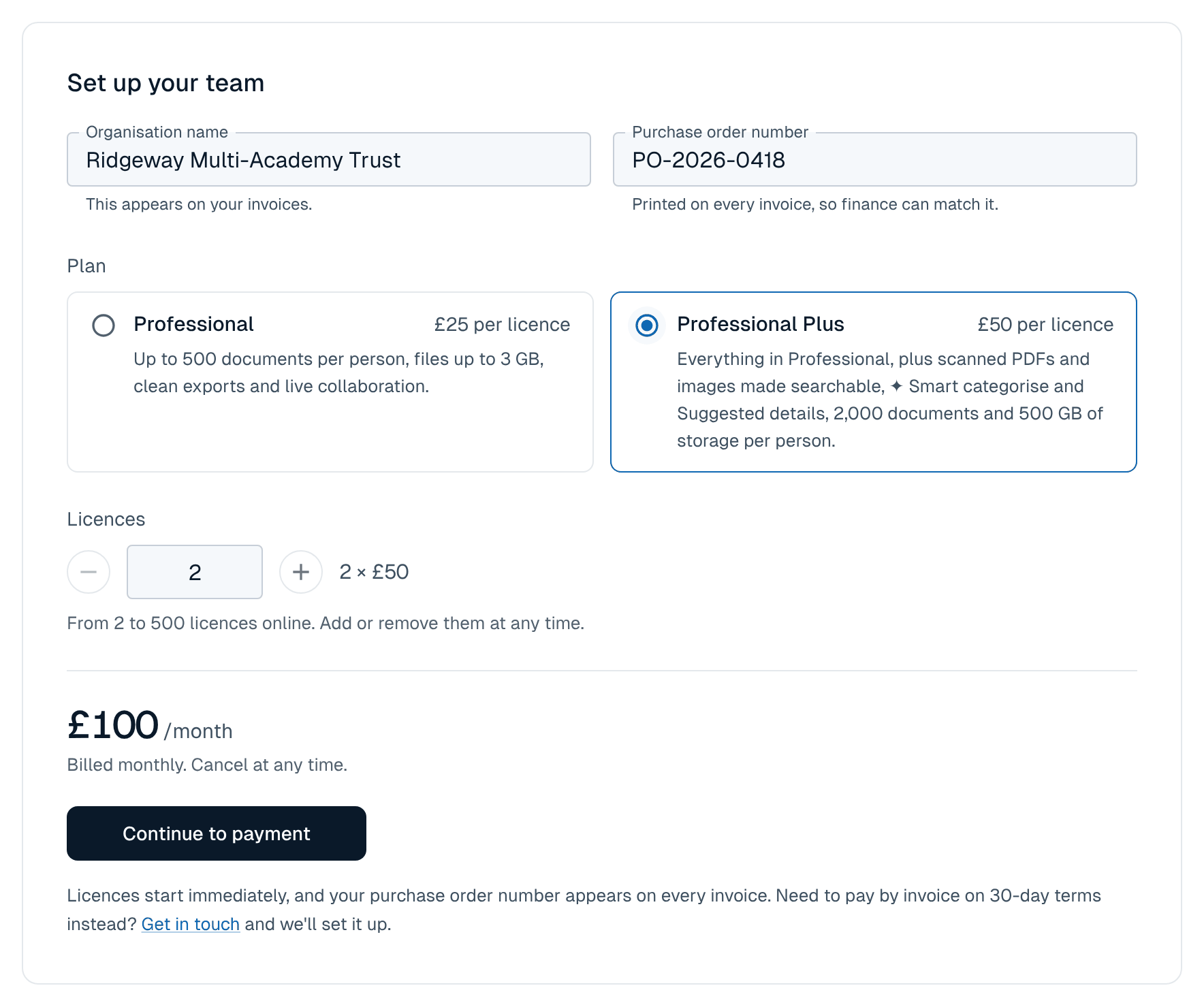
A team already on Professional can move up from Your team with Move the team to Professional Plus. To move a team back, email us. If you pay for Professional Plus yourself and take a Professional Plus licence, the team replaces your own plan. A Professional licence does not cover it, so your own Plus plan carries on. See Licences for teams.
Moving back to Professional
On the Current Plan card, click Switch to Professional under Need less?. The move is booked for the end of your billing month. You keep Professional Plus until then, nothing is credited, and Keep Professional Plus cancels the move any time before it happens. The steps are in Subscription & Billing.
When Professional starts:
Nothing is deleted. Your projects, files and redactions stay as they are, including scans that were already read.
New scans are not read. Scanned PDFs and images you upload from then on import without OCR, so check them by eye.
The ✦ features stop in projects you own. Suggested details already saved are still deleted after 30 days.
Professional's limits apply to new uploads. If you have more than 500 files or 200 GB stored, you can carry on working but cannot upload more until you are back under the limit.
Example: a large SAR at a trust
A trust's data protection officer receives a SAR from a parent. IT exports the head's mailbox as a 6 GB PST, and the school office sends 40 scanned letters.
Professional refuses the 6 GB file, so the DPO clicks Upgrade to Professional Plus on the account page and pays the difference for the month.
They upload the PST and the scans. The scans are read as they import, so the parent's name is found in them too.
In Project settings they switch on suggested details, add the parent to Request details, and run ✦ Smart categorise on the 600 names to decide. They confirm the groups that fit and take the rest one at a time.
Once the response has gone out, they click Switch to Professional. Plus stays until the renewal, and the project is kept for any challenge.
Was this helpful?
Still need help? Ask the team