Getting a Google Vault export into RedactBox
Export mail and linked Drive files from Google Vault, and know which of the downloaded files to upload.
Last updated 8 days ago
This guide shows you how to export mail from Google Vault and get it into a RedactBox project, including any Google Drive files that were linked in those emails. Use it when a Subject Access Request, FOI request or disclosure covers Google Workspace accounts and your administrator has Vault.
Vault gives you each part of an export as a separate download. You do not need every file. This guide tells you which ones to upload and which to keep for your records.
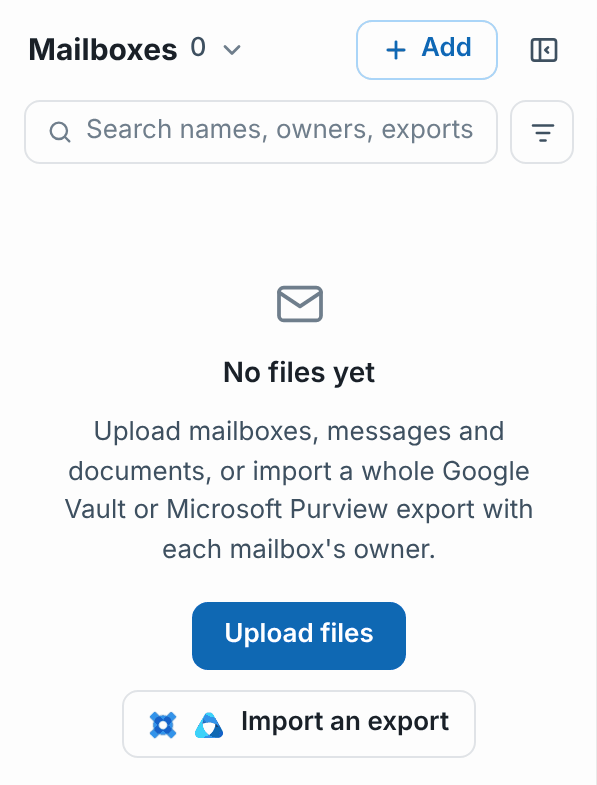
The quickest way: once you have downloaded the export, you do not need to unzip or choose files. In your project, click Add and choose Import a whole export (or Import an export in an empty project), then drop in everything Vault gave you. See Importing a whole Google Vault export. The steps further down are for uploading the files yourself.
Exporting from Google Vault
Open Google Vault at vault.google.com and open (or create) the Matter for the request.
Search Gmail for the accounts, date range and terms you need.
Click Export. Choose MBOX as the format.
If the emails share documents through Drive links, tick Export linked Drive files. Vault then makes a second export holding those files.
Wait for the export to finish on the Exports tab, then open it and download each file.
[Screenshot: 01-vault-export-options.png, the Vault export dialogue with MBOX and Export linked Drive files ticked]
Tip: Vault keeps an export for 15 days. Download everything before then, or you will need to run the export again.
What Vault gives you
Each file starts with the name you gave the export.
The mail ZIP, ending
-1.zip. It holds one.mboxfile per account, with the account's email address in the file name. A large export is split into-2.zip,-3.zipand so on.Metadata and reports, ending
-metadata.xml,-metadata.csv,-result-counts.csv,-drive-links.csvand-errors.xml, plus a checksums file. These describe the export. They are not items to redact.The linked Drive files export, if you ticked the option. It has its own ZIP of files and its own metadata file.
[Screenshot: 02-vault-export-files.png, the list of files on a finished Vault export]
Uploading the files yourself
If you would rather not import the whole export, you can upload the parts by hand.
The emails
Unzip the mail ZIP (and any
-2.zip,-3.zip).In your project, click Upload and drop in the
.mboxfiles. Each one becomes its own mailbox in the project, so you can see whose mail is whose from the file name.
See Uploading Files for the upload dialogue itself.
The linked Drive files
Unzip the Drive export's ZIP. Each file is named after its Drive title followed by an ID Vault adds.
Upload the files into the same project. They appear in Documents mode, not with the emails.
PDFs upload as they are.
Word, Excel, PowerPoint, RTF, text and image files are converted to PDF when you upload them, so you redact them like any other document. Google Docs, Sheets and Slides usually arrive from Vault as Word, Excel and PowerPoint files.
Spreadsheets also open in the spreadsheet grid, so you can redact cell by cell and export a redacted
.xlsx. See Redacting spreadsheets cell by cell.
Each converted file can be up to 50 MB. Mailboxes can be up to 3 GB each on Professional, and up to 10 GB on Professional Plus (over 3 GB is in beta).
Files to keep but not upload
When you upload by hand, keep the metadata, result counts, Drive links, errors and checksums files with your case records. Do not upload them. A .csv would be treated as a spreadsheet and added to your documents.
Two of them are useful to read yourself:
result-counts.csv lists each account and how many messages Vault exported for it. Compare it with the message count RedactBox shows for each mailbox.
errors.xml lists anything Vault could not export. If it is not empty, check it before you tell the requester the disclosure is complete.
Example: a school SAR covering two staff accounts
The data protection lead asks the Workspace administrator to search Gmail in Vault for both accounts over the last two years, with linked Drive files, and export as MBOX.
The administrator downloads the mail ZIP, the Drive export ZIP and the reports, and passes them on.
The lead unzips both ZIPs, uploads the two
.mboxfiles and the Drive files to one project, and checks the message counts againstresult-counts.csv.They redact the emails, then switch to Documents to redact the shared files, and export everything together.
Was this helpful?
Still need help? Ask the team