3. Exporting Items
Export your triaged items.
Last updated 2 days ago
Export is the last step. It turns the items you have approved and redacted into one ZIP of PDFs you can send, with a summary and, if you want it, the Schedule of Redactions. The export runs in the background, so you can keep working while it builds.
Getting there
Click Export in the step selector at the top of the project, or press Shift+3. The screen has two parts: your files on the left, and the Export plan on the right.
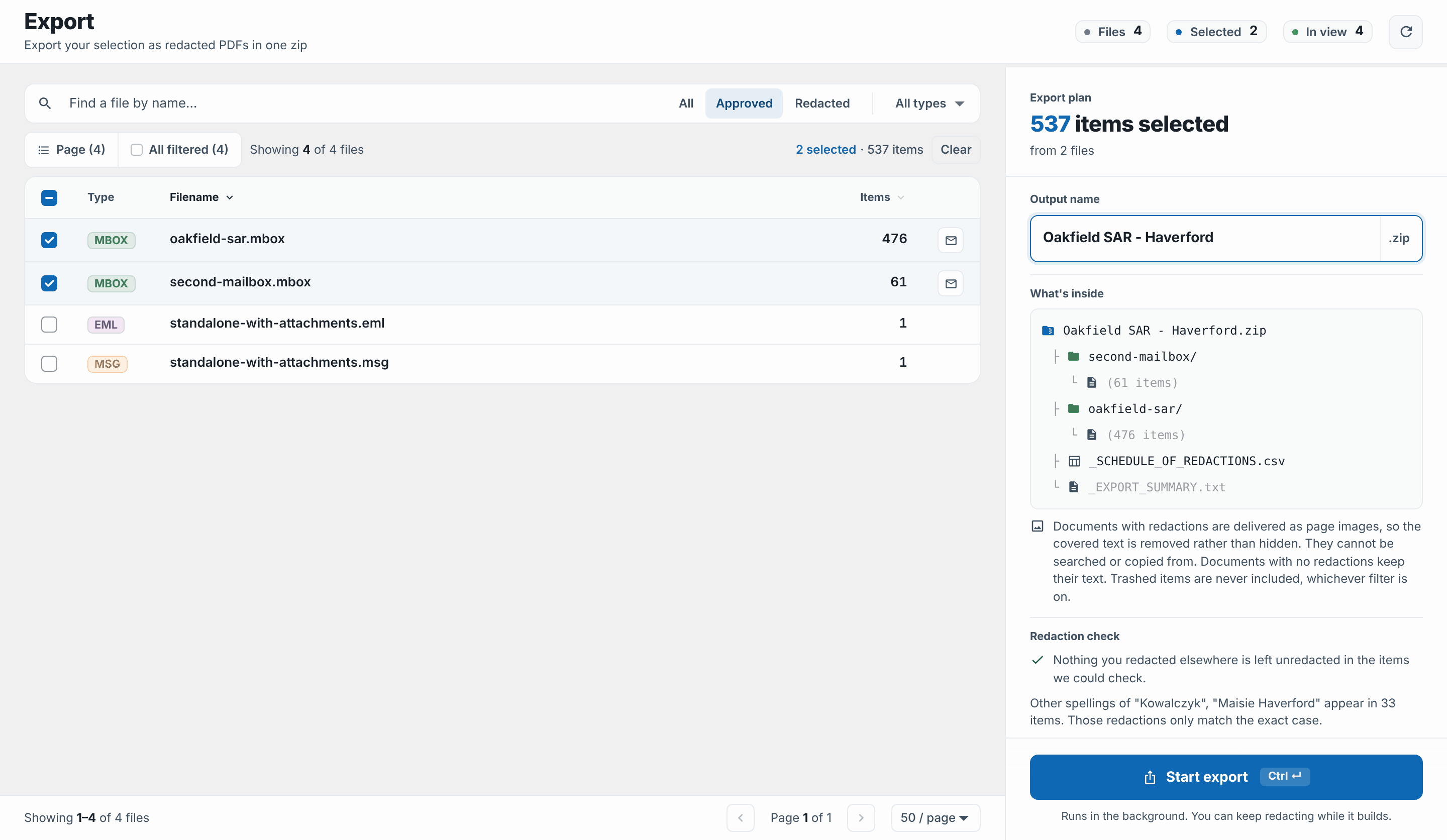
Exporting step by step
Choose which items count. Above the list, pick All, Approved or Redacted. Approved is selected when you arrive.
Approved: only items approved in Triage.
Redacted: only items that carry at least one redaction.
All: every item except trashed. Flagged items are included.
Trashed items are never exported, whichever you pick.
Tick the files to export. To export only some items of a mailbox, use Pick individual items at the end of its row. See Export Individual Emails & Documents.
Name the export under Output name. The name becomes the
.zipfile name and is how you find the export again in Tasks.Read the Export plan. It shows how many items are selected and from how many files, a preview of the ZIP under What's inside, the Redaction check and Review coverage. When attached files go with the selected messages, the count is split, for example 73 items in this export and under it 36 messages + 37 attached files. A file on several messages is counted once.
Check the options. PDF file names (Date + Subject, Subject + Date or Internal ID), Folder layout (Flat zip or Group by source) and, under Audit trail, Schedule of Redactions.
Click Start export, or press Ctrl+Enter (Cmd+Enter on a Mac) in the name box.
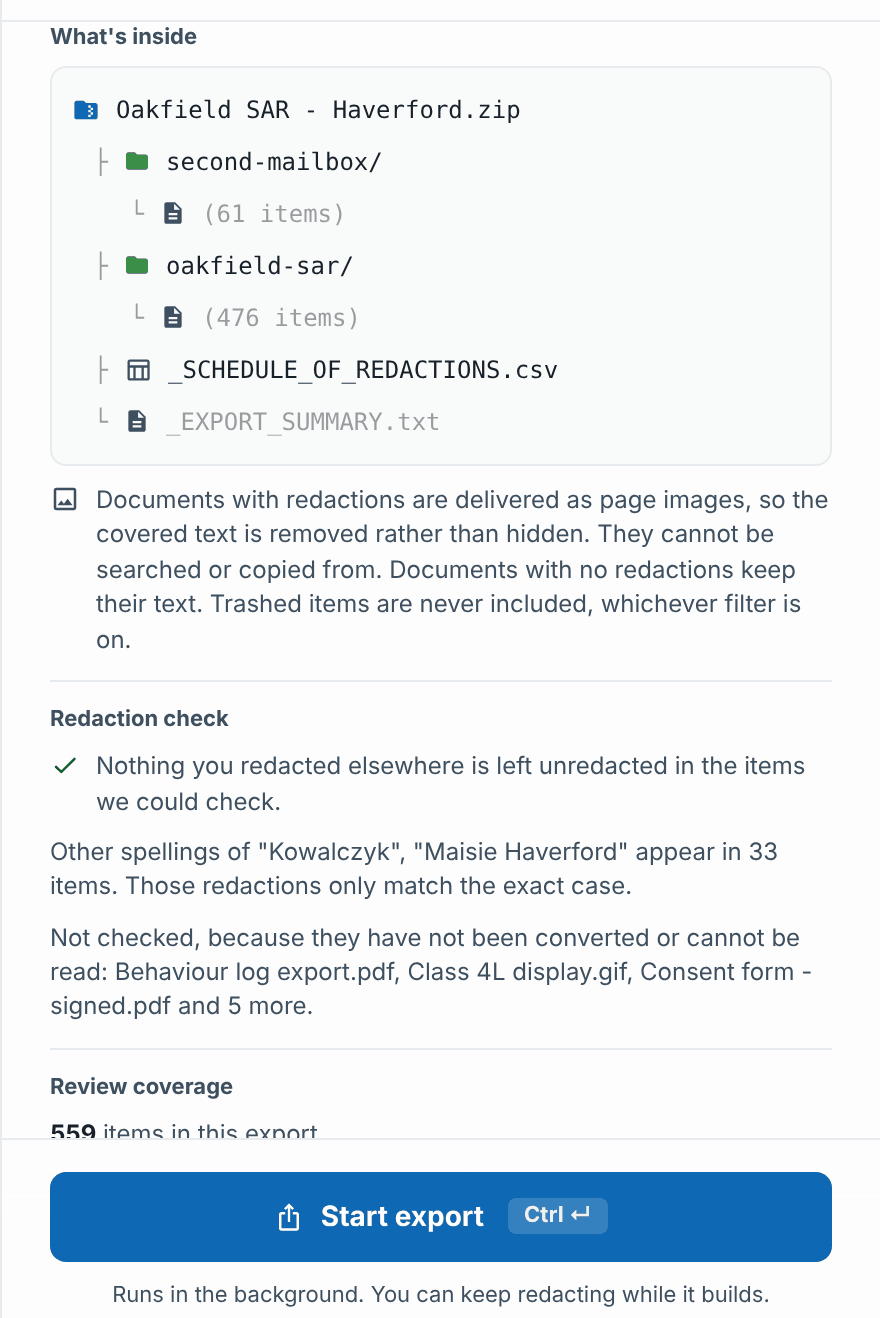
Where the options start
The options open with the project's Export defaults, which the project owner sets in Project settings: file names, folder layout and whether to include the Schedule. Anyone exporting can change them for their own export. Without a project choice, the panel starts on Date + Subject, Group by source, with the Schedule included.
While it builds
The export appears in the Tasks tray (the icon in the header), moving through Generating documents, Packaging ZIP file and Finalising download. You can leave the Export screen; it keeps going.
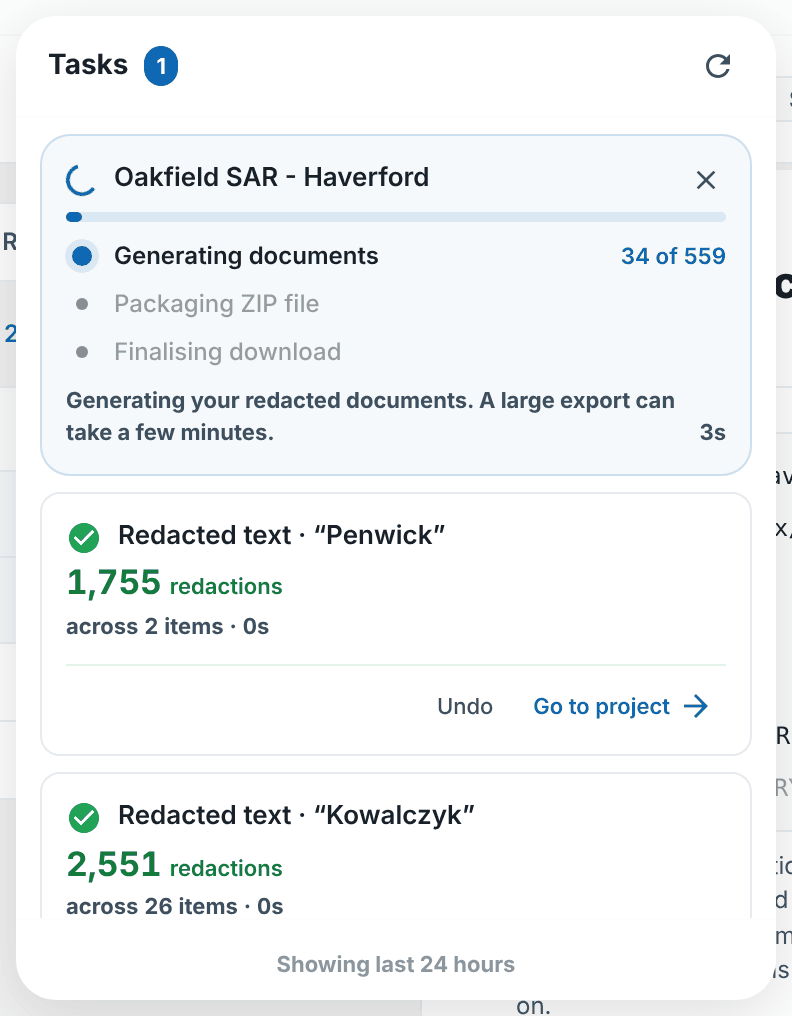
When it finishes, the card reads, for example, 73 documents · ready to download, with Download .zip.
The export card
Back on the Export screen, Last export shows the same export with Download. It also lists anything to look at before you send the ZIP: pages to check by eye, and attached files that are not in this export. Those are explained in Checks before an export goes out.
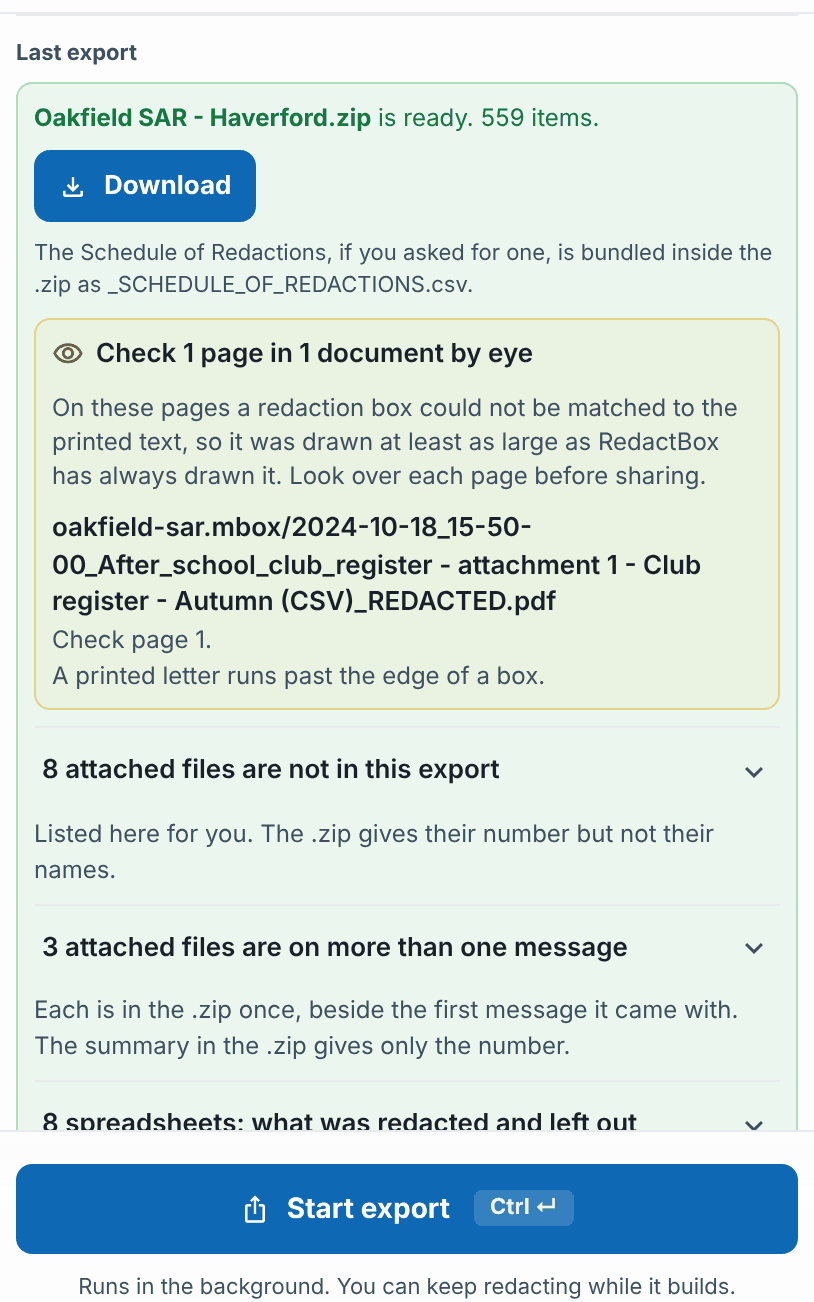
If items you picked by hand are not in the export, the card says why, for example 2 hand-picked items are not in this export because they are in the trash.
What stops an export
Three safeguards can hold an export. Everything else on the plan is a warning, and you can still export.
The redaction check. If an item still contains a word you redacted elsewhere in the project, the button reads Export held. Redact the items, or tick Export anyway, which the audit trail records.
A bulk redaction still running. The button reads Bulk redaction in progress… and the export can start once it finishes.
A redaction RedactBox cannot place for certain. That document is not sent with a guess. The card says how many documents could not be produced, and the summary inside the ZIP names them.
For each finding and what to do about it, see Checks before an export goes out.
What comes out
One PDF per item. Documents with redactions are delivered as page images, so they cannot be searched or copied from. Documents with no redactions keep their text.
Attached files beside their message, named after it, such as
… - attachment 1 - Term dates 2025-26 (PDF).pdf, when the project setting Include attached files in exports is on. While it is off, the plan says Attached files aren't included in this project's exports._EXPORT_SUMMARY.txtand, if ticked,_SCHEDULE_OF_REDACTIONS.csv.
With the project setting Redact names in exports on, redacted words are also kept out of file and folder names. For the folders, names, links and files in detail, see What's in the export ZIP.
Good to know
Kept files go with their own mailbox. A file you kept after its message was trashed is exported only when you export the mailbox it came from.
Files still converting are not in the export. The plan says how many; export again once they are ready.
Review coverage is a warning, not a block. It counts items opened and reviewed by someone, items not reviewed, and items never approved in Triage, so you know what you are sending.
Changed something after exporting? Export again. Downloading an earlier export gives you the same ZIP as before. To pick up new redactions or new items, or to replace an export that came out with items missing, start a new export and give it a new name so you can tell the two apart in Tasks.
You can upload more files while an export builds. A new upload does not change an export that is already running.
How long it takes depends mostly on the number of items and pages. Drawn boxes take no longer to export than redacted words. Follow its progress in Tasks.
Was this helpful?
Still need help? Ask the team