Suggested details
Add a person's phone numbers, addresses and other details so they are redacted with them, and check the details RedactBox suggests.
Last updated 8 days ago
Every person in People and identifiers has a list called Their details: their email addresses, plus any phone number, postal address, date of birth or other name you add. Everything on the list is redacted along with that person, so one decision covers their name and the details that would identify them.
On Professional Plus, RedactBox can also suggest details for you. It reads the short passages around a person's name in your documents and lists what it finds, marked ✦, for you to check. Nothing is added or redacted until you press Add.
Adding details by hand works on every plan. Suggestions need Professional Plus, and the project owner has to switch them on for the project first.
Where to find it
Open a project, click Tools and choose People and identifiers. Anyone with suggestions waiting shows a ✦ tag on their row with the number to check, such as ✦ 2.

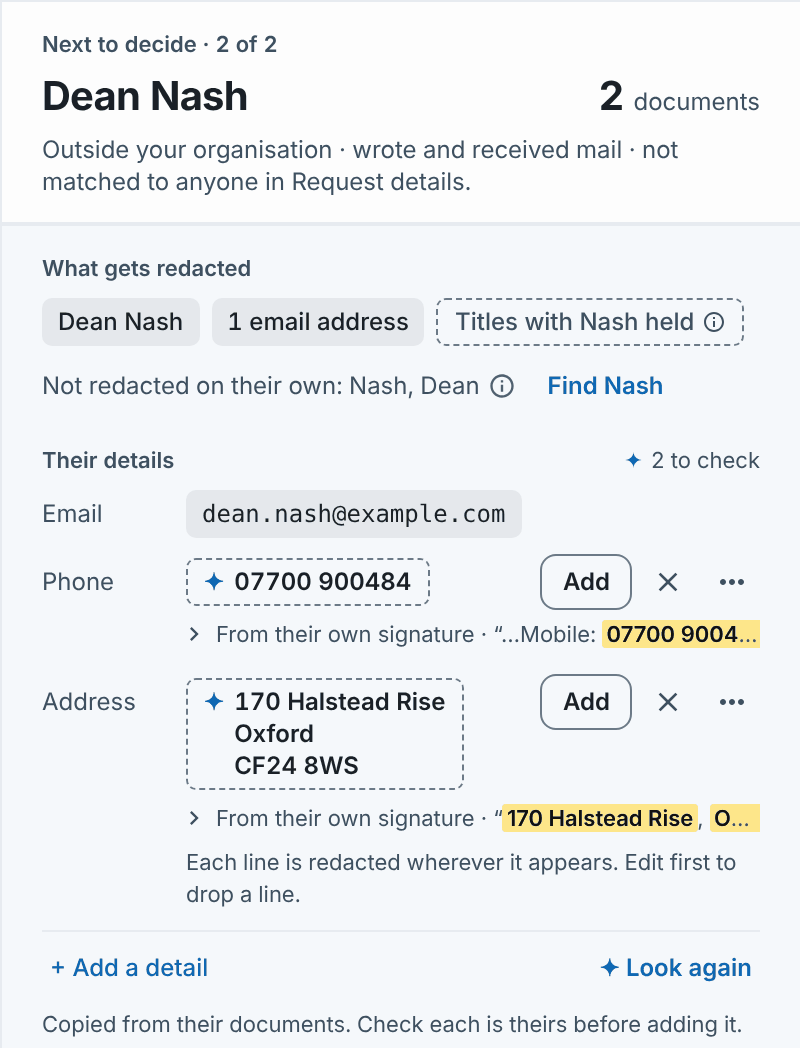
Click the person. Their details is in the panel on the right, under What gets redacted. Each suggestion sits under the kind it belongs to (Phone, Address and so on), with a dashed border and the ✦ mark. The line under it says where it was found: From their own signature or Next to their name, followed by the words around it. Click that line to read the whole passage.
Checking a suggestion
Read the line under the suggestion. If you are not sure, open the menu (…) and choose Open source document.
Choose what to do:
Add puts it on their list. It is redacted with their decision.
The cross marks it Not theirs. It is not suggested again in this project.
Edit before adding (in the menu) lets you correct it first, for example to drop a line from an address.
Find in Search & Redact (in the menu) shows every place it appears before you decide.
Then decide about the person as usual.
An address is redacted line by line, wherever each line appears. A job title is shown under Role for context but cannot be added: Job titles are not added: many people share them.
Tip: If you add a detail after the person has already been redacted, the panel says Added. Documents already redacted aren't updated, so use Find to catch it there. Click Find to redact it in those documents.
When suggestions appear
For someone named in three or more documents, RedactBox looks up their details as soon as you open them, and for the next two people in the queue, so the answers are usually ready when you get there. For anyone else, press ✦ Suggest details at the bottom of the list. Press ✦ Look again to check again after more documents are added.
If nothing is found, the panel says Nothing new found next to their name.
How suggestions are checked
Names and email addresses, plus short passages from your documents around a person's name, are read by Anthropic's Claude, run for us by Google Cloud inside the EU. Your documents are not used to train models.
Every suggestion is then checked against your documents before you see it. It is only shown if it appears word for word near that person's name, and not when another person on the list is named in between. A detail already on someone else's list is never suggested. Even so, a parent's number can sit next to a pupil's name, so check each one: Copied from their documents. Check each is theirs before adding it.
Adding a detail by hand
Click + Add a detail under the list.
Pick the kind: Email, Phone, Address, Date of birth or Also known as.
Type it exactly as it is written in the documents. For an address, separate the lines with commas.
Click Save. The panel says Saved. Redact everywhere includes it.
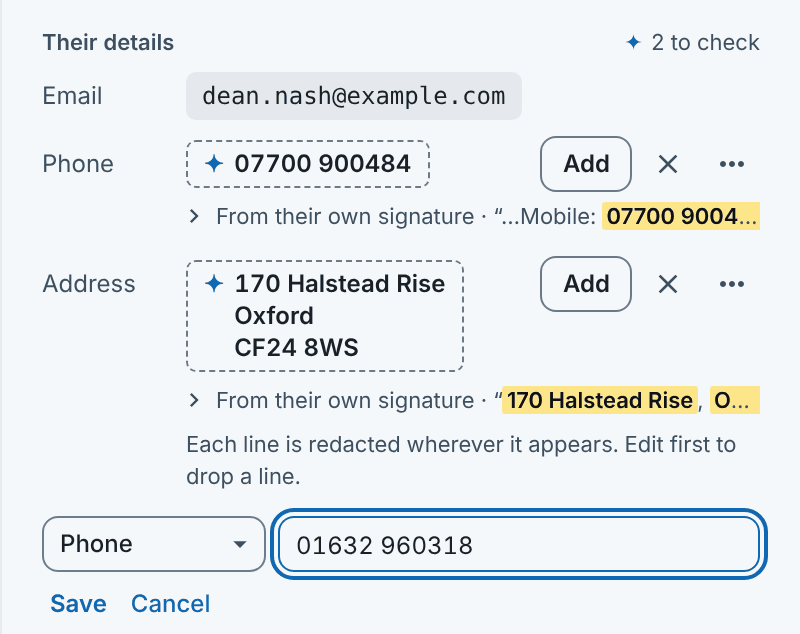
To change a detail you added, click it and edit it. To take it off, use its cross. Some details are refused because redacting them would do harm, for example Not added: one word on its own would be redacted everywhere. or Not added: Request details keeps that in.
Suggested details for the requester
Suggestions work the other way for the people in Request details. They are never suggested for redaction. Instead, when the project owner edits their entry in Request details, ✦ Suggest details looks for other email addresses and other names they go by, so that their own information stays in.
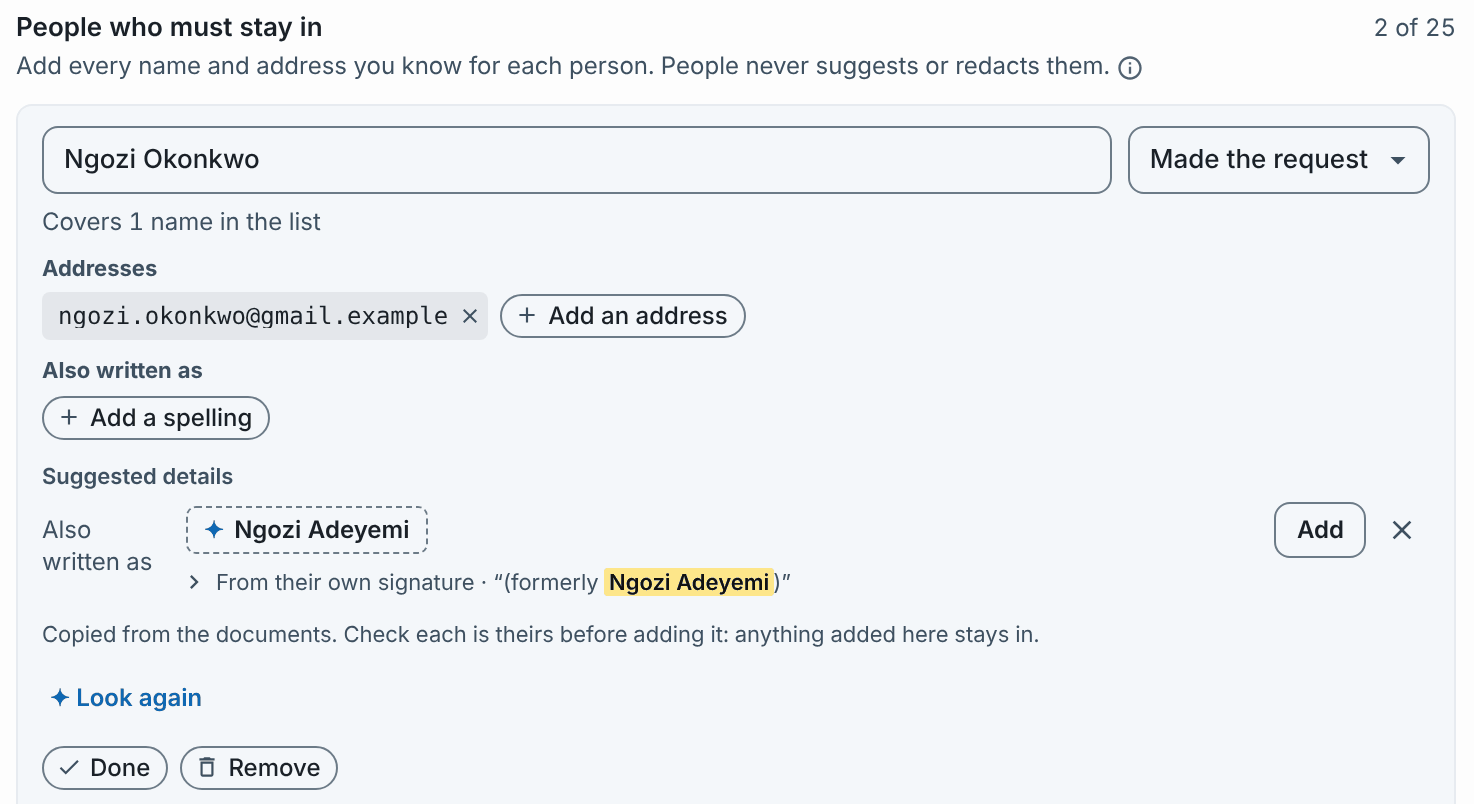
Only the project owner sees these.
They are checked more strictly. A value is only offered when it is labelled, with words such as "Email:" or "formerly", and comes just after their name.
They are never used to redact. Add puts the value into the entry, and it is kept when you press Save. Anything added here stays in, so be sure it is theirs.
Switching it on
Suggested details are off for every project until the project owner switches them on. Open Settings, then Project settings, and turn on Suggested details. Only the project owner can do this, and the change is recorded on the audit trail. Smart categorise follows the same switch.
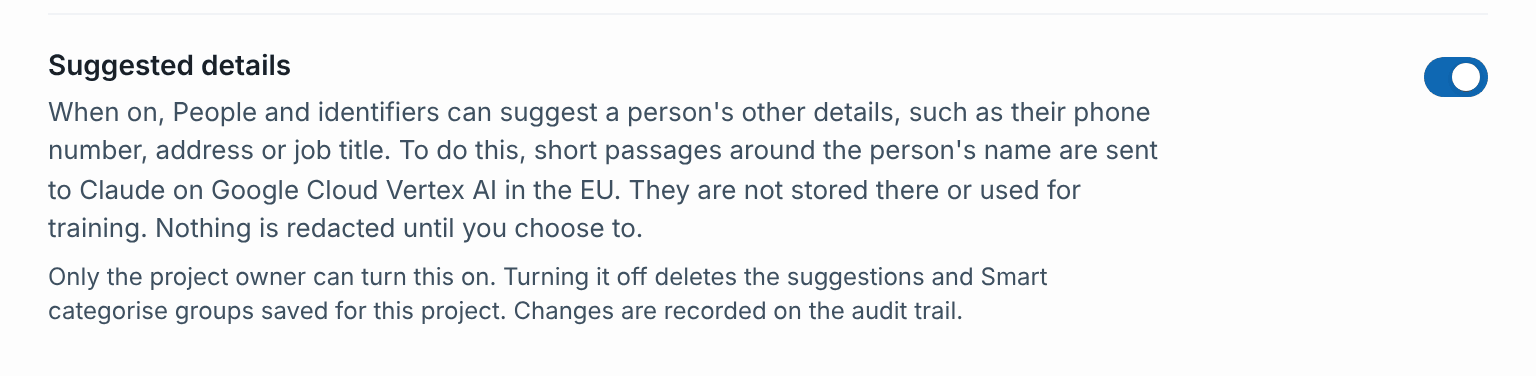
If it is off, the owner sees Turn on Suggested details in Project settings under Their details, and colleagues see The project owner can turn on Suggested details in Project settings.
Your monthly allowance
Each project owner gets 300 lookups a month, and a lookup counts against the owner of the project it runs in, whoever runs it. One person's suggested details uses one. Showing a saved answer again is free. Plan usage in your account menu shows what you have used, such as 112 of 300 lookups this month · resets 1 Dec.
When the allowance runs out, the panel says This month's suggested details are used up. They renew on the 1st. You can still add details by hand.
What is kept, and for how long
Saved suggestions, and the short quotes they came from, are deleted after 30 days, or sooner with the project. Turning Suggested details off deletes them straight away, along with the project's Smart categorise groups.
Example: a parent who emailed the school
A parent has asked for her son's records. Another parent, Dean Nash, emailed the Head of Year about an incident his son saw.
Open Dean Nash in People and identifiers. His row shows ✦ 2.
Under Their details, his mobile number and home address are suggested, both From their own signature.
Click Add on each, then Redact in all 2 documents. His name, email address, number and address are redacted wherever they appear.
See People and identifiers for deciding about people, and Smart categorise and Same person? for sorting a long list.
Was this helpful?
Still need help? Ask the team