Large files up to 10 GB (beta)
Upload a mailbox or export of up to 10 GB on Professional Plus, what happens while it imports, and what to do if one fails.
Last updated 8 days ago
On Professional Plus you can upload a single file of up to 10 GB, so a large mailbox or a whole export can go in as it is instead of being split first. Files over 3 GB are in beta: they have been tested, but not yet as widely as smaller ones, so the occasional one may not finish importing.
Use it for a big .pst or .mbox from your IT team, or a Google Vault or Microsoft Purview export of several accounts.
Word, Excel, PowerPoint, RTF, text and image files can be up to 50 MB on every plan. The Convert tool stays at 3 GB a file on every paid plan.
Uploading a large file
In your project, click Add and choose Upload files (or Import a whole export for a Vault or Purview export).
Drop the file in, or click to choose it. As soon as a file over 3 GB is in the list, a note under the usage line says Files over 3 GB are in beta.
Email me when it's ready is ticked for you when a file is over 1 GB, unless you have cleared it before in this browser. Leave it ticked and you can close the tab once the upload has finished.
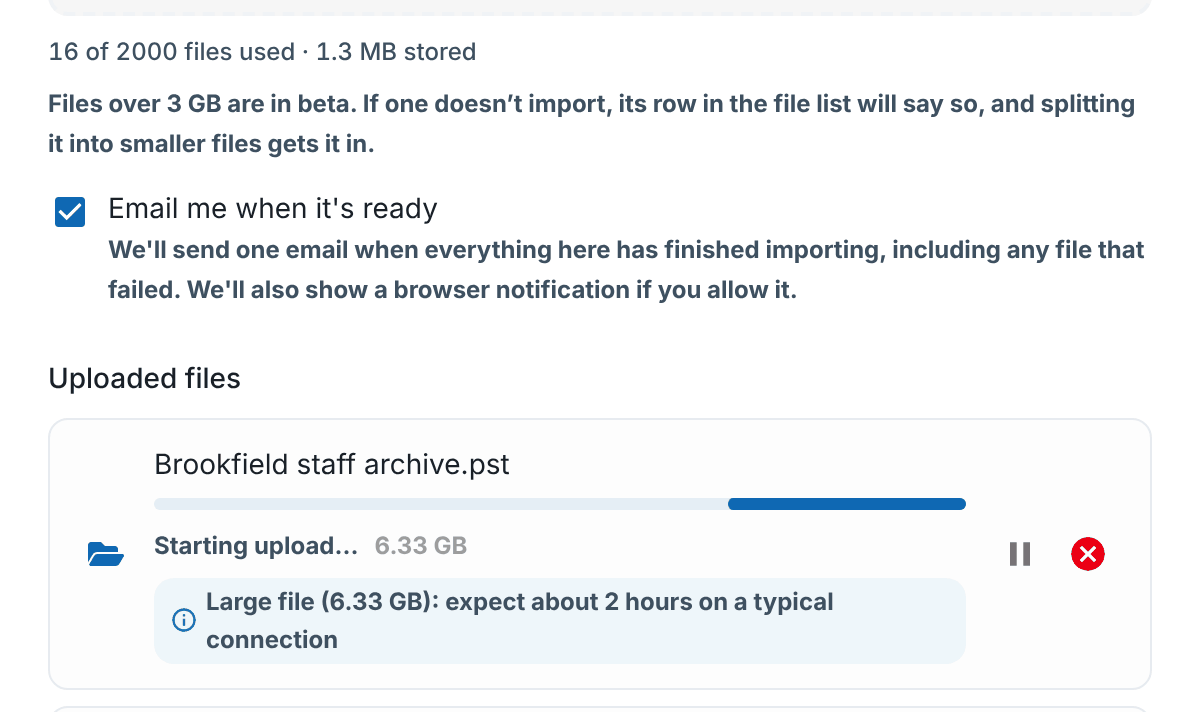
The file's row gives a rough upload time for your connection. The upload carries on in the background while the project is open, and it can be paused and resumed, so a lost connection doesn't send you back to the start.
What happens after the upload
A large file takes much longer to import than a small one, so RedactBox does the work in stages and saves its place as it goes. You don't need to do anything, but it explains what the sidebar shows.
.mbox files are imported in order, with a checkpoint saved as it goes. If the work has to stop part-way, it carries on from the last checkpoint instead of starting again.
PST files are imported in two stages. First the items are extracted from the PST, which shows as Extracting. Then they are imported in chunks, which shows as a count such as 12,650/41,200 Importing.
Then the items are prepared for redaction, which shows as Converting PDFs and then a count such as 1,200/41,200 PDF.
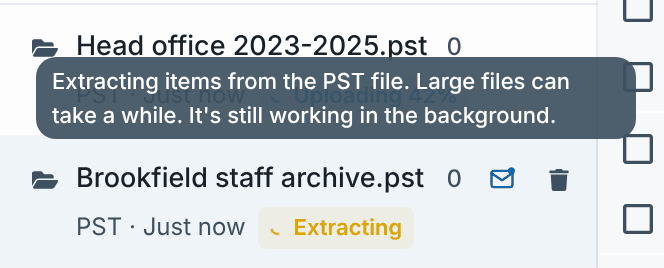
How long it takes
It varies with the size of the file, how many items are in it and how many attachments need preparing. A file near 10 GB is a matter of hours rather than minutes. That is why Email me when it's ready is ticked for large files: you get one email when everything you uploaded has finished, including any file that failed. See Import progress and email me when it's ready.
If a large file fails
A file over 3 GB that doesn't finish shows Failed in the sidebar. Hover over it for what to do.
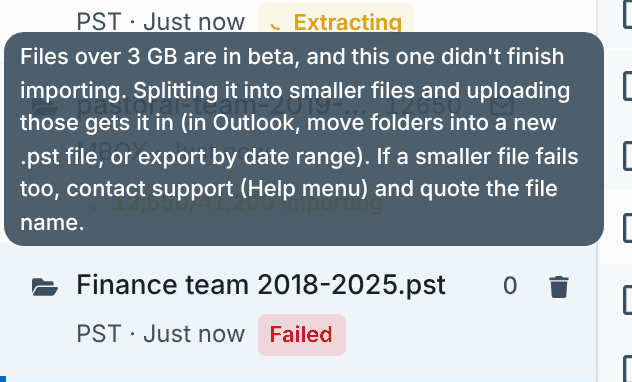
Split it into smaller files and upload those into the same project. Under 3 GB each is the safest.
For a PST, in Outlook, move folders into a new .pst file, or export by date range.
For a Vault or Purview export, export a few accounts at a time.
Delete the failed file from the project with the bin icon.
If a smaller file fails too, contact us at support@redactbox.co.uk (or Help menu) and quote the file name.
Tip: If some items came through before an import stopped, the badge says Partial import instead, with how many arrived. You can review and redact those, but uploading the file again starts a fresh import as a new copy.
Example: a trust-wide PST from IT
The trust's IT team exports a member of staff's mailbox as one 7 GB PST.
The data protection lead uploads it on Professional Plus. The beta note appears, and Email me when it's ready is already ticked. Once the upload has finished, they close the tab.
The PST extracts, then imports in chunks. The email arrives later that afternoon and they open the project from its link.
Had it failed, IT would split it by date range into three PSTs, and each would go into the same project.
Related: Uploading Files and PST File Processing Failed - Troubleshooting Guide.
Was this helpful?
Still need help? Ask the team