Making scanned documents searchable
How Professional Plus reads scanned PDFs and images with OCR, how to tell what was read, and what to check before you redact.
Last updated 8 days ago
A scanned letter or a photo of a form is a picture of words, not text, so search, People and patterns can't see what it says. On Professional Plus, RedactBox reads scanned PDFs and images with text recognition (OCR) when they are imported. The words become searchable and redactable like any typed document, and the page looks exactly as it did.
Use it when a request includes paper records that were scanned in: signed letters, meeting notes, referral forms, photos of documents attached to emails.
OCR comes with Professional Plus. On Professional, a scan can still be redacted by drawing a box over it with Area Redaction, but it can't be searched.
Which files are read
PDFs you upload. Any page with no text on it is read. Pages that already have typed text are left as they are.
Images you upload (.png, .jpg, .jpeg, .gif, .bmp, .tif, .tiff and .webp, up to 50 MB each). They are turned into a PDF document and read.
Scans and photos attached to emails. When an attached scan is prepared for redaction, it is read the same way.
Reading happens once, as the file is imported, using the project owner's plan at that moment. A file imported before the owner moved to Professional Plus is not read afterwards. To have it read, delete it and upload it again, ideally before you start redacting it.
Text recognition runs on RedactBox's own Google Cloud servers in the EU, using the open-source Tesseract engine. Your documents are not sent to anyone else to be read.
How you can tell a document was read
In the sidebar, switch from Mailboxes to Documents.
A document that was read shows an OCR pill next to its name. Hover over it (or tab to it) to see how many pages were read.
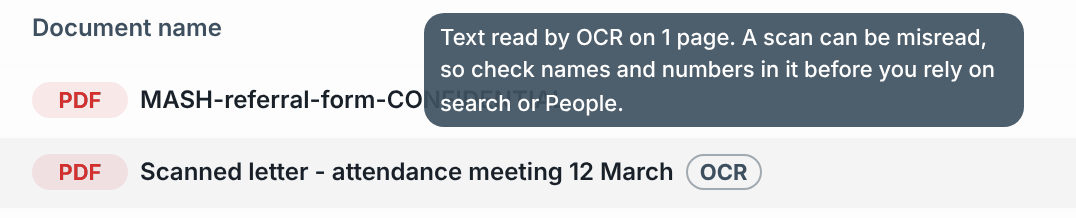
From then on the document behaves like any other. Search for a name, address or reference that appears in the scan and it comes up in Search & Redact, People and patterns.
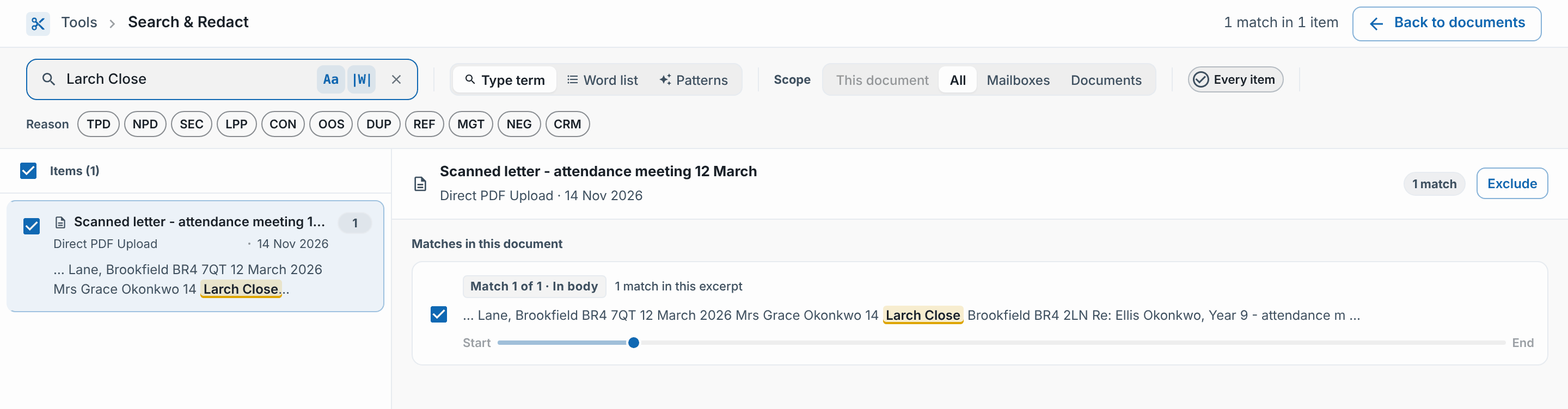
When you redact a match, the box is drawn over the word on the scanned page. The text RedactBox read is invisible and sits exactly over the ink, so the box covers what you can see.
Check what OCR read before you rely on it
OCR reads print well. It is weaker on handwriting, faint photocopies, stamps, low-resolution photos and pages at an angle, and it can misread a letter or a digit (an O for a 0, an l for a 1). A name it misread won't match your search.
Read the scan yourself for the people and details that matter most, and redact anything search missed with Area Redaction.
Handwritten notes are rarely read in full. Treat them as pictures and check them by eye.
Numbers such as phone numbers and references are the most likely to come out slightly wrong. Search for part of the number if a full one finds nothing.
If some pages couldn't be read
OCR has limits on each document so a huge scan can't hold up everything else: it reads up to 300 pages, for up to 15 minutes, and skips very large pages (bigger than A2). Pages left over have no text, so search, People and patterns find nothing on them.
When that happens the pill says OCR · part read, and its tip says how many pages were left.
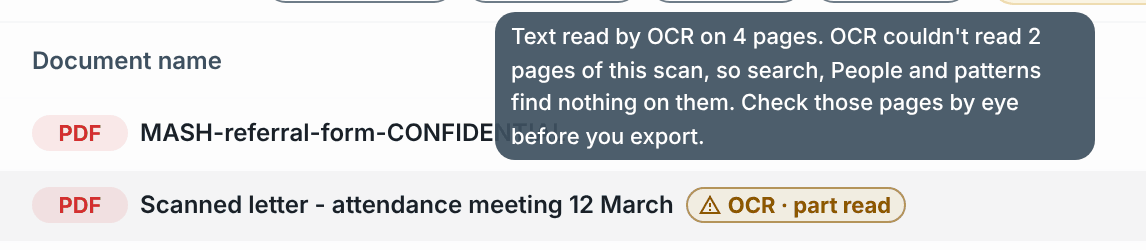
Search & Redact also warns you above its results, so a search that finds nothing in a part-read scan doesn't look like a clean result. Click Show files to see which documents and how many pages.

To deal with the unread pages, either check them by eye and use Area Redaction, or split the PDF into smaller parts and upload those. Scanned PDFs over 150 MB are not read at all, so split those before you upload.
On Professional
Scans are imported but not read. They open, export and can be redacted by drawing over them, but their words are not searchable. Search & Redact lists them as No text to search, such as a scan or a picture, with a line saying reading scanned PDFs and images comes with Professional Plus.

What goes out in the export
When you export a document that has redactions, every page is turned into an image and the black boxes are painted into the pixels. Nothing under a box survives, including the text OCR read. Pages with no redactions look the same as the original.
How many pages have been read
Open your account menu (your initial, top right) and choose Plan usage. Pages read from scans shows the pages read this month and from how many files. There is no limit, and deleting a file takes its pages off the count.
Example: a school SAR with scanned meeting letters
The office manager uploads the pupil's mailbox and a folder of scanned attendance letters into one project on Professional Plus.
In Documents, each letter shows an OCR pill. One long scan of the pupil file says OCR · part read.
In Search & Redact they search for a parent's home address and a member of staff's name. The matches in the letters sit alongside the matches in the emails, and are redacted in one go.
They open the part-read scan, read the unread pages by eye, and use Area Redaction on two handwritten notes.
They export. The redacted letters go out as images, with the redactions burnt in.
Related: Search & Redact, Area Redaction and People and identifiers.
Was this helpful?
Still need help? Ask the team