People and identifiers
Decide once about each person and identifier found in a project, and apply it to every approved document.
Last updated About 2 hours ago
People and identifiers lists everyone RedactBox found in a project. You decide once about each person, and the decision is carried out in every document. It also finds identifiers such as phone numbers and NHS numbers, with one decision for each kind.
Use it once your documents are approved in Triage. Hundreds of separate redactions become one decision per person, and everyone you leave in has a reason on record.
It only finds what it looks for. Always read the documents as well.
Opening it
Open a project, click Tools and choose People and identifiers. Back to documents in the top right takes you back.
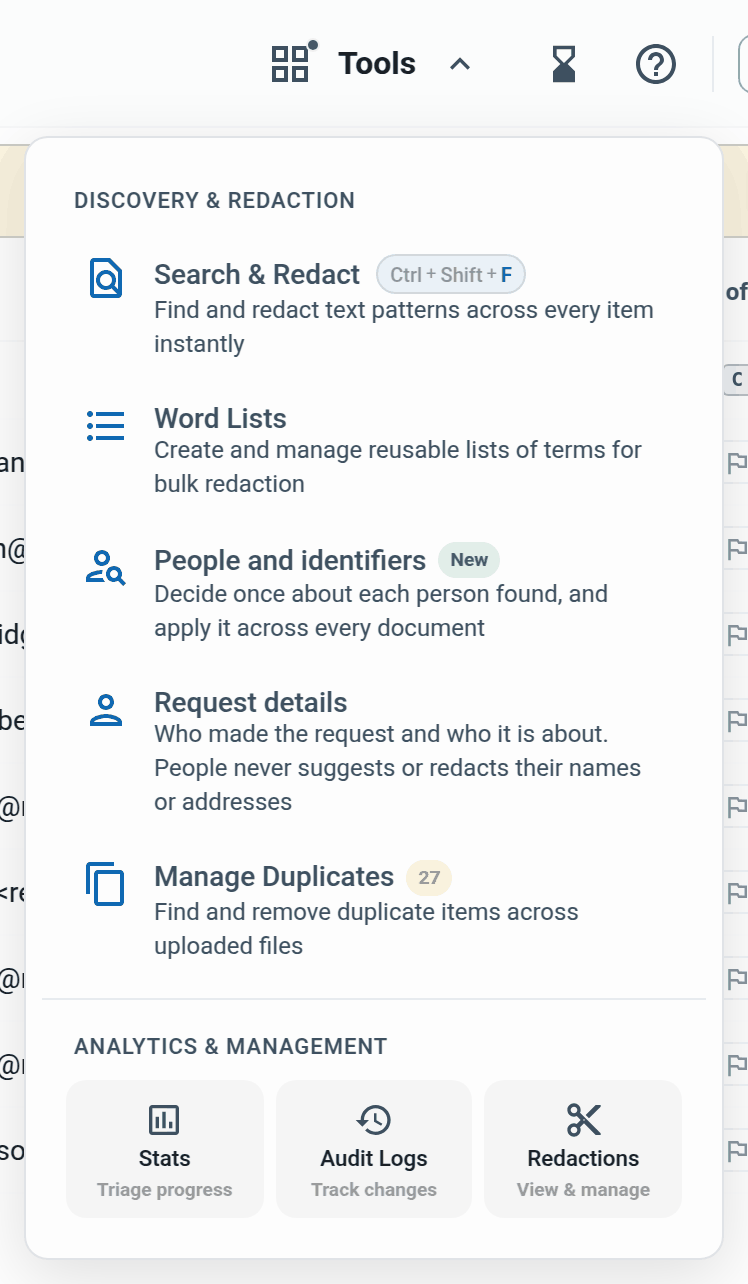
The first time, it scans the project, which takes a few minutes on a large one.
What it finds
People. Everyone who sent or received a message, and names in quoted messages, sign-offs and addresses written in the text.
Identifiers. Phone numbers, postcodes, NHS numbers, National Insurance numbers, credit card numbers and sort codes.
Someone named only in the wording of a message is not on the list, and attachments are not read. Once someone is on the list, redacting them reaches their name wherever it is written. Not looked for, at the foot of the left-hand list, names the rest, such as dates of birth. Use Search to Redact or a word list for those.
The screen
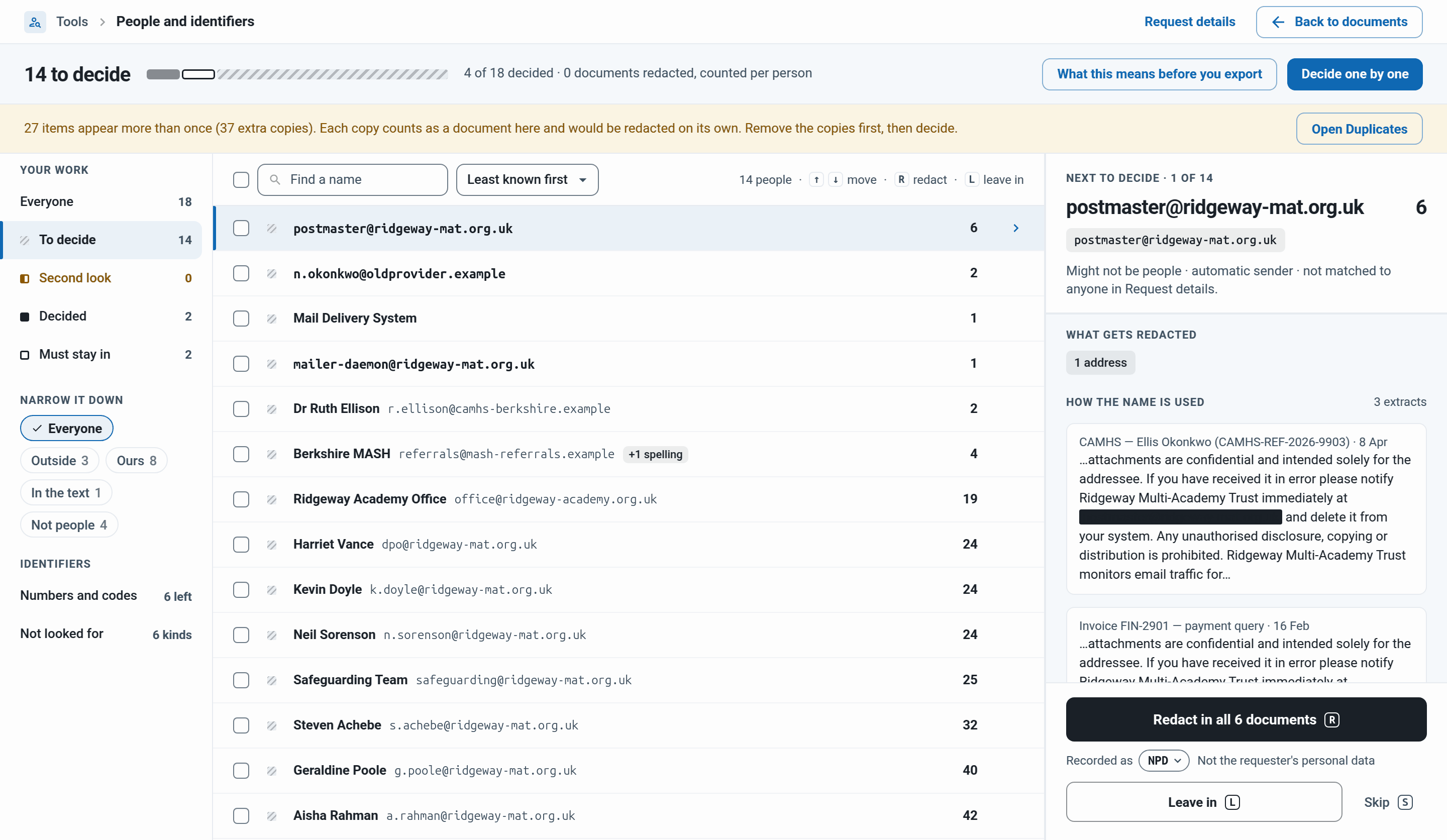
The work bar. How many are left, such as 14 to decide, with Decide one by one and What this means before you export.
Your work. Everyone, To decide, Second look, Decided and Must stay in. Outside, Ours, In the text and Not people narrow the list. Ours is people using your organisation's addresses.
The list. One row per person with the number of documents they are in. Click the number to list the documents and open one.
The details panel. Where the person was found, what gets redacted, extracts under How the name is used, and the decision.
If items appear more than once, a band above the list says so. Remove the copies first with Open Duplicates: each copy counts as a document and would be redacted on its own.
Deciding one by one
Click Decide one by one, or click a name. The person opens on the right.
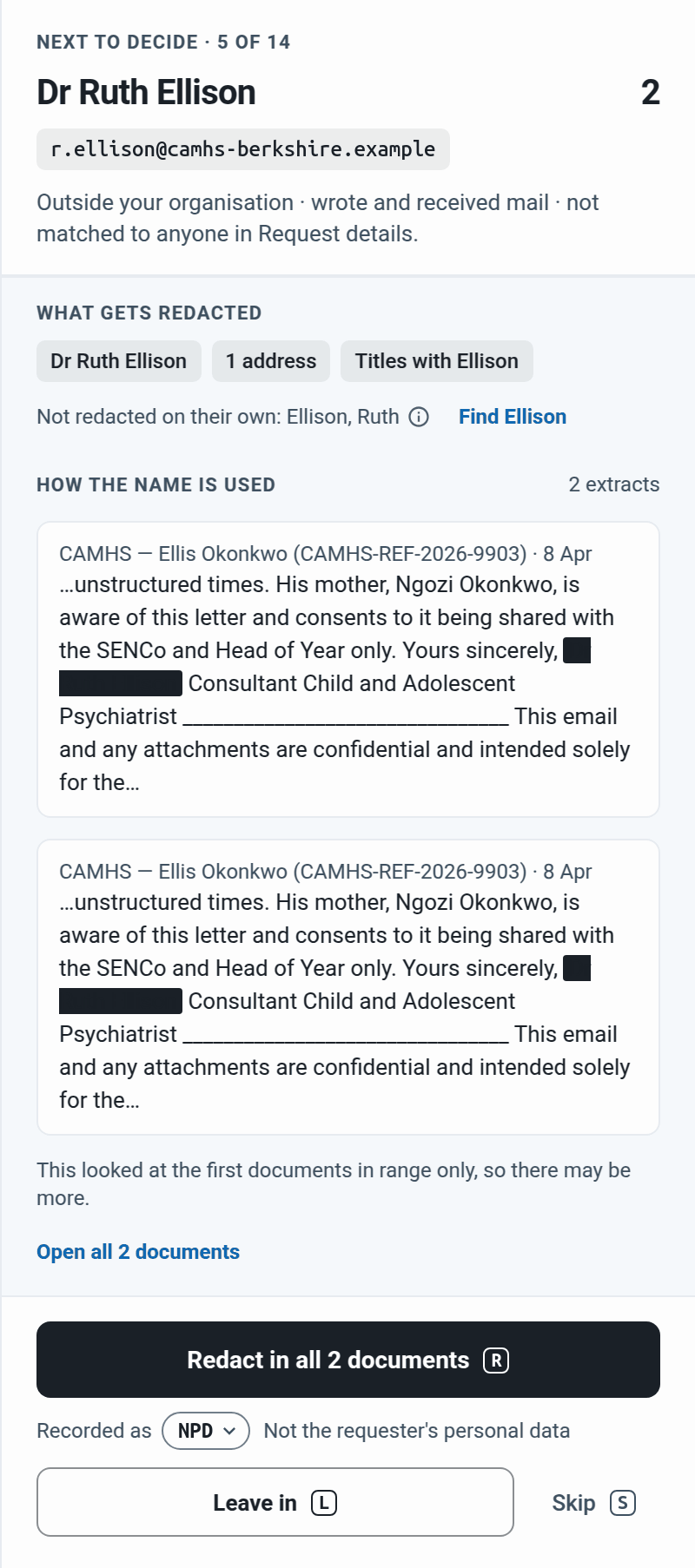
Read the extracts. Open all 2 documents lists every one.
Decide:
Redact in all 2 documents. Recorded as is the reason code for the Schedule of Redactions, NPD unless you change it. Clicking redacts straight away. Pressing R asks first, and a second R runs it.
Leave in (L). Type why it is staying in and press Enter. A reason is required.
Skip (S) moves on without deciding.
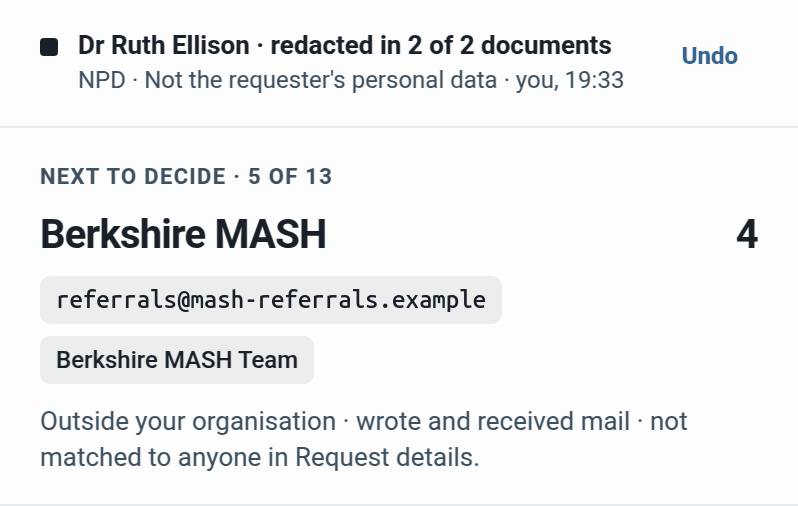
The next person opens straight away. A receipt stays at the top, such as Dr Ruth Ellison · redacted in 2 of 2 documents, with the reason code, who and when. Undo reverses it. Progress is in Tasks.
To change your mind about someone redacted, choose Leave in. Their redactions are removed, then the reason is recorded.
Several people at once
Tick people with their checkboxes, or press Space. Shift-click ticks a range. The panel becomes the run: who is in it (× takes someone out) and a question such as "Redact 2 names in up to 6 documents?". If anyone ticked is from your own organisation, an amber note says so.
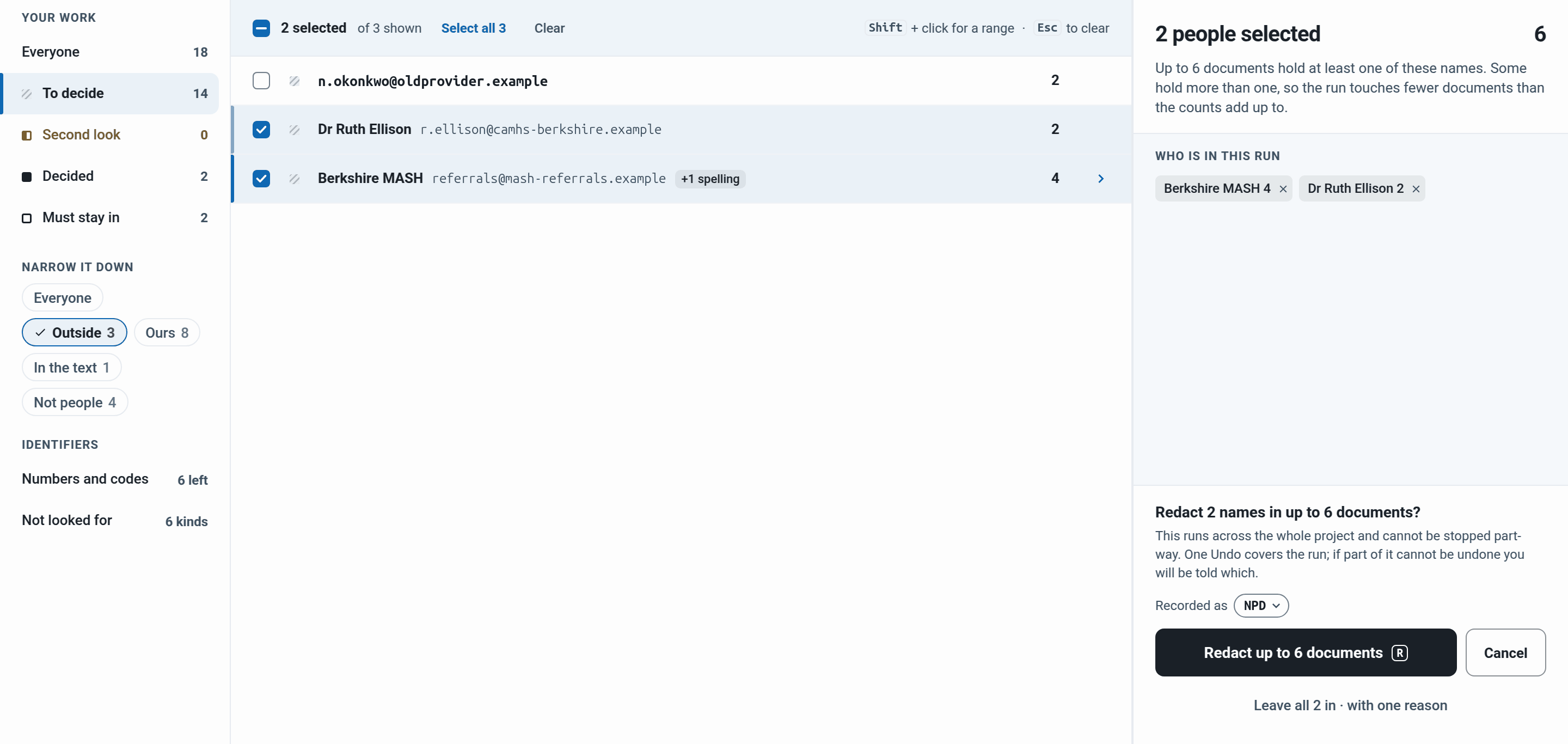
Click Redact up to 6 documents, or leave them all in with one reason. One Undo covers the run: Undo the last apply (2) on the work bar, or Undo on the receipt. It lasts until you redact or undo someone on their own, or reload the page.
What gets redacted for a person
What gets redacted shows only what a redaction writes:
The full name, including forms such as Ellison, Ruth and R. Ellison. A one-word name, or only a title such as Mrs Okonkwo, has no name chip: only the address is redacted.
Other spellings, such as 1 spelling, and every address.
Titles with the surname, such as Dr Ellison, when nobody else on the list could be meant. The chip reads Titles with Ellison. A team, such as Berkshire MASH, never gets one.
A surname or first name on its own is never redacted, because it often belongs to someone else. The panel says, for example, Not redacted on their own: Ellison, Ruth, and Find Ellison opens Search & Redact with the surname in the box. A row that is only an address has no such line.
When titles are held back
A title is redacted only when everyone on the list with that surname is being redacted. Otherwise the chip reads Titles with Ellison held. Hover or tap it to see why: someone with the surname must stay in, is left in or is not decided yet, or too many people share it.
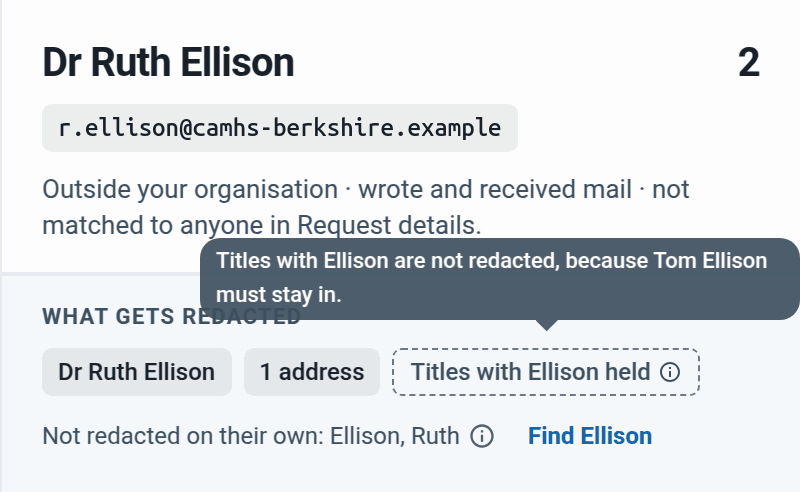
When you redact the last namesake holding them, the titles are redacted straight away and a message says Titles with Ellison redacted too. Leave a namesake in later and RedactBox takes those title redactions back out.
Must stay in
Request details names who made the request and who it is about. People never suggests or redacts their names or addresses. Open it from Request details at the top of the tool, or from the Tools menu. Only the project owner can change it.
Note: Search & Redact, word lists, text you select, boxes you draw and identifier runs can still cover them. Check before you export.
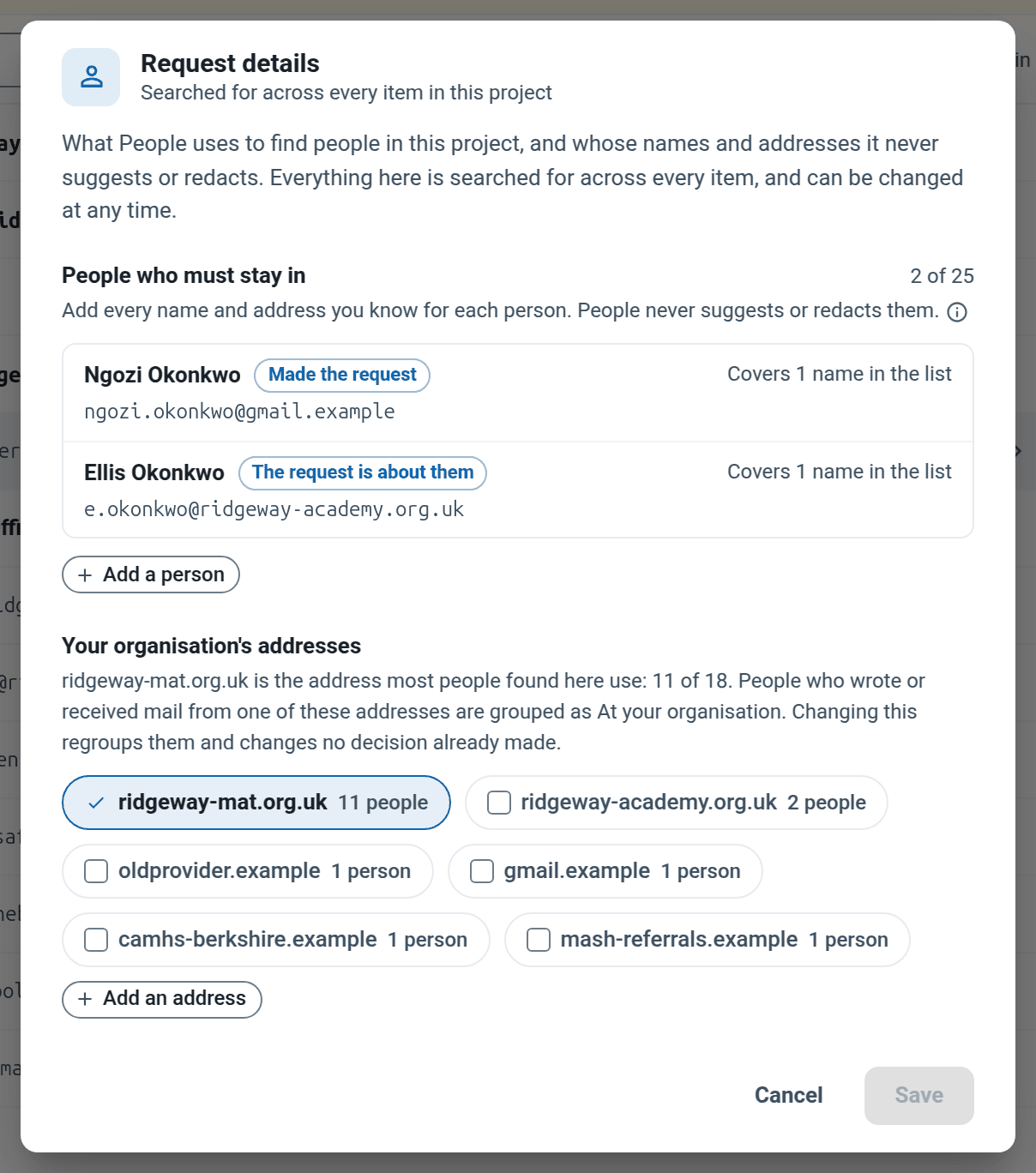
Give each person a role, every address and any other spelling. Under Your organisation's addresses, tick the addresses your own staff use. The people named are listed under Must stay in with nothing to decide, each row tagged with its role, such as made the request.
Second look
Second look lists people redacted in some documents but not all. Their figure is amber, such as 12 of 34, and the button reads Redact in the remaining 22. Click the figure and choose Still contains this name to see where. The work bar offers Apply to all for the whole list.
Identifiers
Click Numbers and codes and pick a kind, such as Phone numbers. Choose Redact everywhere or Leave in with a reason. Redact everywhere starts at once, its progress is in Tasks, and it can be undone.
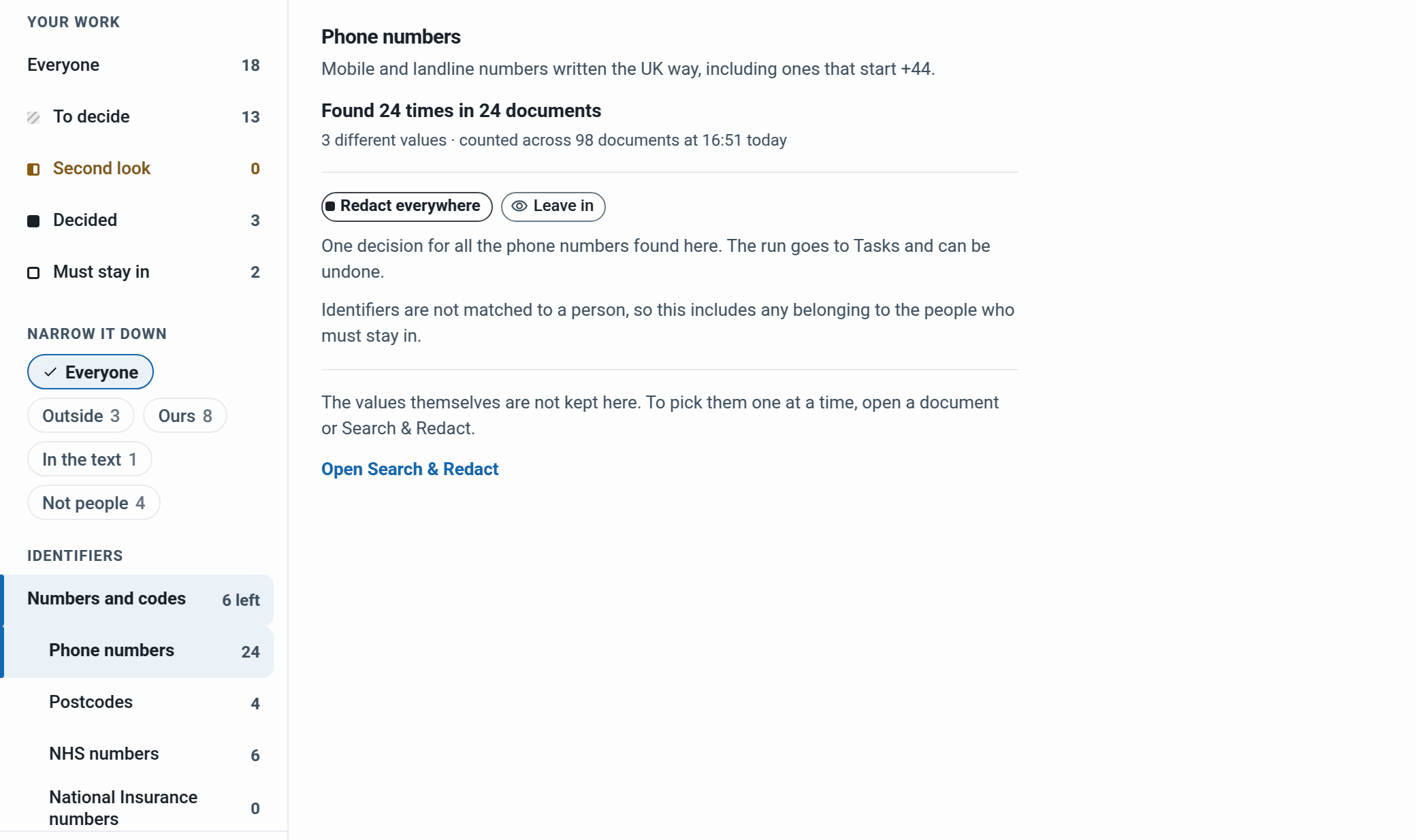
Not matched to a person. A run includes numbers belonging to the people who must stay in, such as the parent's own phone number.
One value at a time. Open Search & Redact opens it with that kind loaded.
NHS numbers. It checks the NHS check digit, but a few other ten-digit numbers can pass by chance.
Which documents a decision reaches
Decisions reach every document approved in Triage, not those waiting in Triage, flagged or trashed. After Scan everything, or if nothing was approved at the first scan, they reach every document, flagged and trashed ones included.
When more documents are approved, the tool scans again the next time the project owner opens it. People you redacted are redacted in the new documents too, and anyone new joins To decide.
Before you export
Click What this means before you export. It says what was looked at, where every person stands, and what is Still to do by hand. Copy the record to keep with your file.
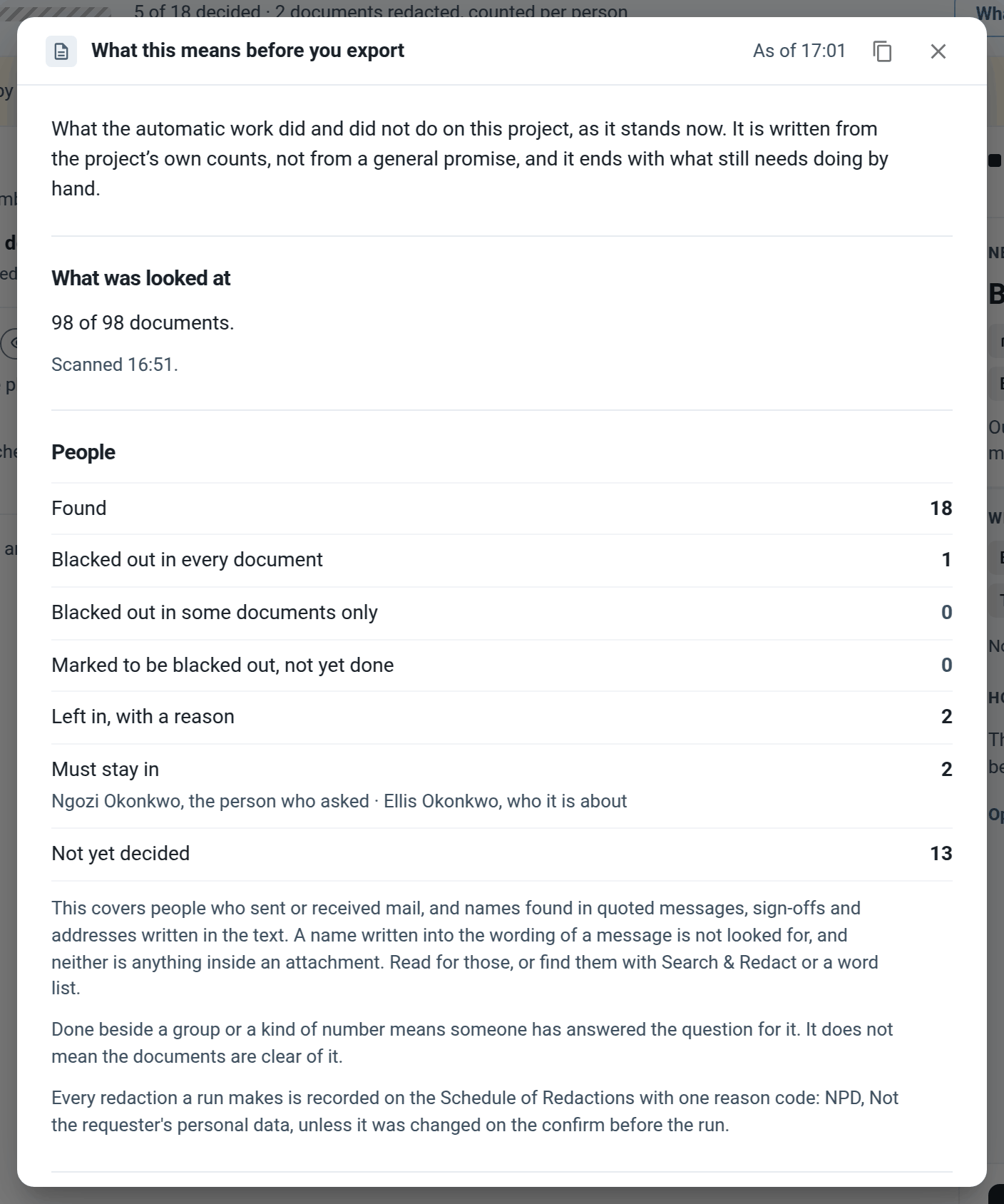
Decided does not mean the documents are clear. The same decisions show in Suggested redactions in a document and Audit Logs.
Example: a parent's SAR at a school
Ngozi Okonkwo has asked for her son Ellis's records.
In Request details, add Ngozi as Made the request and Ellis as The request is about them, with their addresses. Tick the trust's address under Your organisation's addresses.
Open People and identifiers. If a band says items appear more than once, remove the copies first.
Click Decide one by one. Fiona Brady, Head of Year 9, wrote in her school role. Press L and give the reason "Staff member acting in her school role". Do the same for other staff.
Leo Bennett is another pupil. His panel says Titles with Bennett held, because his father, Mark Bennett, also wrote and is not decided yet. Redact Leo, then Mark. A message says Titles with Bennett redacted too.
Click Find Bennett and redact where the surname on its own means the Bennetts.
Press Outside, tick the other pupils, parents and outside professionals, and redact them in one run.
Ngozi's own number is among the phone numbers, so leave that kind in and redact other families' numbers in Search & Redact.
Check Second look is empty, then work through Still to do by hand.