Choosing what goes to Redact
Decide whether uploaded items wait in Triage for your approval or go straight to Redact, and change your mind later from the dashboard.
Last updated About 2 hours ago
Every project has a scope setting. It decides what happens to an item the moment it is uploaded: does it wait in Triage until you approve it, or does it go straight to Redact? You choose when you create the project, and you can change it later from the dashboard.
Scope only controls where new items start. It never deletes anything, and you can always move items in or out of Redact afterwards in Triage.
The two options
I'll choose item by item. Nothing is included until you approve it in Triage. This is the default, and the right choice for a response you are reviewing closely, such as a subject access request where only some of the mailbox is relevant.
Everything I upload. All items go straight to Redact, and you use Triage to remove anything that does not belong. Pick this when you are applying rules in bulk, for example sweeping a word list across a whole export, or when everything you upload is already known to be in scope.
Choosing when you create a project
Click New project on your dashboard. The scope choice sits under the project name and due date.
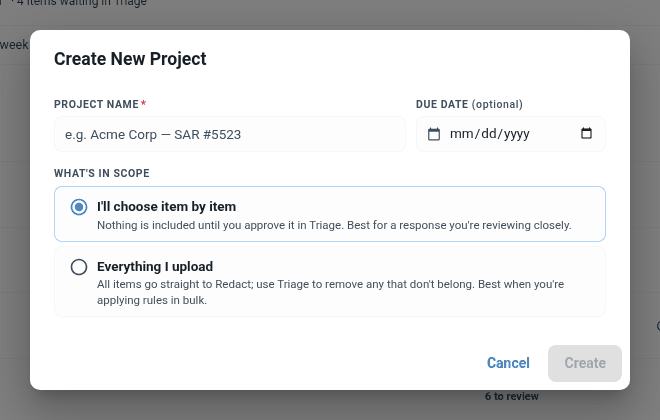
Give the project a name
Under What's in scope, pick I'll choose item by item or Everything I upload
Click Create
If you are not sure, leave the default. Switching later is one dialogue, and nothing you upload in the meantime is lost.
Changing it later
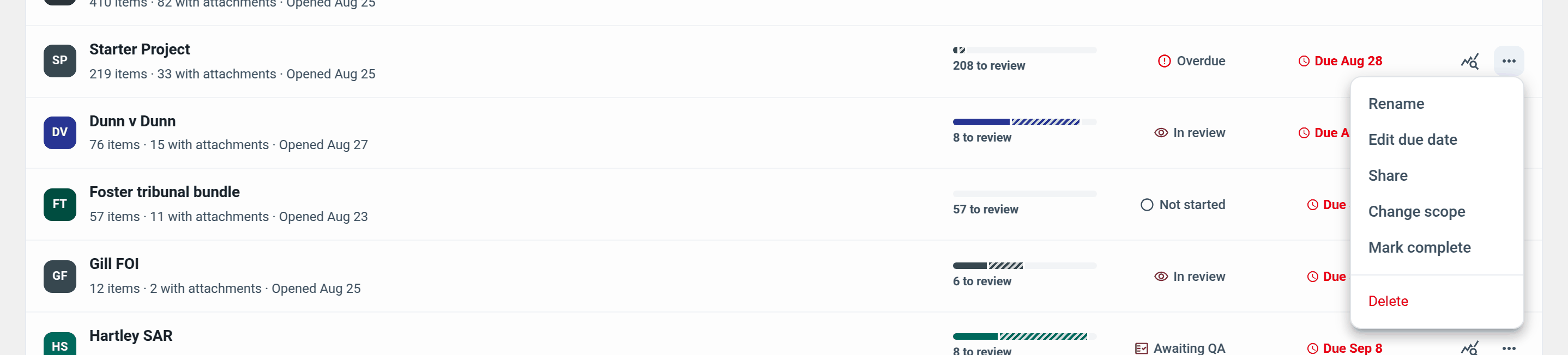
On the dashboard, open the actions menu (the three dots) on the project row and choose Change scope.
The dialogue shows the current setting. Save stays greyed out until you pick the other option.
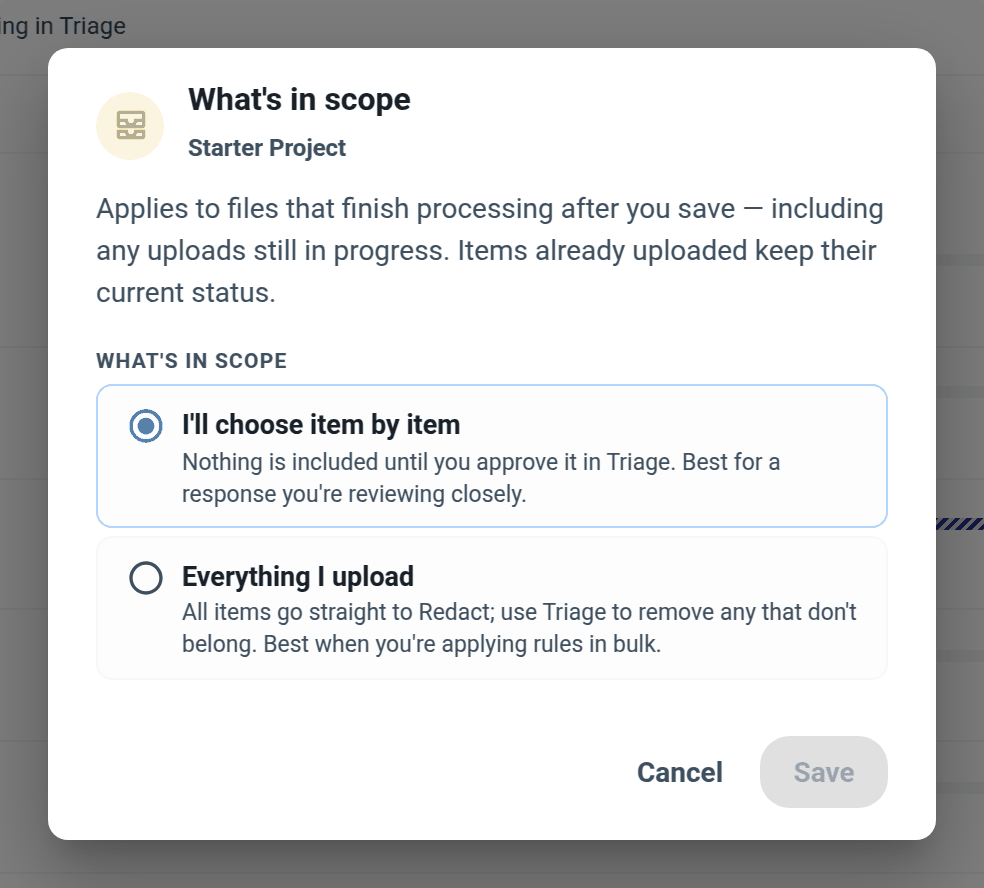
Only the project owner can change the scope. Colleagues you have shared the project with can see the setting but not alter it. The new setting applies to files that finish processing after you save, including any uploads still in progress. Items already in the project keep their current status.
Switching to Everything I upload
A warning reminds you that from now on there is no triage step for new uploads. If the project already has untriaged items, you also get a checkbox: Also send the items already uploaded to Redact, with the number in the label.
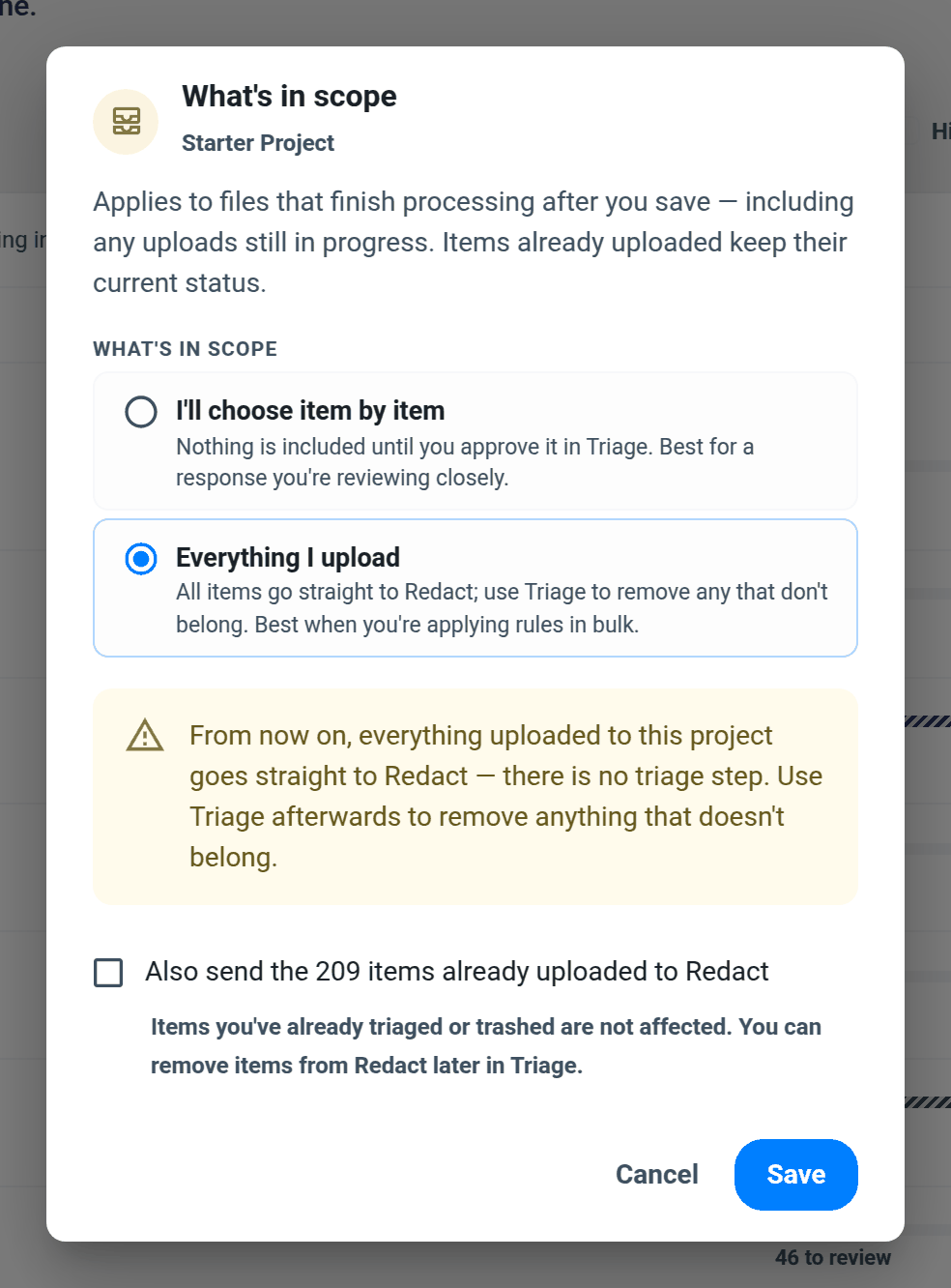
The checkbox is off by default. Ticking it approves every item that is still waiting in Triage in one go. Items you have already approved or trashed are not touched, and you can remove any of them from Redact later in Triage.
Switching back to item by item
Items already in Redact stay there. Only items from files that finish processing after you save wait in Triage. If some of what is already in Redact should not be, use Triage to remove it.
Example: a word-list sweep across a full export
A council receives a freedom of information request for all correspondence about a road scheme. The export has already been filtered to the relevant folder, so every message is in scope, and the job is to remove the names of members of the public before release.
Create the project and choose Everything I upload
Upload the export. Every message lands in Redact with no triage step
Use Word Lists to redact the names in bulk
Open Triage and remove the handful of internal messages that turned up in the folder by mistake
Export
For the opposite case, a parent's subject access request against a whole staff mailbox, keep I'll choose item by item. Most of the mailbox is not about that child, and approving items one at a time in Triage is the review.