Possibly missed redactions
Find approved items with nothing redacted that still contain a term you have redacted elsewhere in the project, before you export.
Last updated About 2 hours ago
Possibly missed redactions lists approved items that have nothing redacted on them but contain a word or phrase you have redacted elsewhere in the project. Use it before you export, as a last check that a name or reference redacted across the rest of the project has not slipped through in one item.
It is a prompt to look, not a verdict. Many items on the list will be fine, and the check cannot see everything (see What the check cannot see).
Running the check
Open your project, click Tools in the header, then Stats.
Scroll to Possibly missed redactions.
Click Check for missed redactions. This takes a few seconds on most projects.

While it runs, the panel shows how far it has got ("Checking 40 of 137 items"). On a large project it can take a few minutes. You can leave the page, the check keeps running, and the results are waiting when you come back.
After the first check, RedactBox checks again on its own whenever items are approved or redactions change, so the list stays up to date.
Working through the list
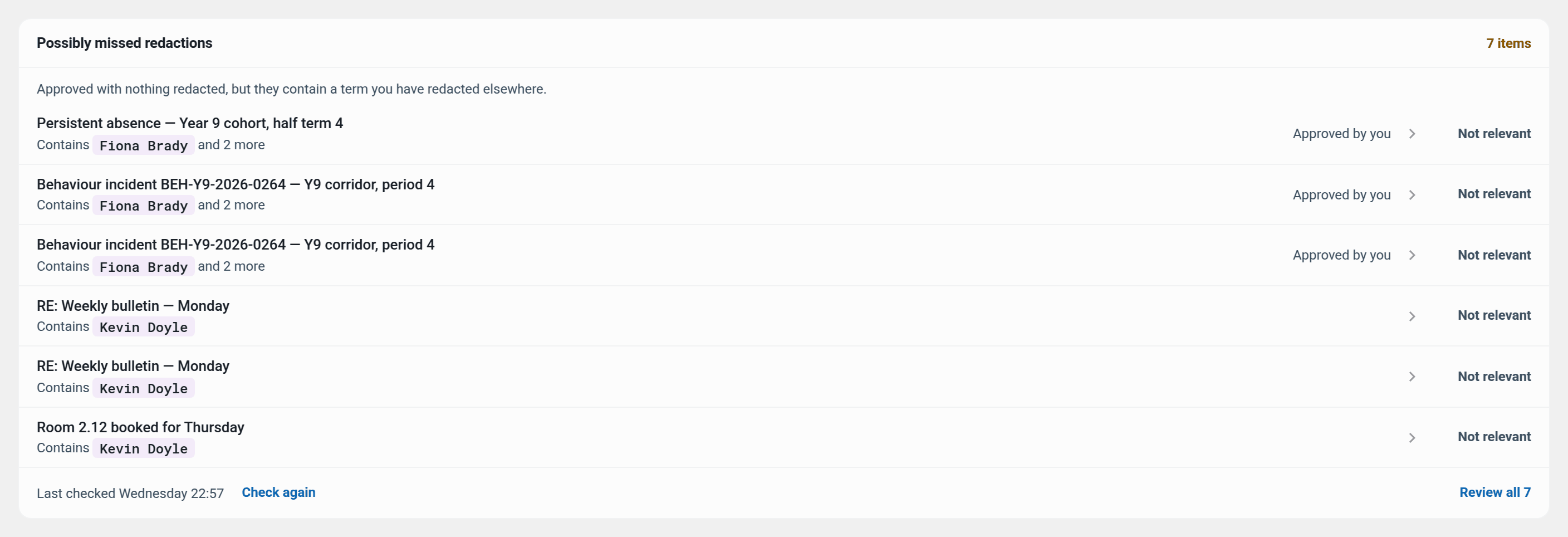
Each row shows the item, the term it contains, and who approved it. For each one:
Click the row to open the item and redact what should have been redacted. As soon as the item has a redaction, it drops off the list.
Click Not relevant if the term is fine in this item, for example a colleague's name in a message where it does not need redacting. The item is put away and the decision is recorded in Audit Logs. Only owners and editors can do this.
Review all opens the Redactions Manager, where you can search every redaction in the project. Check again runs a fresh check at any time.
If you mark an item Not relevant and it later turns out to contain a different term you have since redacted, it comes back on the list.
Terms follow the Hide terms setting on Stats, so you can mask them while sharing your screen.
What the check looks for
An item is listed only when all of these are true:
It is approved and converted, and has no redactions at all.
It contains, as a whole word, a term you have redacted elsewhere in the project. Capitals do not matter.
The terms checked are the ones you have redacted in bulk (Search & Redact, Word Lists, People and identifiers) or at least three times by hand, up to the 50 most redacted. Very short terms (under four characters) and common words are left out, because they would list almost every item.
What the check cannot see
Items that already have a redaction. If an item has one redaction but misses a second mention, it is not listed. Use Search & Redact to find every remaining mention of a term.
Terms redacted only once or twice by hand.
Scanned pages and images with no text, and attachments. Check these by eye, and use Area Redaction where needed.
Flagged, trashed or untriaged items. They are not going in the export.
If the panel says Nothing looks missed., the check covered every term and found nothing. If it says the last check did not cover every term, click Check again to finish it. If it says The last check didn't finish., click Try again.
Tip: Exports have their own safety net. If text you redacted is still visible on a page at export, that document is held back and listed for you to fix, rather than exported with the text showing.
Example: a solicitor's disclosure
You have redacted a former employee's name across 300 items with Search & Redact, then approved the remaining items in Triage.
Before exporting, you open Stats and click Check for missed redactions.
Three items are listed. You open the first two and find the name in a quoted reply that was never redacted. You redact it in both.
The third is about a different person who shares the name. You click Not relevant, and the decision is logged.
The panel now reads Nothing looks missed. You export.