Licences for teams
Buy licences for several people on one invoice, give them to colleagues by email address, and manage the team.
Last updated About 2 hours ago
Team licences let one organisation pay for several people on a single invoice. You choose how many licences you need, pay once a month by card, and assign each licence to a colleague by email address. Everyone with a licence gets everything in Professional.
Colleagues who only need to look at shared work do not need a licence. Add them to a project as a Viewer instead (see Sharing projects and collaborating).
Where to find it
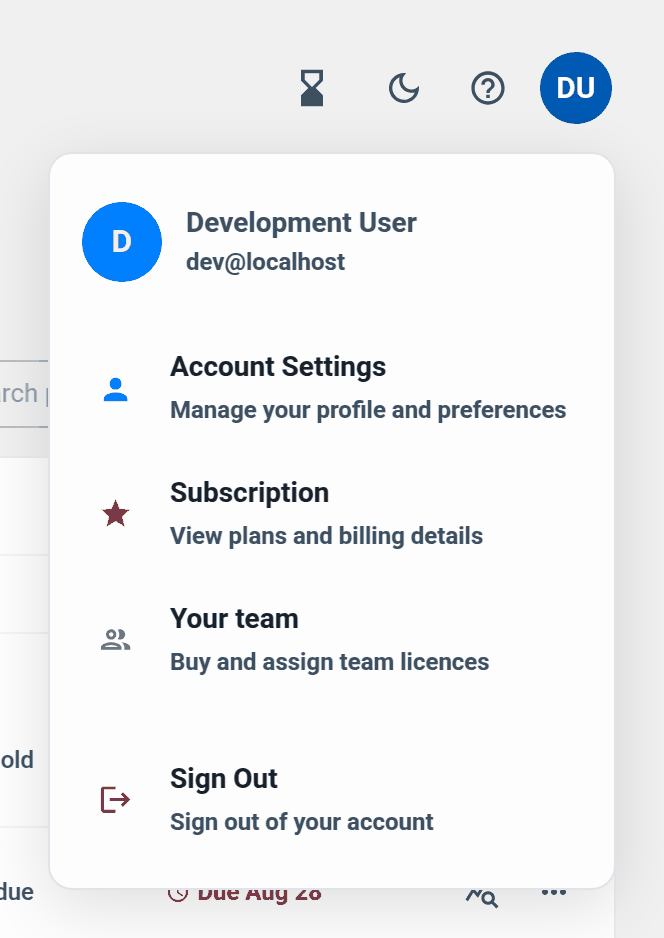
Team licences are managed on the website, not inside a project. Sign in at redactbox.co.uk/account/team, or open the account menu (top right) and choose Your team. In the console the same link is in the user menu next to Subscription.
Setting up your team
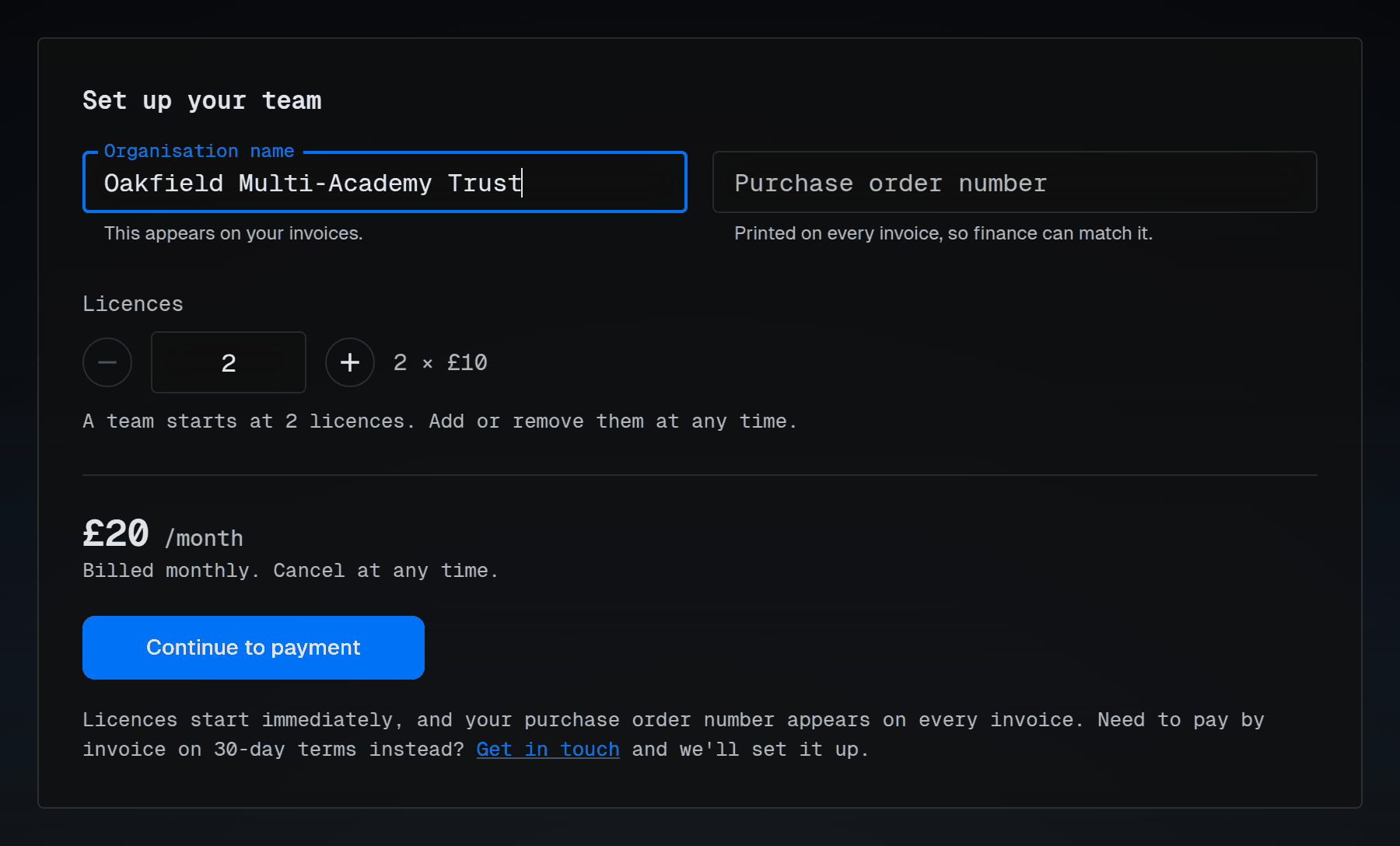
Go to redactbox.co.uk/teams. If you have not set a team up yet, Your team takes you there too.
Enter your Organisation name. It appears on every invoice.
Add a Purchase order number if your finance team needs one. It is optional and goes on every invoice.
Choose how many licences you need, one for each person who will redact. The minimum is 2. You can change the number later.
Click Continue to payment and pay by card. One payment covers the whole team and renews monthly.
After payment you land on Your team. The person who paid manages the team.
Tip: If your organisation needs to pay by bank transfer against an invoice, use the chat bubble on the Teams page and we will set it up for you.
Giving a colleague a licence
On Your team, find the People section.
Type your colleague's email address and click Give a licence.
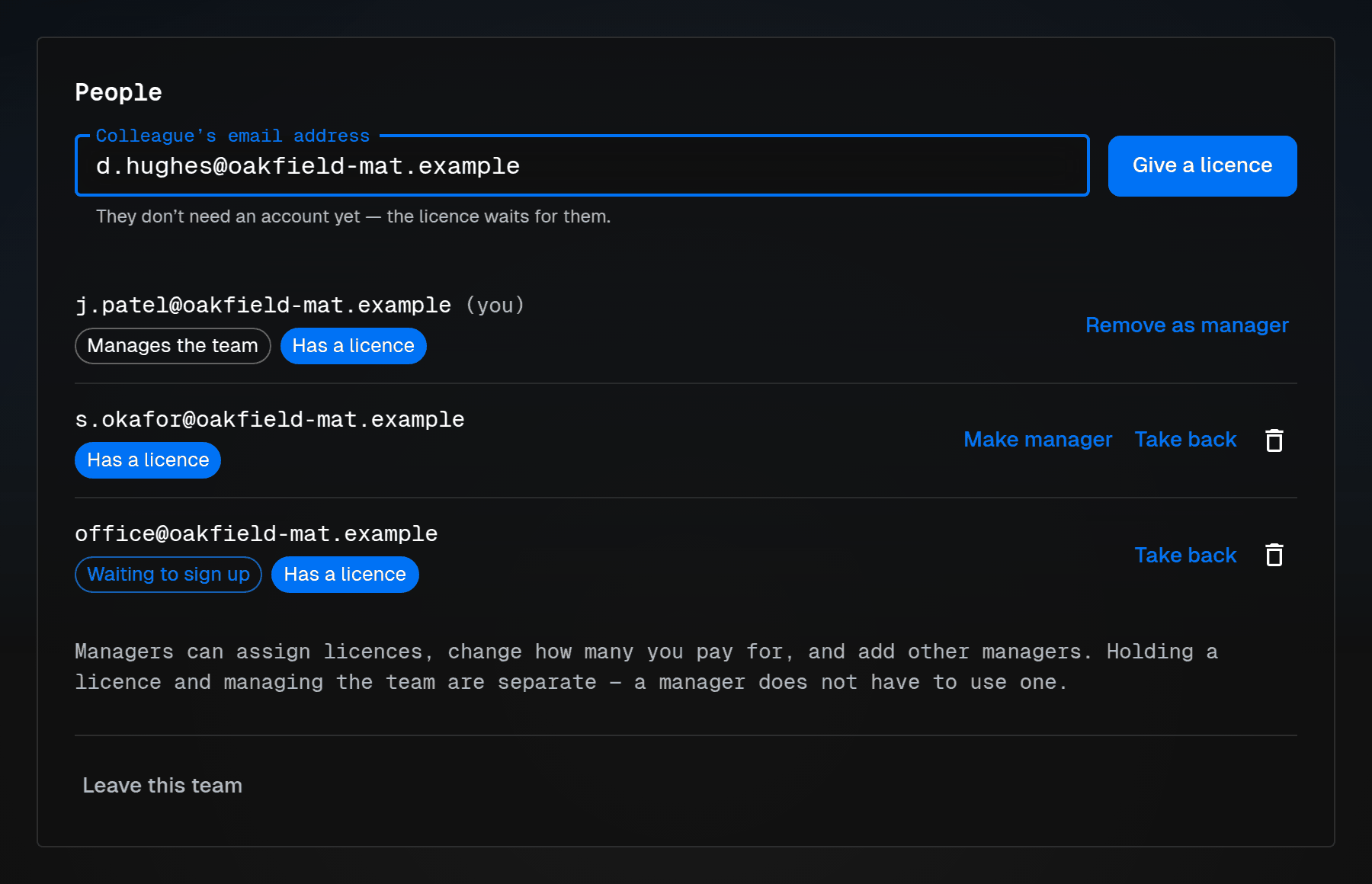
That is all you need to do. Your colleague gets an email telling them they have a licence from your organisation, with a link to sign in.
They do not need an account yet. The licence waits for them. Until they sign up they show as Waiting to sign up in your list.
If they already have a RedactBox account, the licence activates the next time they sign in. Nothing to accept.
Use the address they sign in with. A licence given to a different address will not reach them.
Managing the team
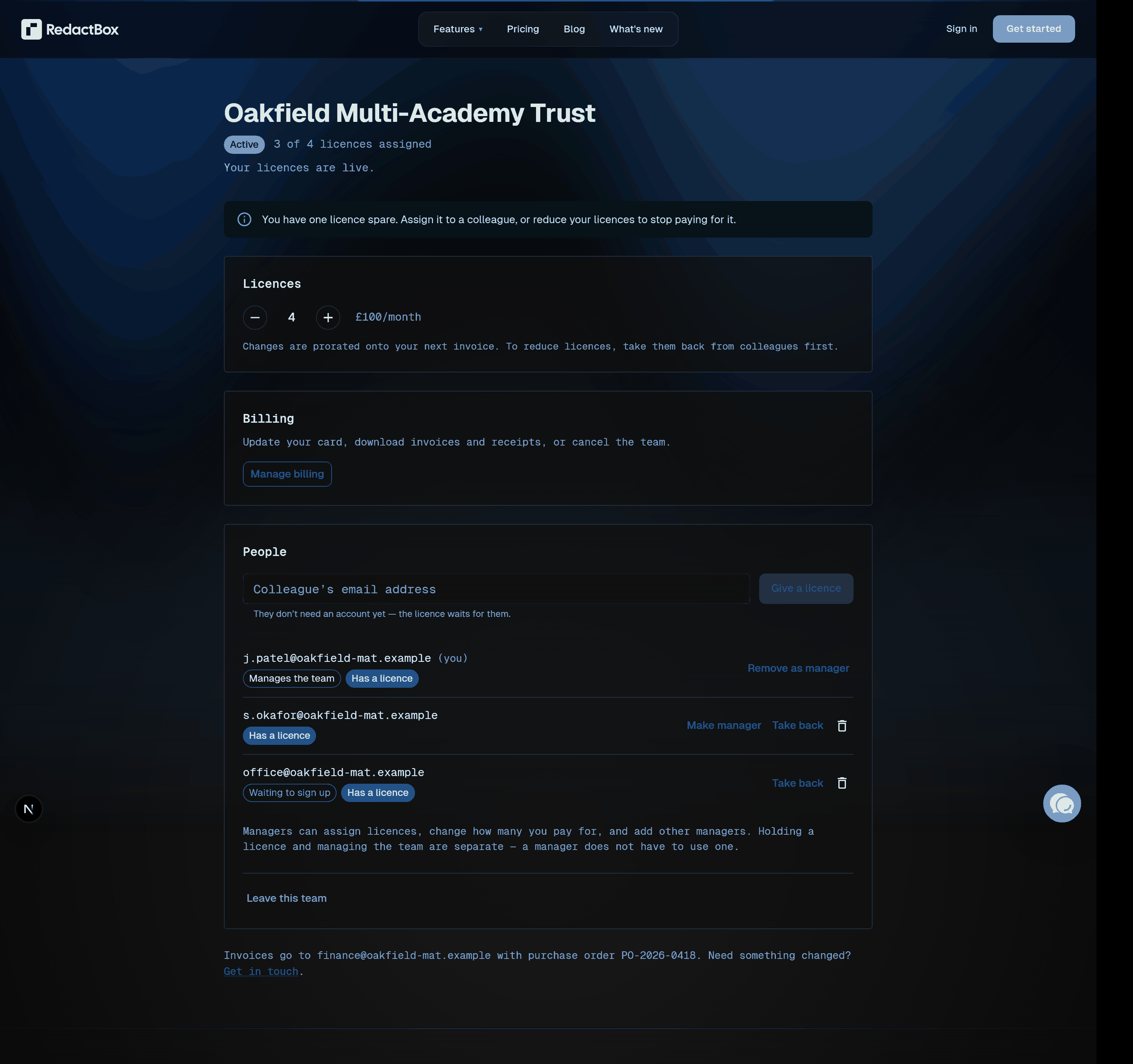
The team manager sees three sections on Your team.
Licences. Change how many you pay for with the plus and minus buttons, then Save. Changes are prorated onto your next invoice. To reduce the number, take licences back from colleagues first.
Billing. Manage billing opens the team's billing portal to update the card, download invoices and receipts, or cancel the team.
People. Everyone in the team, with Has a licence or No licence against each name. Take a licence back or remove someone from the team here. Their access ends straight away and the licence is free to give to someone else.
Working together on projects
A licence gives someone Professional on their own account. It does not put them into your projects automatically. To work on the same project, open it and click Share, then add them as an Editor. Editors need Professional, and a team licence counts.
See Sharing projects and collaborating for roles, transferring ownership and what everyone can see.
If you were given a licence
You will see your organisation and the other members on Your team, but only the manager can change licences or billing. If you were added by mistake, you can leave the team from the same page. Leaving removes your licence.
Example: a school SAR
The Data Protection Lead sets up a team of 3 licences and enters the trust's PO number.
They give licences to the office manager and a deputy head by email. Neither has used RedactBox before.
Both get the email, sign up with their school address, and are on Professional as soon as they sign in.
The lead uploads the mailbox export, shares the project with both as Editors, and the three of them split the redaction between them.
When the deadline has passed, the lead takes back one licence and reduces the team to 2.