Audit Logs
See every decision, redaction and export in a project, and download the Schedule of Redactions for the requester.
Last updated About 2 hours ago
Audit Logs is the project's record of what happened and why. It lists every decision, redaction and export as it happens, and it shows where the project stands now. It is also where you download the Schedule of Redactions, the file you give the requester to explain what was blacked out.
Use it when you need to account for the work: before you send a response, when a requester challenges it, or when the ICO asks how a request was handled.
Audit Logs only reads. Nothing you do in it changes a document. To remove or edit redactions, use the Redactions Manager.
Opening Audit Logs
Open a project, click Tools in the header, and choose Audit Logs under Analytics & Management.
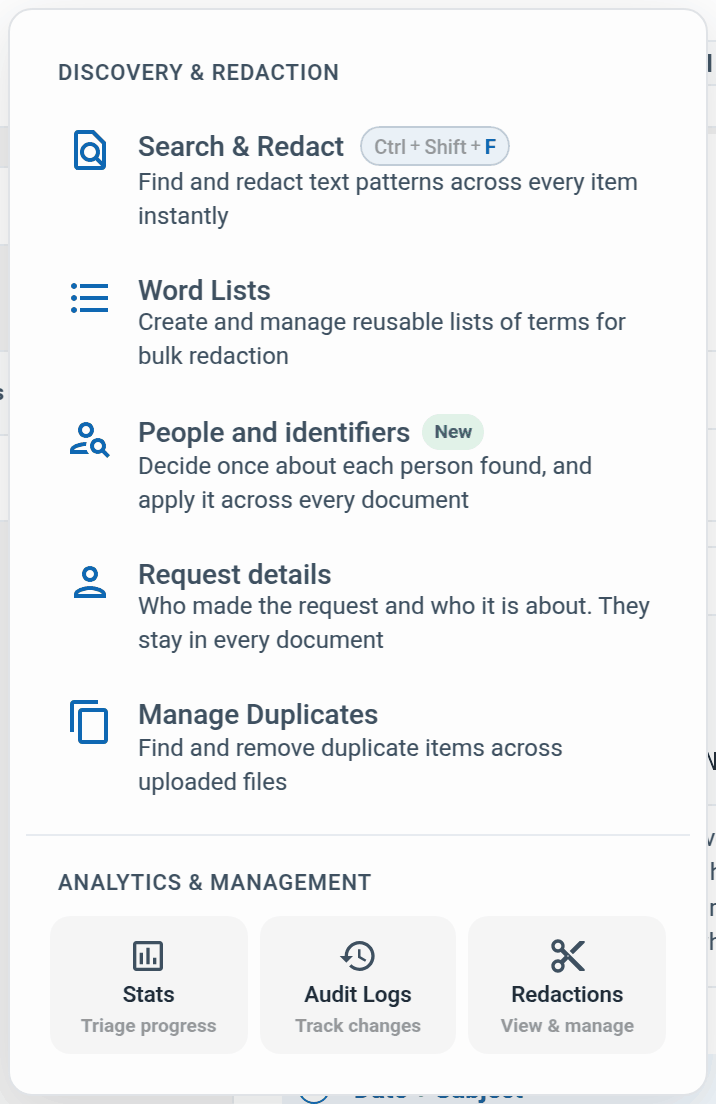
It opens over your documents. Back to documents in the top right takes you back to where you were. Everyone you share the project with sees the same record.
The Timeline
The Timeline tab lists every event, newest first, one line each: when, who, and what happened. Events sit under a day heading such as Today or Yesterday, and the time is only shown when it
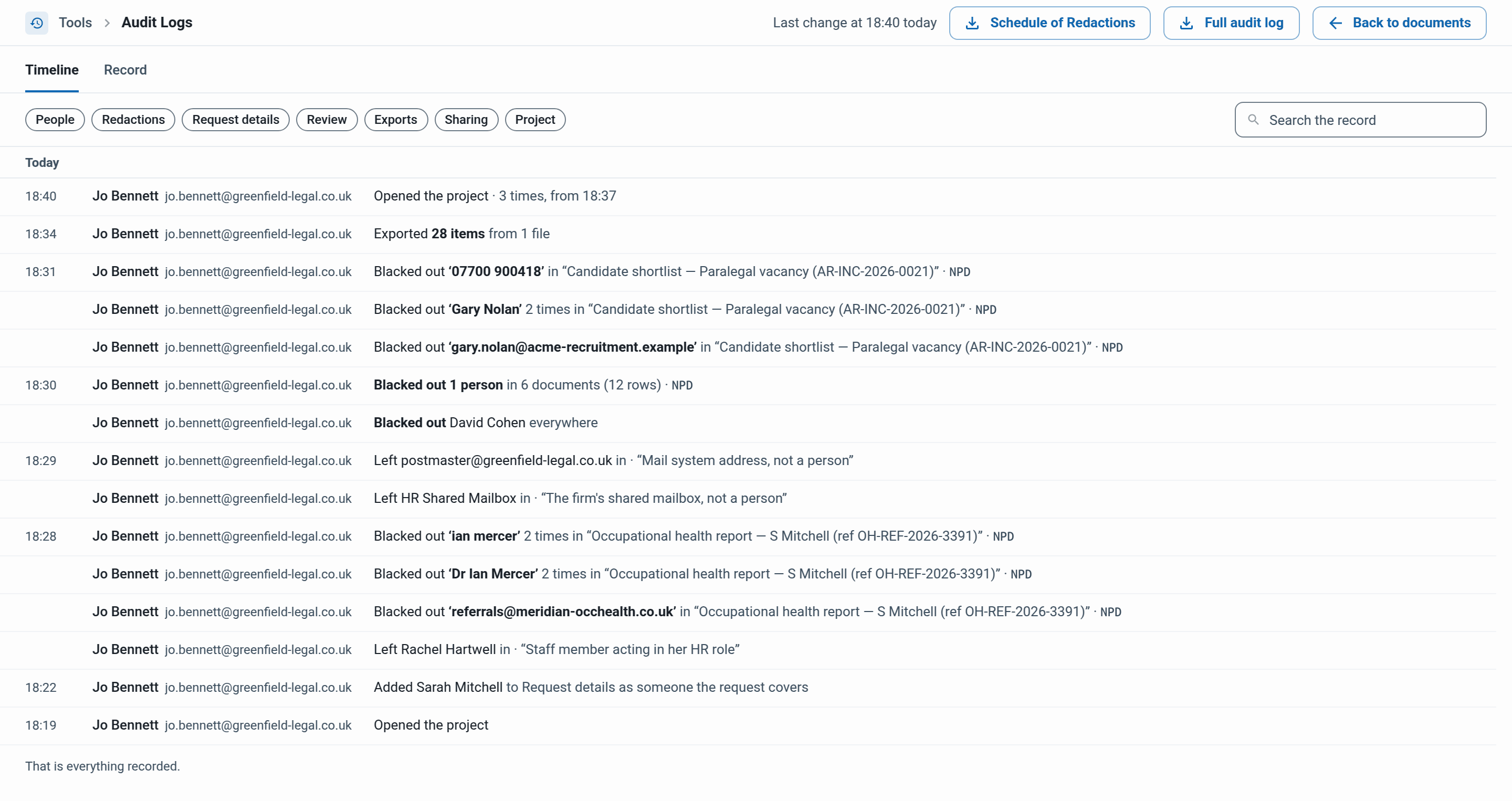
Who. The name and email address of the person who did it.
What. A plain sentence, such as "Left Rachel Hartwell in" or "Blacked out 1 person in 6 documents". The reason code follows, for example NPD, and any note you typed is shown in quotes. Hover over a code to see what it stands for.
Repeats. Opening the project is recorded every time. A run of opens by the same person on the same day is shown once, with a count.
Click a person's name in a line to open them in People and identifiers.
Narrowing it down
The buttons above the list filter by kind: People, Redactions, Request details, Review, Exports, Sharing and Project. Press one or more to see only those. With none pressed you see everything, and Show everything clears the buttons and the search together.
Search the record finds names, redacted values, document titles and notes. It searches what happened, not who did it. Press Escape to empty the box.
The list loads in pages. Show earlier at the bottom loads older events. When you reach the start of the project it says That is everything recorded.
The Record
The Record tab shows where the project stands now, rather than how it got there. The header shows the time it was drawn up.
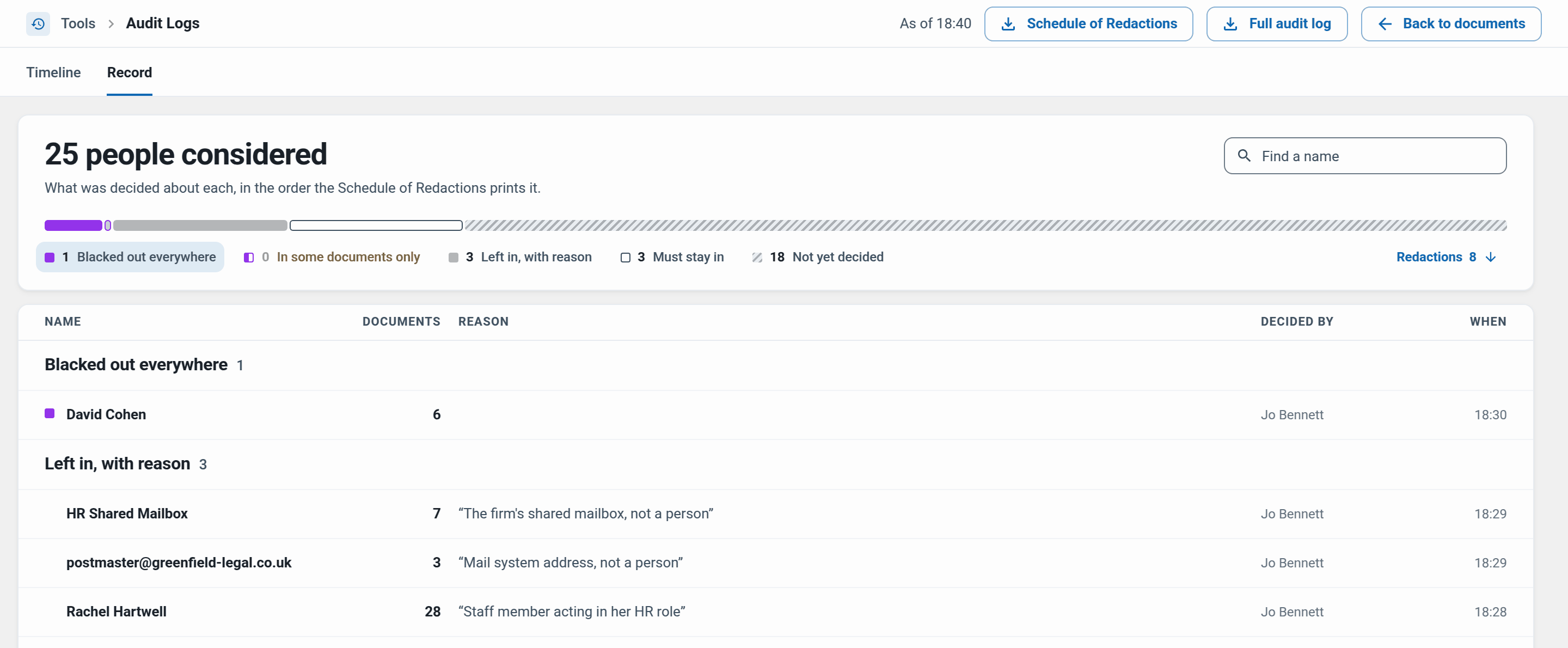
The top card counts everyone the scan considered and splits them into groups. Click a group under the bar to jump to it, or type in Find a name.
Blacked out everywhere. Decided and redacted in every document they appear in.
Blacked out in some documents only. Redacted, but some documents still contain them. The group says how many.
Marked to be blacked out, not yet applied. Decided, but the redactions have not been written. A notice at the top says so, with Show them.
Left in, with reason. Kept, with the reason given at the time.
Must stay in. People named in Request details, such as the requester.
Not yet decided. Found by the scan, with no decision yet.
Each row shows how many documents the person is in, the reason, who decided and when. Groups shown in amber are the ones to deal with before you export.
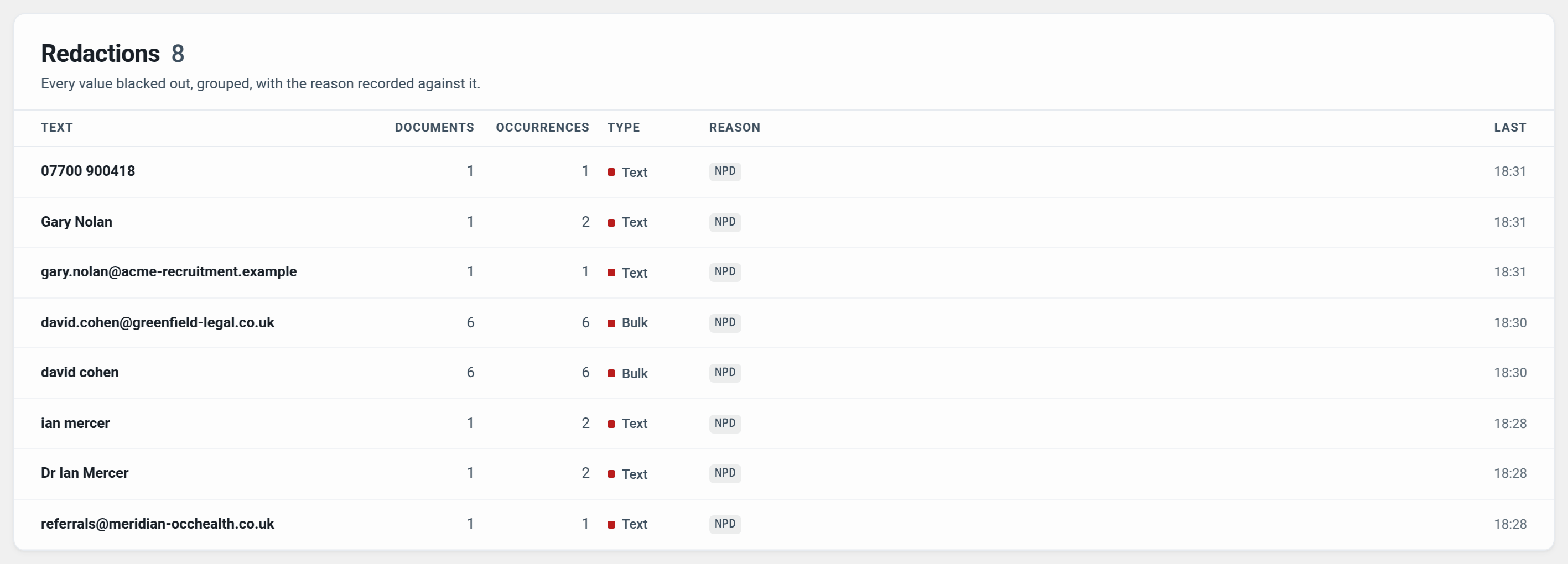
Below the people is the Redactions sheet: every value blacked out, grouped, with how many documents and places it covers, whether it was text, an area or a bulk run, the reason, and when it was last applied. The Redactions link beside the legend jumps straight to it.
The two downloads
Both buttons sit in the top right of Audit Logs. They are different files for different readers, and the line at the bottom of the screen says so.
Schedule of Redactions, for the requester. What was blacked out and why, grouped by reason code, with no redacted text. It covers every item in the project.
Full audit log, for your own records. Every redaction with the text that was covered, the item's sender and recipients, the reason, the comment and who did it. Only owners and editors see this button. The file name says it contains redacted text, and each download is recorded on the Timeline.
Tip: Never send the full audit log to a requester. It lists exactly what you blacked out.
What is in the Schedule of Redactions
The Schedule is a CSV file that opens in Excel. It has three parts.
A header with when it was generated, the total number of redactions and how many items they cover.
Summary by reason code: each code, what it means, and how many redactions rely on it. A redaction with two codes counts under both. Redactions with no code are listed as No reason code recorded.
Schedule: one row per redaction, with the reason code and what it means, the item subject and date, the page where known, your note, and when it was redacted.
It never contains the covered text or the name of the person who redacted it. If a note repeats something you redacted, the Schedule withholds the note. A subject line that contains a redacted value is masked in the same way.
The Schedule in your export
When you export, the Schedule of Redactions goes inside the ZIP for you. In Export, the Audit trail section at the bottom of the export plan has a Schedule of Redactions box. It is ticked by default.
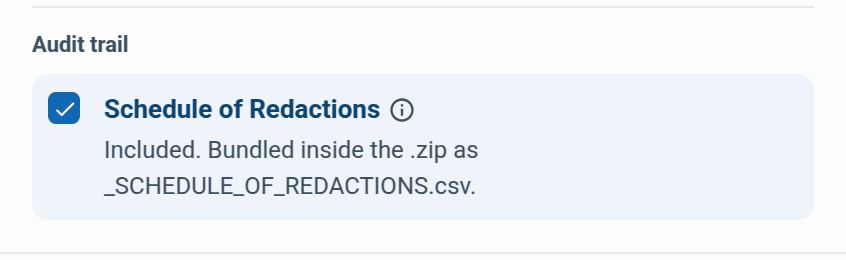
With it ticked, What's inside shows _SCHEDULE_OF_REDACTIONS.csv beside _EXPORT_SUMMARY.txt. The underscore keeps both at the top of the folder once it is unzipped.
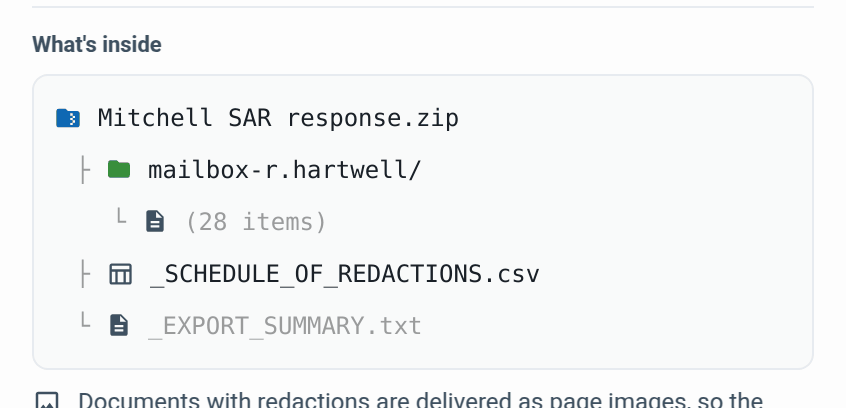
It covers the export, not the whole project. The copy in the ZIP lists the redactions in the items you exported. The download in Audit Logs covers every item.
It is fixed when the export starts. Redactions made afterwards are not in it. Export again to include them.
If it could not be included,
_EXPORT_SUMMARY.txtsays so and gives the reason. The export is still delivered. Download the export from Tasks and use Download separately on the message that appears to get the Schedule on its own.
If a download will not start
Very large projects. Past 200,000 redactions the Schedule cannot be built in one go from Audit Logs. The message says: "This project has too many redactions to build the Schedule in one go. Export the project: its Schedule is generated in the background." Use the copy in the export ZIP.
Someone else is downloading. Only a couple of Schedules are built at once. If you see "The Schedule is being built for someone else right now. Try again in a moment.", wait a few seconds and click again.
Example: answering a challenge to a SAR response
A former employee's solicitor writes a month after the response went out. They want to know why some names were withheld and who decided.
Open the project, then Tools and Audit Logs.
On the Record tab, check the groups. Everyone blacked out is listed, and everyone left in has the reason recorded at the time.
On the Timeline, press People and search for a name to see who made each decision and when.
Download the Schedule of Redactions and send it with your reply. It explains every redaction by reason code without revealing what was covered.
Download the Full audit log for your own file. Keep it with your records and do not send it.
To change a redaction after the review, use the Redactions Manager. For the export itself, see Exporting Items.