2. Redacting Items
Redact your triaged items.
Last updated About 2 months ago
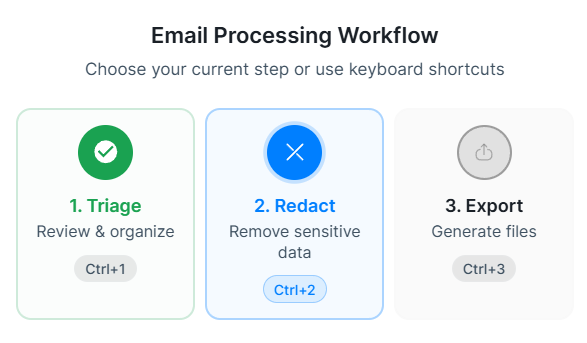
Once you have triaged some emails, you can proceed to redact and secure the text within them.
Items marked Process during triage appear here. If the project is set to All in scope, everything you upload appears in Redact without being triaged first.

Open the email to view the preview first.
You can then highlight text, which will mark it for redaction.
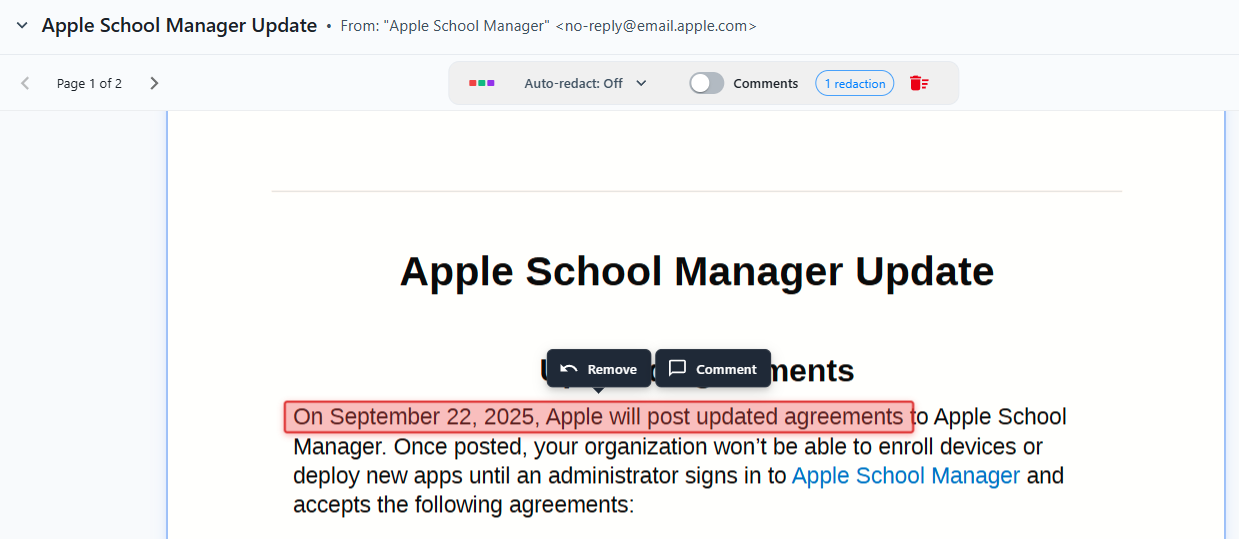
You will notice that once you have highlighted it, the text will remain highlighted.

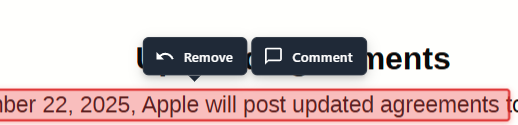
To remove the redaction, you can hover over it. Click to remove.
Recording why you redacted something
When you add a redaction you can attach a reason, picked from your own list of exemptions rather than typed out each time. Reasons are stored as codes, so they group properly in the Schedule of Redactions and appear in their own Reason column in the exported redaction log.
You can add a free-text note alongside the code where the situation needs explaining. Editing that note later does not remove the code.
Marking an item as done
Completing an item is a verdict you give — it is not something that happens automatically when you draw a box. An item you have read and decided needs no redactions still counts as done once you mark it complete. That is the intended case, not an edge case.
Filter to the items still waiting on a verdict to see what is genuinely left, rather than what happens to have a redaction on it.
Sending an item back
If you open an item and realise it should never have been in scope, you can send it back out of scope from the redact screen. There is no need to return to Triage and find it again.
Was this helpful?
Still need help? Ask the team