Your Dashboard
Every project you own or share, ordered by deadline — how to read the list, set a status, manage a project and see what has happened across your projects.
Last updated About 2 months ago
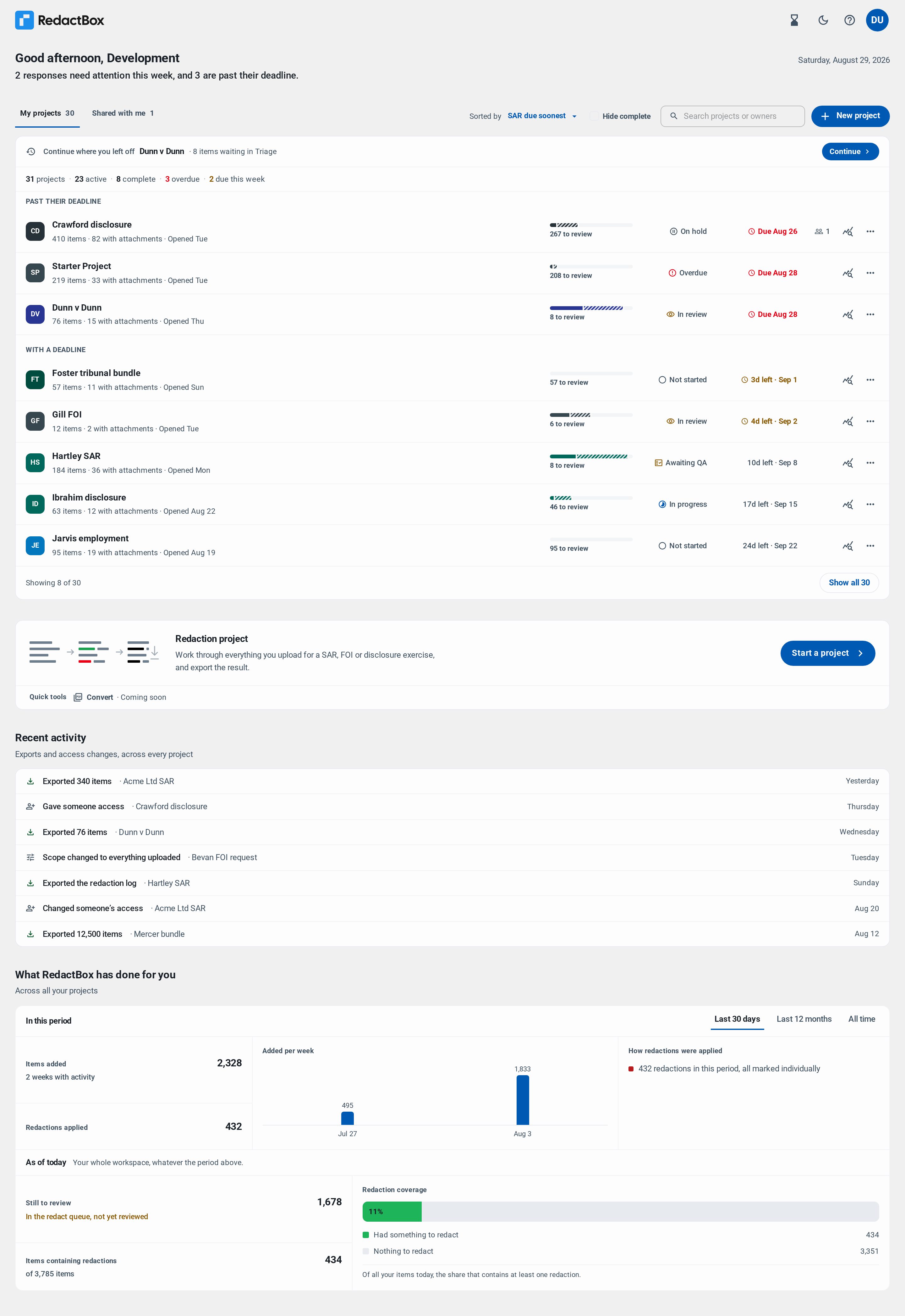
When you sign in to RedactBox you land on your dashboard. It shows every project you own or have been given access to, ordered by whichever deadline is closest, so you can decide where to start without opening anything.
Info: The dashboard replaces the old project dropdown. Everything that used to live in Manage projects is now on this screen.
What the top of the screen tells you
Under the greeting is a single line naming how many responses need attention this week and how many are past their deadline. If neither is true, the line does not appear.
Below that, Continue where you left off takes you back to the project you were last working in and says what is waiting there — for example “8 items waiting in Triage”.
Reading a project row

Each row carries, from left to right:
The project name, with how many items it holds, how many of those carry attachments, and when you last opened it.
Progress — a bar and a figure for how many items are still waiting on a decision. The bar is in three parts: items you have redacted, items you reviewed and found nothing to redact, and items nobody has looked at yet.
Status — see below.
Deadline — the SAR or FOI due date and how long is left.
Who else is on it — a count of the people the project is shared with.
Clicking anywhere on the row opens the project.
Note: Projects past their deadline are grouped at the top of the list under their own heading, whatever else you have sorted by.
Setting a status
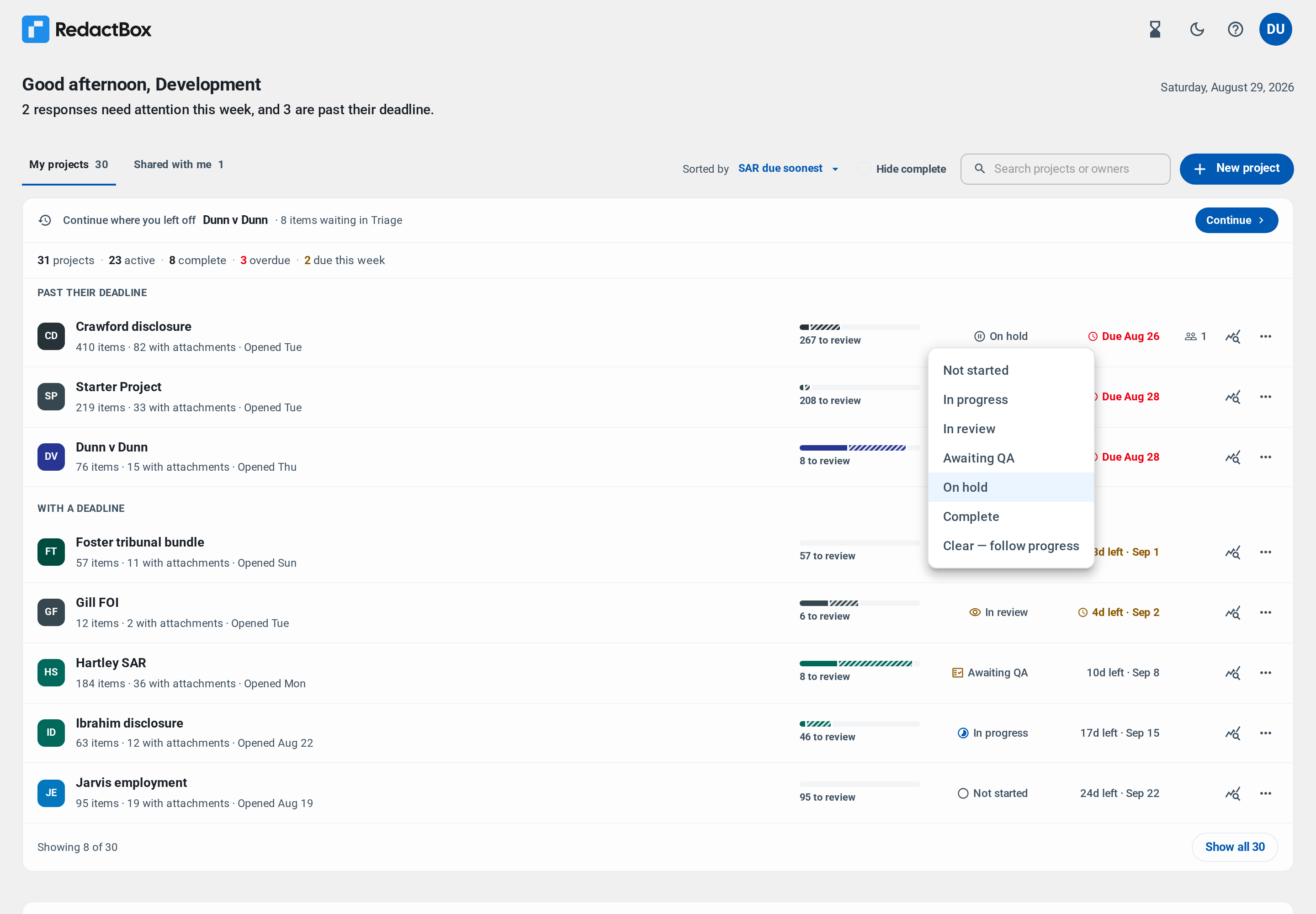
Click the status on any project you own to set it yourself: Not started, In progress, In review, Awaiting QA, On hold or Complete.
If you never set one, the status follows your progress automatically — a project with no items reads as Not started, one past its deadline reads as Overdue. Choosing Clear — follow progress puts it back to that behaviour.
Managing a project from the list
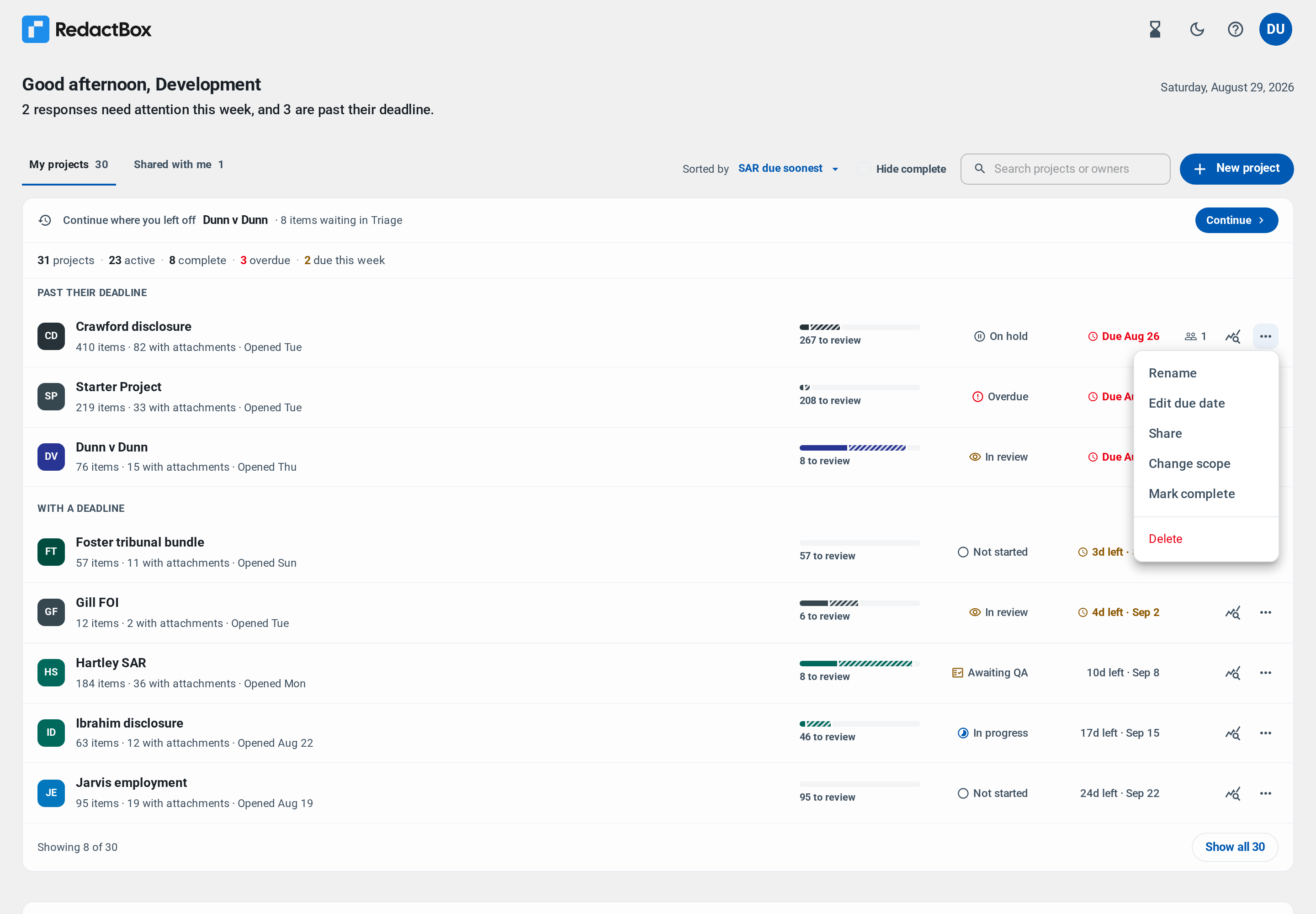
The … button on a row you own opens everything you can do to that project: rename it, set or change its deadline, share it, change what is in scope, mark it complete, or delete it.
Note: Deleting a project removes its files and every redaction in it, and cannot be undone. You will be asked to type the project name to confirm.
Detailed statistics
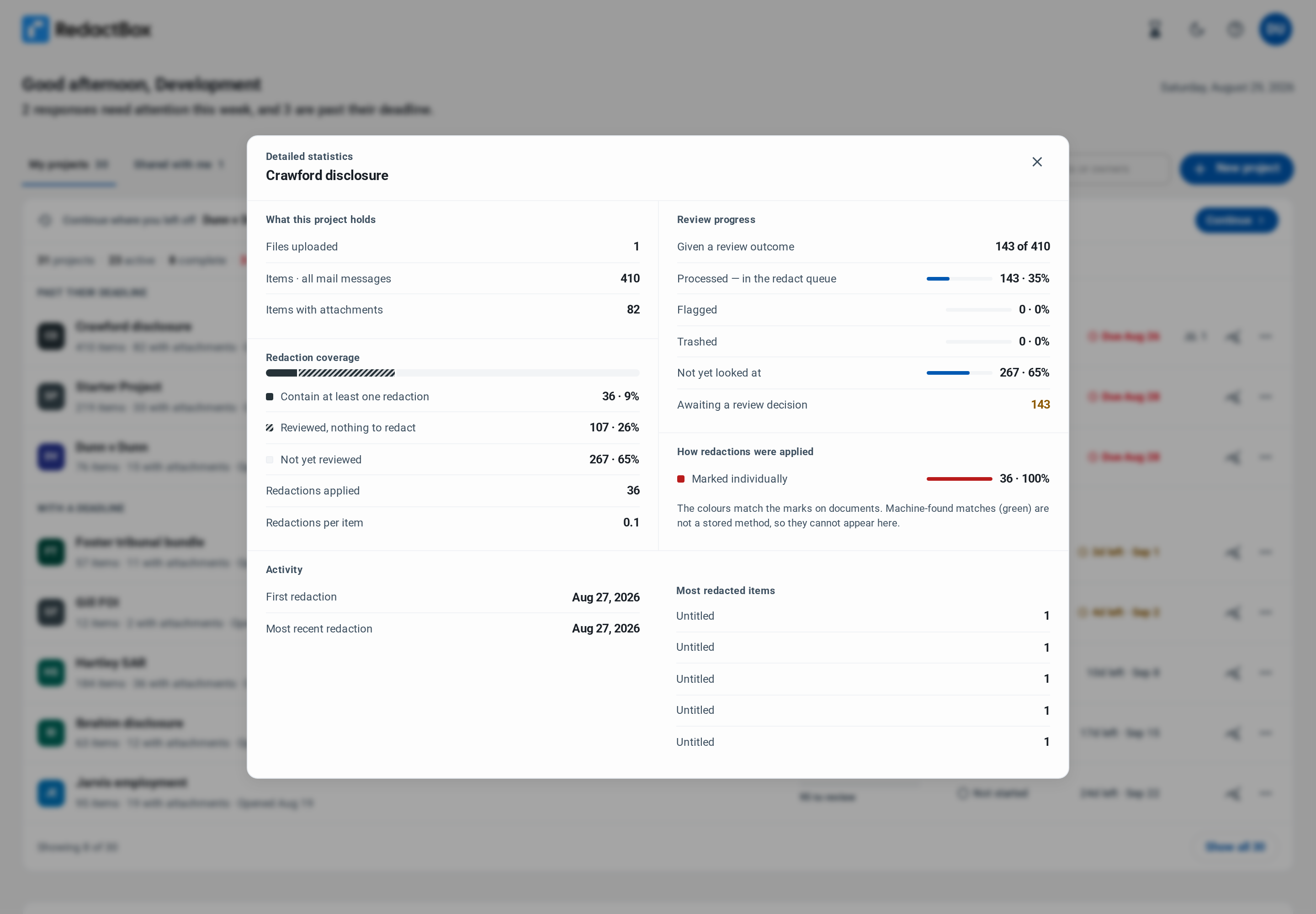
The statistics button on each row opens a breakdown of that project on its own: how many items contain redactions, how many were reviewed with nothing to redact, how many are still waiting, and how the redactions were applied — marked individually, drawn as an area, found automatically, or applied in bulk across the archive.
Anyone with access to a project can open its statistics, including viewers.
Finding a project when you have a lot of them
The list shows your eight most pressing projects and a Show all button for the rest. As your account grows, the controls appear as they become useful:
Sorted by — deadline, name, or most recently opened.
Hide complete — appears once you have completed something, and takes finished work out of the list without deleting it.
Search — appears once you have enough projects to need it, and matches on project name or owner.
Projects shared with you
Anything a colleague has shared with you sits under the Shared with me tab, labelled with who owns it. Projects you have shared show a count of the people on them, and clicking that count opens the sharing dialog so you can change or remove access from the dashboard.
Info: If a project someone shared has not appeared, check which address you are signed in as. An invitation sent to a different email address of yours will not show up here.
Recent activity and workspace totals
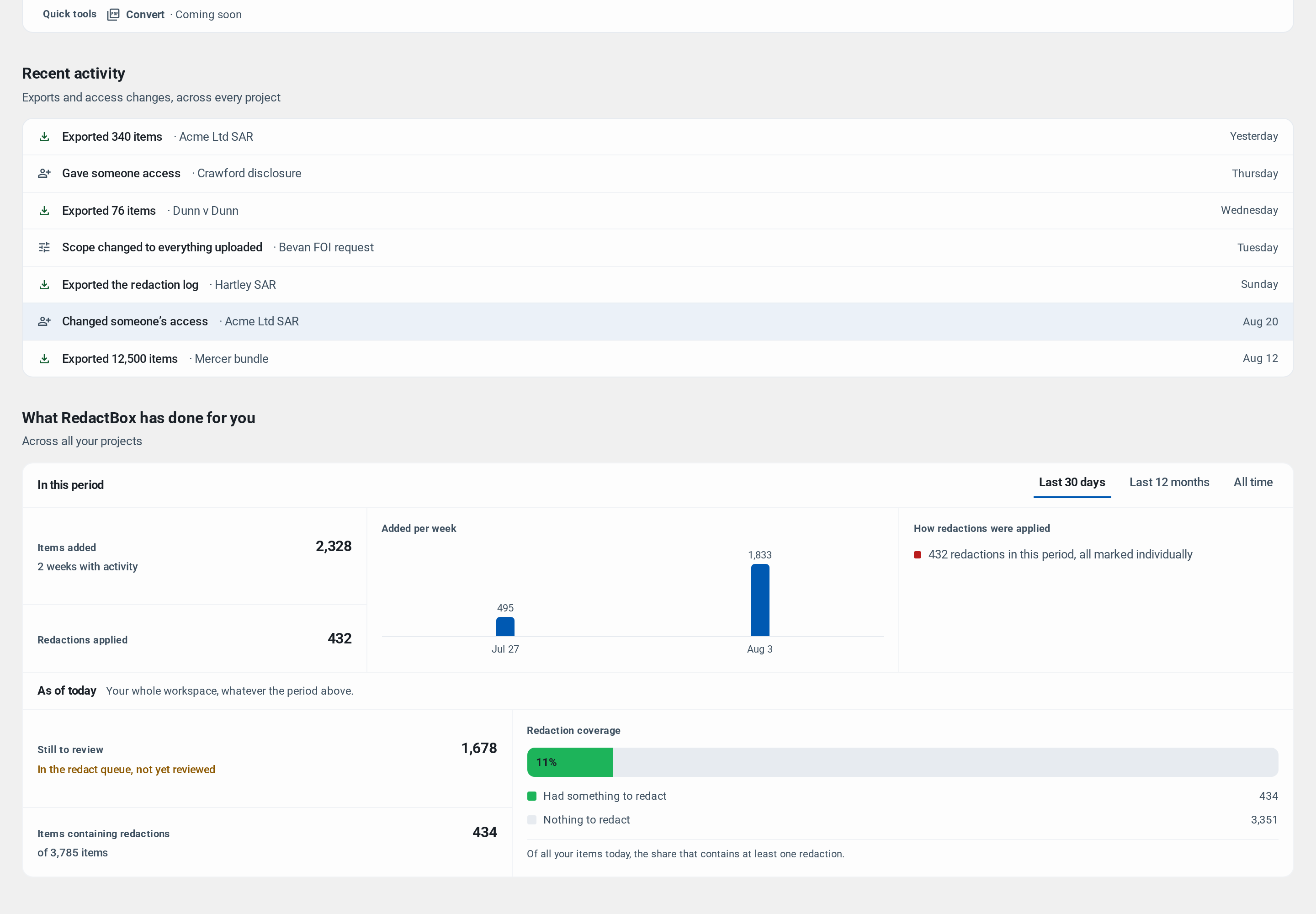
Recent activity lists what has happened across all of your projects: exports taken, redaction logs generated, access granted, changed or removed, and changes to what is in scope.
Below it, the totals summarise every project together — items added, redactions applied, how much is still to review, and what share of your items contain at least one redaction — over the last 30 days, the last 12 months, or all time.
Background tasks
Exports, conversions and bulk redactions keep running after you leave the screen that started them. The tasks button in the dashboard header shows anything currently running, in any project, so you can start a long export in one project and carry on working in another.
Was this helpful?
Still need help? Ask the team