Suggested redactions in a document
Redact or keep the people and numbers found in the document you are reading, without leaving the page.
Last updated About 2 hours ago
When you open a document in Redact, a small panel in the top right of the page lists the people and numbers found in it. From there you can redact a value in this document, redact it across the project, or keep it with a reason. It saves you hunting for every mention of a name by hand.
The suggestions come from the project scan in People and identifiers, on the Tools menu. The panel only appears once the project has been scanned and the document has something to show.
Suggestions are a starting point, not proof that a document is clear. Always read the page.
What it suggests
People. Everyone who sent or received the message, and names found in quoted messages, sign-offs and addresses written in the text. A person's name and email address share one card.
Numbers and codes. Phone numbers, postcodes, NI and NHS numbers, sort codes and card numbers. The label on each card says which.
It does not look for a name written into the wording of a message, or for anything inside an attachment. Read for those, or use Search to Redact or a word list. People named in Request details, such as the requester, are never suggested.
Opening the panel
Switch to Redact and open a document.
Find the panel in the top right of the page. It says how many values here still need a decision, for example 5 suggested.
Hover over it to open it, or click it to keep it open while you work. Click it again or press Escape to close it.
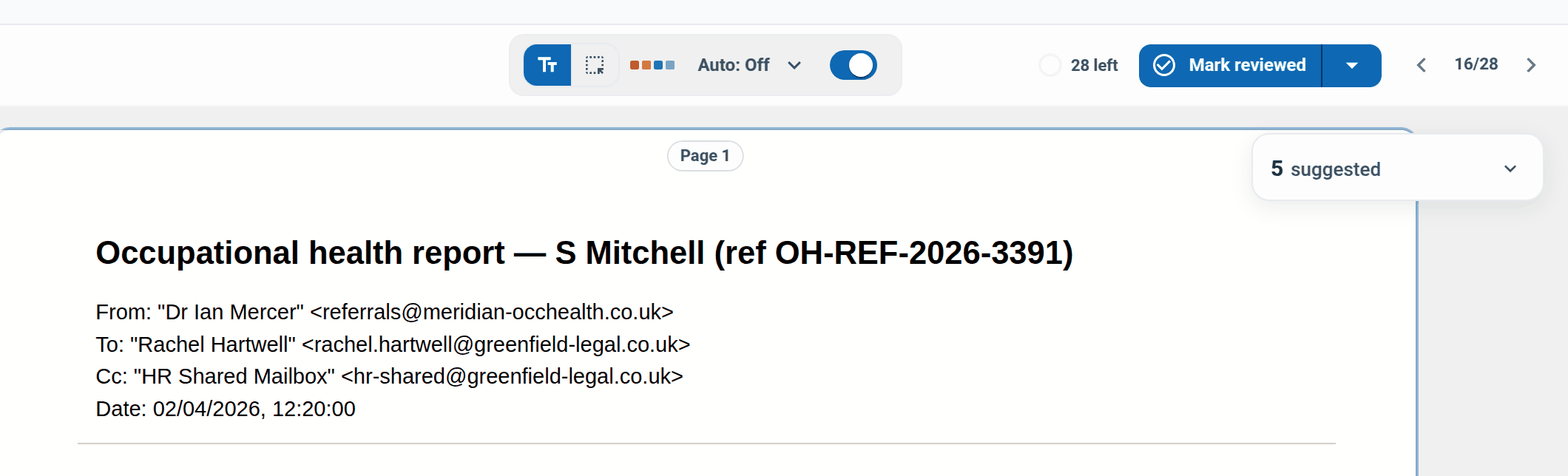
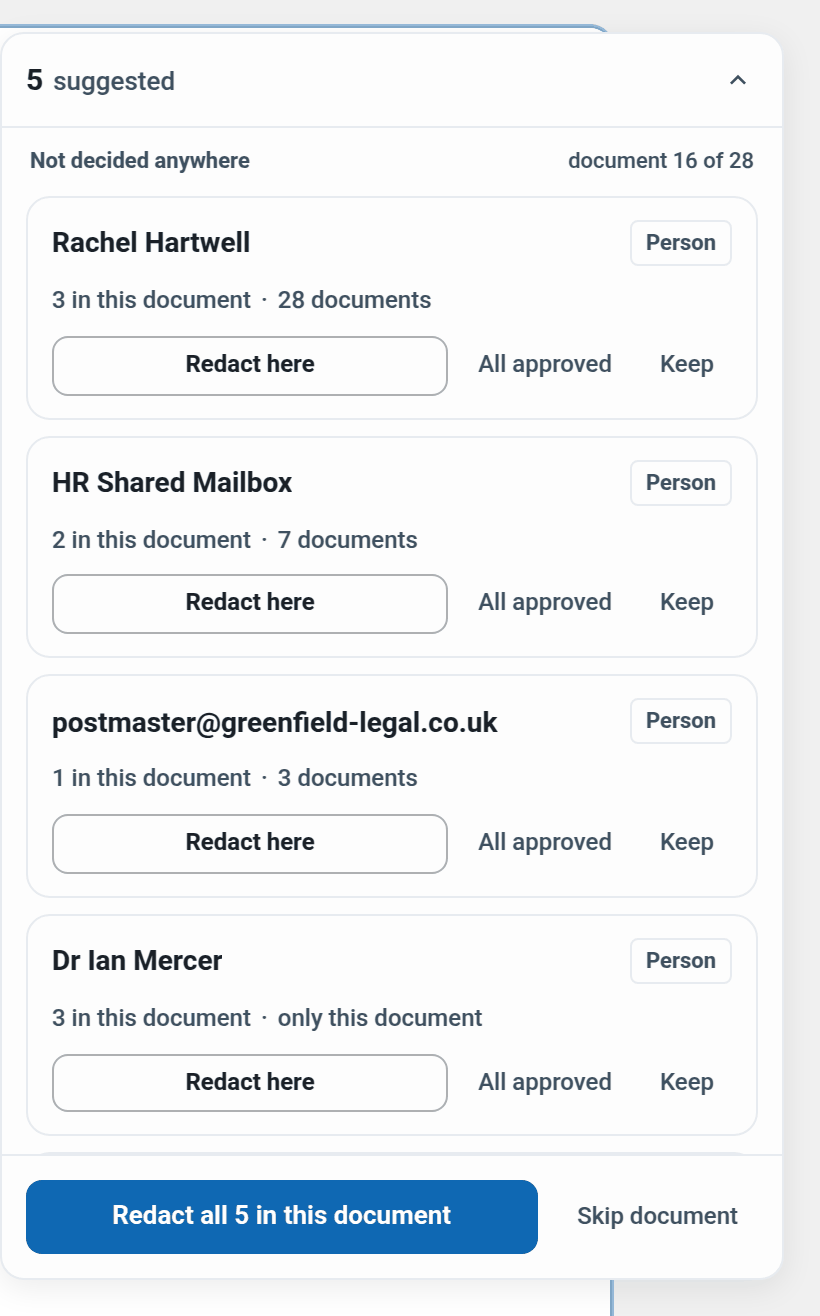
Open, it lists one card per value that has not been decided anywhere in the project. The line above the cards says which document you are on, for example document 16 of 28. Colleagues with view-only access see the same list without the buttons.
What the numbers mean
Each card has two numbers.
In this document. The number of places the PDF page shows the value, counted the same way Redact here will box them. Every spelling on the card counts, so a name followed by the person's email address is two places. A name that wraps onto a second line is one. Until the PDF has loaded, the card shows the count from the message text instead.
Documents. How many documents in the whole project contain the value: a number, only this document, or not confirmed elsewhere. On a very large project it can say Not counted. This is not the number a project-wide redaction will reach, because that only covers approved items.
Sometimes the message holds more than the page shows. The card then adds a note:
2 more not found in the page text. Some copies are in the message but not on the page, for example split by a page break. Read the page.
Could not be located in the page text. None of it could be found on the page, so Redact here is greyed out. Hover over the button for the reason. It may be written differently or across a page break, it may only be inside a link, or it may only be in the Cc line, which this PDF does not show.
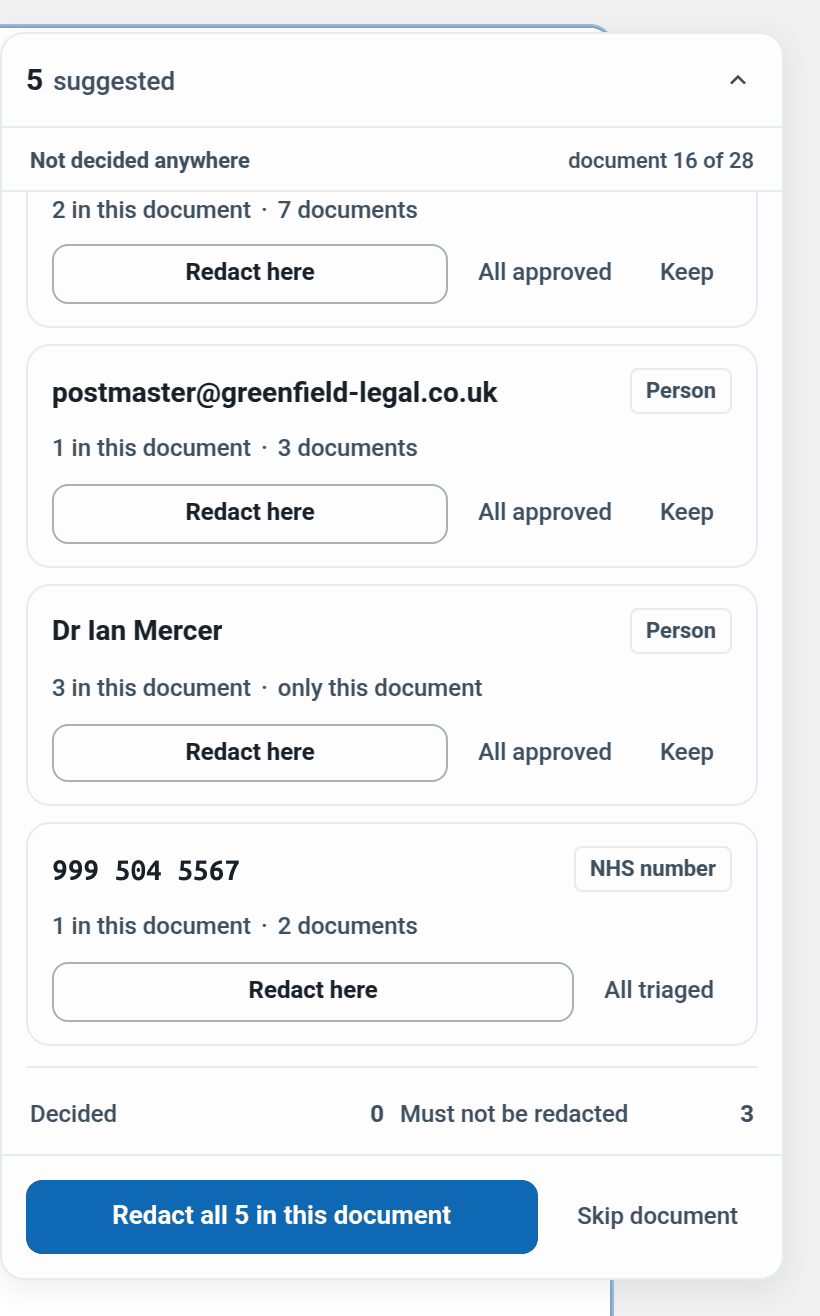
Under the cards, Decided counts the decisions already made across the project, and Must not be redacted counts the names and addresses protected by Request details.
Deciding about a value
Redact it in this document
Click Redact here. Every spelling on the card is redacted in this document only, and a message confirms it, for example Redacted Dr Ian Mercer in the 3 places found in the PDF text. The card leaves the list.
To take every card at once, click Redact all 5 in this document at the bottom of the panel (the number matches the cards). Nothing outside this document changes.
Suggested redactions are recorded with the reason code NPD, not the requester's personal data. You can see them afterwards in the Redactions Manager.
Redact it across the project
For a person, click All approved. This records a project decision to redact them and applies it in every approved item. It runs in the background, and the message says Progress is in Tasks.
For a number, click All triaged. The card tells you how far it will reach before anything happens.
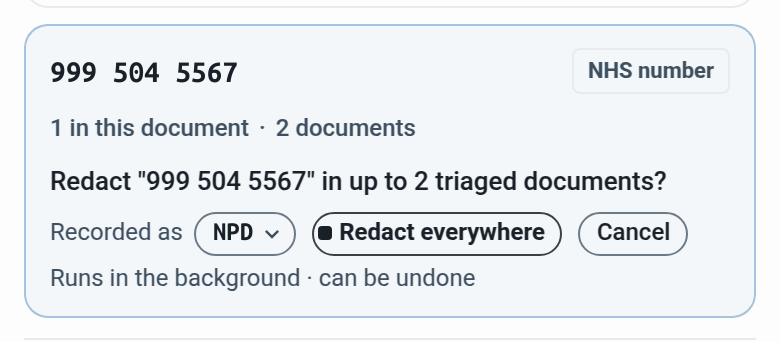
Check the count, choose the reason code under Recorded as if NPD is not right, then click Redact everywhere. Cancel backs out.
Both reach only items approved in Triage. Items still waiting in Triage, flagged or trashed are not changed.
Keep a person in
Click Keep. RedactBox asks Why is it staying in? This goes in the project record. Type a short reason and click Keep.
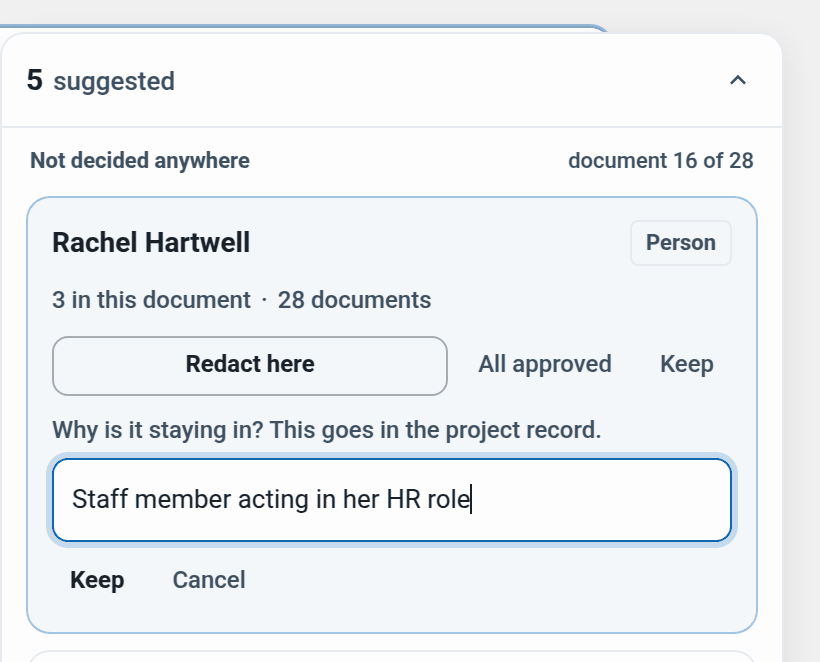
A reason is required. It is saved against the person for the whole project and shows in Audit Logs with who decided and when.
Numbers have no Keep. If a number should stay, leave its card alone. Nothing is redacted until you press a button.
When everything is decided
Once every value in the document has been decided somewhere in the project, the panel says Every value suggested in this document has already been decided somewhere in this project. It lists each value with what happened to it, such as kept, left in or redacted in this document.
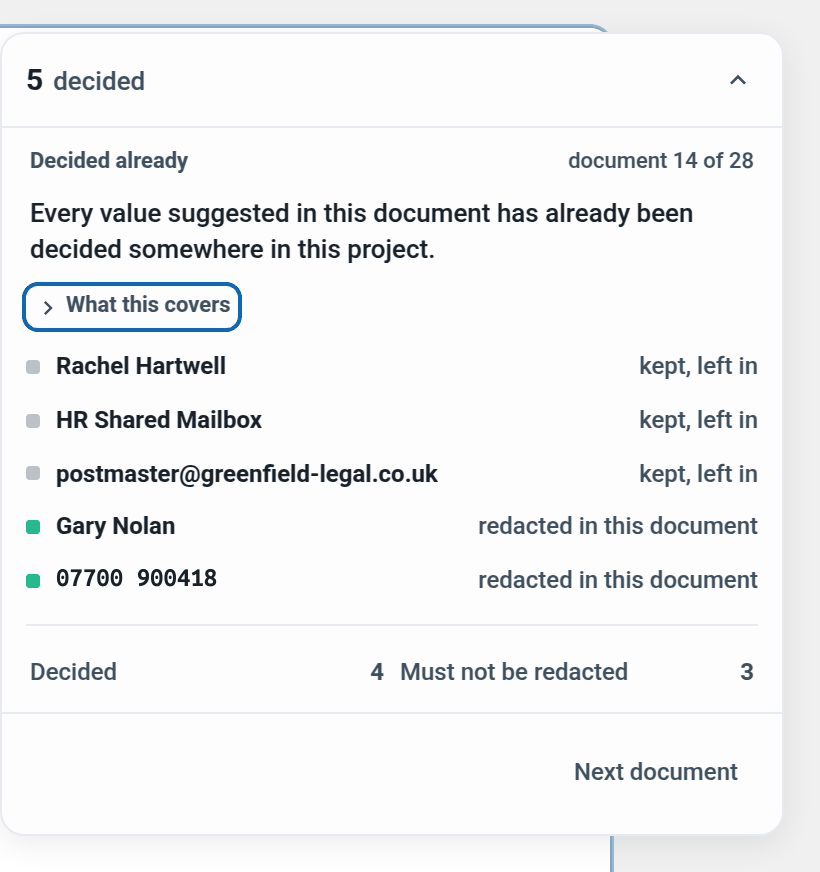
That is a record of decisions, not a check of the page. What this covers explains what the scan looks for. Click Next document to move on, or Skip document while there is still something to decide.
If Redact here cannot box everything
RedactBox draws each box over the text in the PDF. When the PDF and the message disagree, it tells you rather than guess. These messages stay on screen for longer, so you have time to read them.
Only inside a link. "1 more is only inside a link or other hidden text, which the PDF does not show." There is nothing on the page to cover.
Not in the page text. "Dr Ian Mercer could not be located in this document's PDF text, so nothing was redacted. Find it on the page and redact it by hand."
No box could be drawn. "Dr Ian Mercer is in this document's PDF text but no box could be drawn over it, so nothing was redacted. Find it on the page and redact it by hand."
Part of the PDF could not be searched. "Part of this document's PDF text could not be searched, so Dr Ian Mercer was not redacted. Reload the document and try again, or redact it by hand."
When only some places were boxed, the message says how many were done and names each gap. With Redact all, it ends with Needs checking by hand: and the values to look at. Cover those with Highlight to Redact or Area Redaction.
Example: a former employee's SAR
A law firm is answering a subject access request from a former employee. The requester is already in Request details, so she is never suggested.
Open the occupational health report in Redact. The panel says 5 suggested.
The HR Director is writing in her work role. Click Keep and give the reason "Staff member acting in her HR role". The decision covers every document she is in.
The doctor who wrote the report is a third party and appears in this document only. Click Redact here.
The NHS number is the requester's own. Leave the card alone.
On the next document, a colleague copied into six documents has nothing to do with the request. Click All approved once and every approved item is covered.
Work through the rest with Next document, then check the result in Audit Logs before you export.