Redactions — View, Search and Remove Redactions
A complete overview of every redaction in your project, with the ability to search, comment, and undo.
Last updated 21 days ago
Redactions lists every word and phrase redacted in a project, one row per term. Pick a term to see how often it was redacted, why, and every file it appears in. Use it to check your work before you export, to add missing reasons, and to take back a redaction that should not be there.
It also has a Possibly missed tab, for approved items that have nothing redacted but contain a term you redacted elsewhere.
Opening Redactions
Open your project.
Click Tools in the header.
Under Analytics & Management, click Redactions.
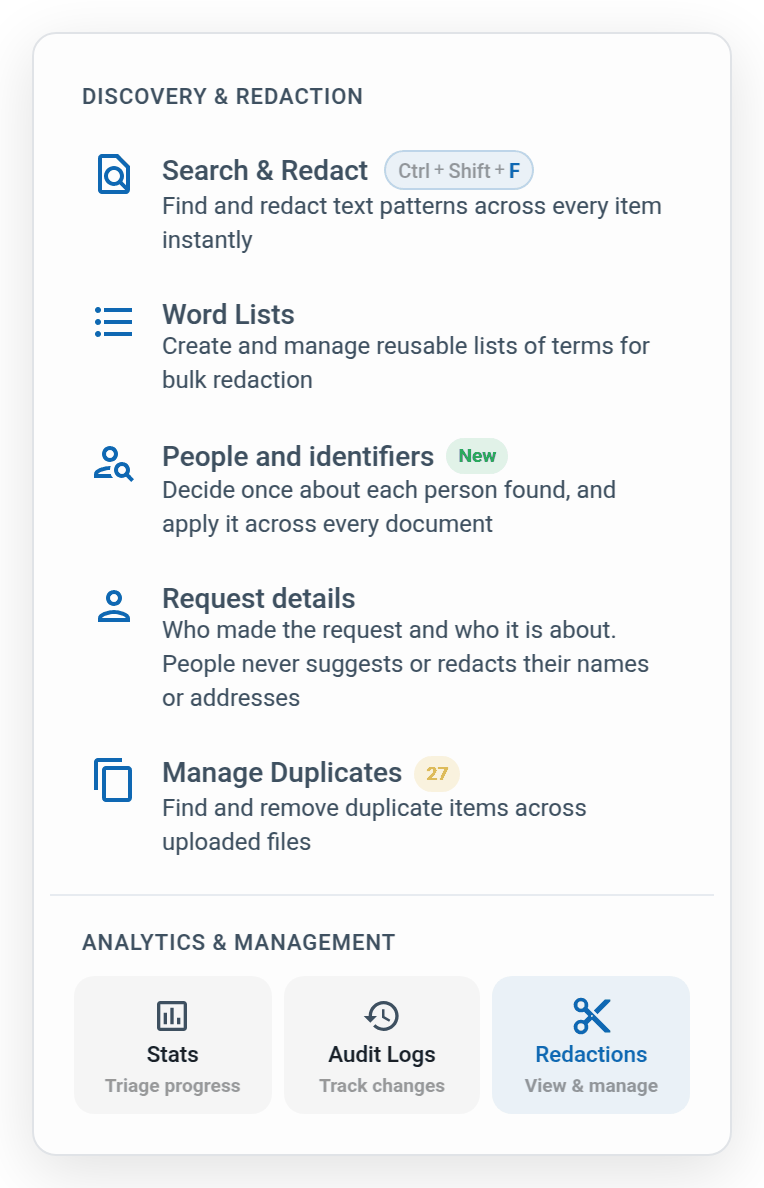
You can also get there from Stats: click a term under Most redacted terms to open it here, or Show all to see the full list. The address in your browser keeps the term and filters you chose, so a reload or a shared link opens on the same view.
Finding a term
The By term tab lists every redacted term with how many redactions it has and how many files it is in.
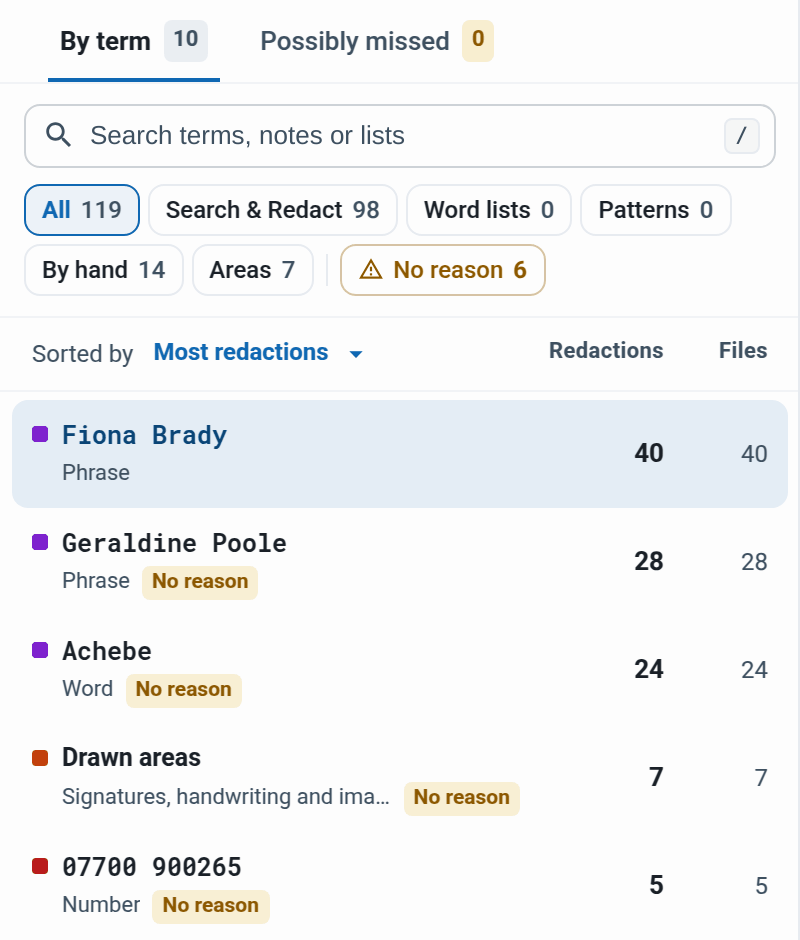
Search. Type in Search terms, notes or lists, or press / to jump to it.
Filter by source. All, Search & Redact, Word lists, Patterns, By hand or Areas.
No reason. Shows only terms with no reason code, so you can fill the gaps before you produce the Schedule of Redactions.
Sorted by. Most redactions, Most files, Most recent or A to Z.
Choosing Word lists opens a panel listing each word list with its terms and redactions. Click a list to see only its terms. Owners and editors can Clear one list's redactions, or Clear all word-list redactions, without touching anything redacted another way.
Looking at a term
Select a term to see it on the right.
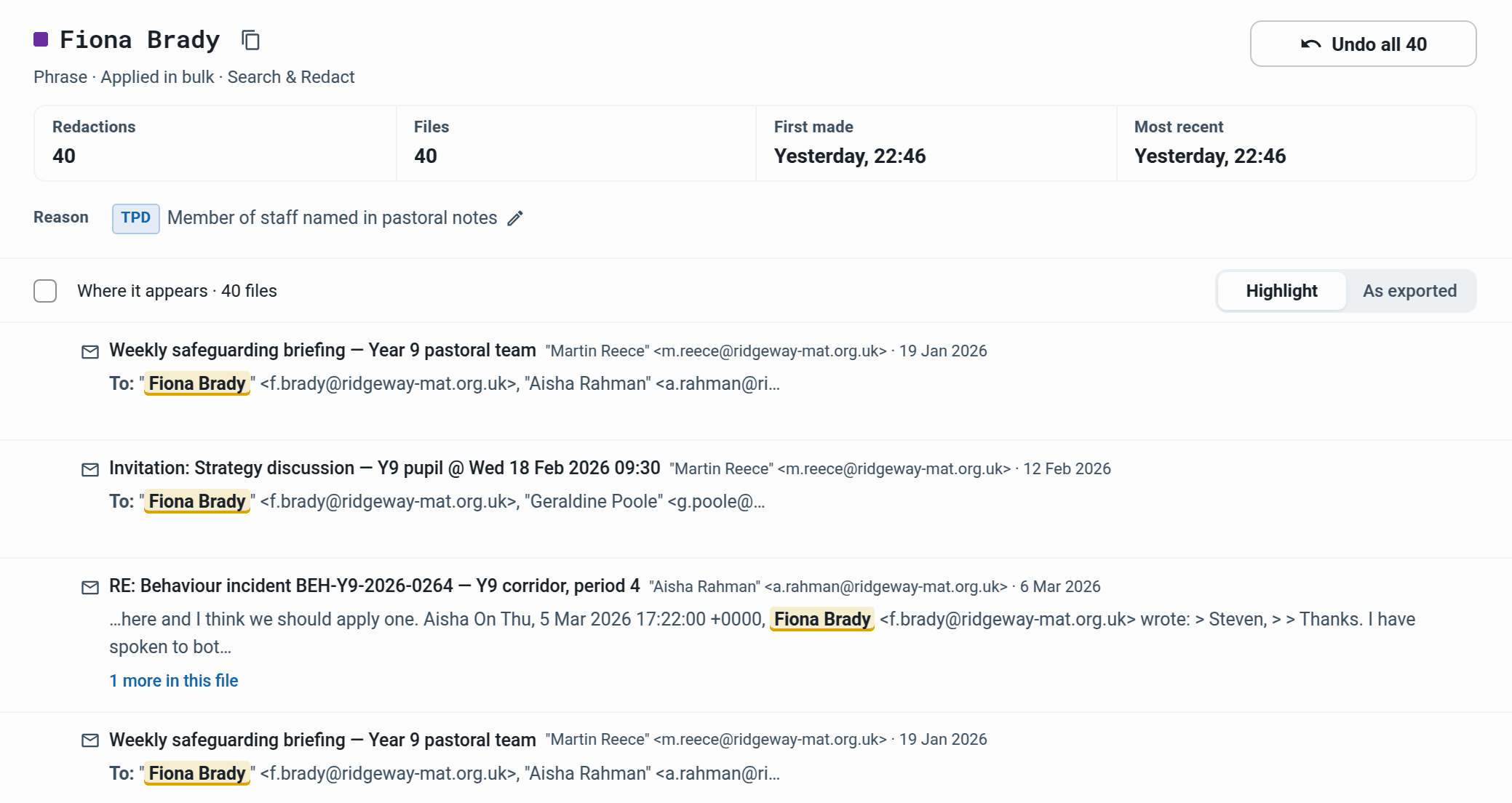
Figures. Redactions, Files, First made and Most recent.
Reason. The reason codes on the term and its note. If a term has neither, it says Add a reason. Owners and editors can click the row to edit the note, which changes it on every redaction of the term. Reason codes are changed on the redaction itself.
Where it appears. Every file the term is in, 20 at a time, with the match shown in context. Switch between Highlight and As exported to see the text marked or blacked out as it will be in the export. Hover over a file and click Open to go to it.
Removing redactions
Owners and editors can take a redaction back in three ways:
One file. Hover over the file and click Undo.
Some files. Tick the files, then click Undo in N files (or press U).
Everywhere. Click Undo all N to remove every redaction of the term from every file.
A removal waits six seconds before it goes through, with an Undo button on the message. If you close Redactions or leave the page within those six seconds, the removal goes through straight away.
Tip: Shift-click ticks every file between the last one you ticked and this one. Ctrl-click (Cmd-click on a Mac) ticks one more without clearing the others. This works the same as in People and identifiers and Search & Redact.
Possibly missed
The Possibly missed tab lists terms that appear in approved items with nothing redacted, one row per term with how many items still hold it. Owners and editors can redact a term in all its items or the ones they tick, or mark it Not relevant. See Possibly missed redactions for how the check works and what it cannot see.
Exporting the list
Owners and editors can click the download icon next to the title to save every redaction as a CSV. It has a Reason column alongside the comment. The CSV contains the redacted text, so keep it for your own records and do not send it to a requester. For the requester, use the Schedule of Redactions in Audit Logs.
Who can do what
Viewers can open Redactions, search and filter, look at every term and file, and run the possibly missed check. Removing redactions, editing notes, clearing word lists, exporting the CSV and acting on possibly missed items need an owner or editor.
Keyboard shortcuts
Example: checking a disclosure before export
Open Tools › Redactions and click No reason. Four terms have no reason code.
For each one, open a file, add the reason on the redaction, and add a short note on the term's Reason row.
Clear the filter and sort by Most files. A colleague's name has been redacted in 40 files, but it should stay in. Click Undo all 40.
Switch to Possibly missed. One term is listed in two items. You redact it in both.
Export the response, with the Schedule of Redactions included.
Was this helpful?
Still need help? Ask the team