Redact a document
Redact one file, such as an FOI reply or an HR file, and download a flattened PDF without setting up a project.
Last updated 1 day ago
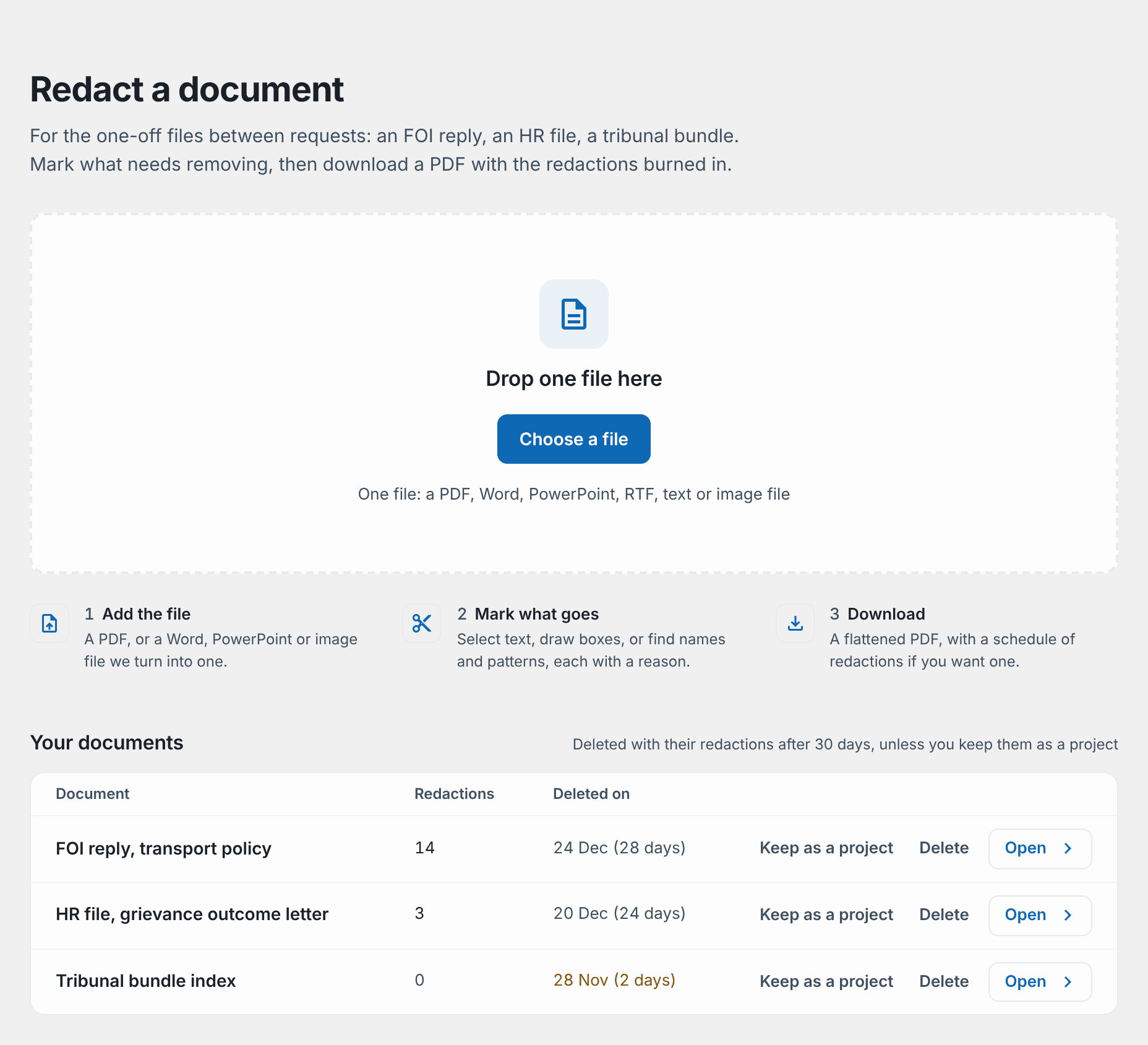
Redact a document is for the one-off files that turn up between requests: an FOI reply, an HR file, a tribunal bundle. You add one file, mark what needs removing, and download a PDF with the redactions burned in. There is no project to set up.
It uses the same redaction tools as a project, so selecting text, drawing boxes, Search & Redact, patterns, word lists and reasons all work the way you already know.
On the free plan you can have one document at a time. Professional and Professional Plus let you have up to 200. For several documents, or a mailbox, start a redaction project instead.
Getting there
On the Home page, scroll to your tools and click Redact a document.
Prefer a walkthrough? Take the tour and we'll show you where it is.

Redacting a document
Add the file. Drop it on the page, or click Choose a file. It takes one file at a time: a PDF, or a Word, PowerPoint, Excel, RTF, text or image file, which we turn into a PDF for you.
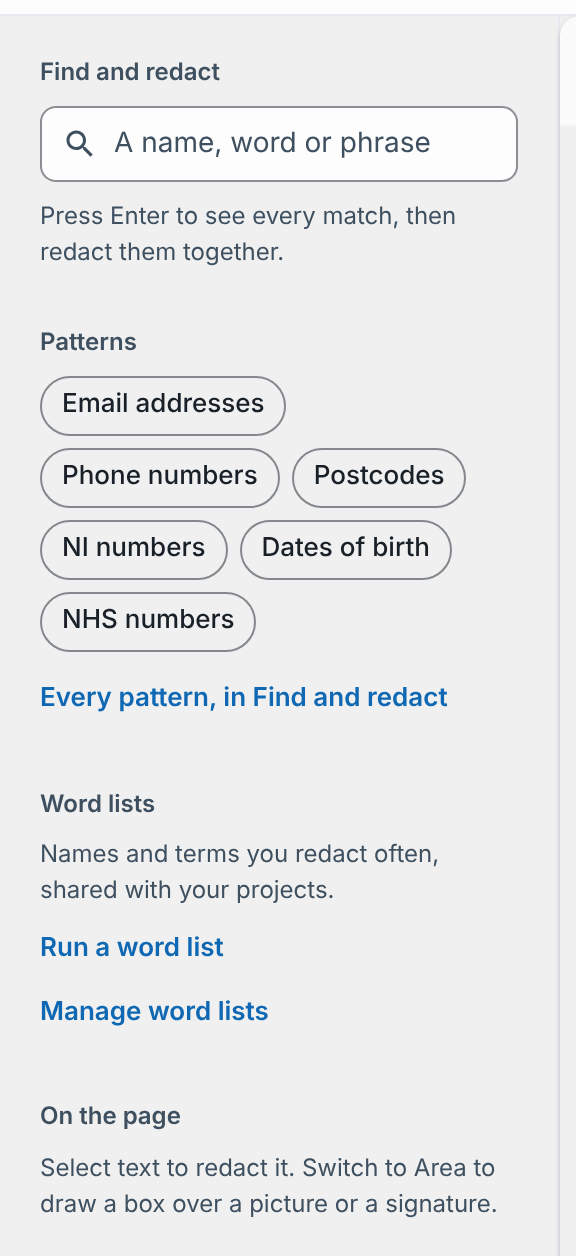
Mark what goes. The document opens with the Find and redact panel on the left and the pages on the right. Use whichever suits the job:
Select text on the page to redact it.
Switch to Area in the toolbar and draw a box over a picture, a signature or anything that is not text.
Type a name, word or phrase into the find box and press Enter to see every match, then redact them together.
Click a pattern (Email addresses, Phone numbers, Postcodes, NI numbers, Dates of birth, NHS numbers) to find them all at once. Every pattern, in Find and redact opens the full list.
Run a word list to redact the names and terms you use across your projects.
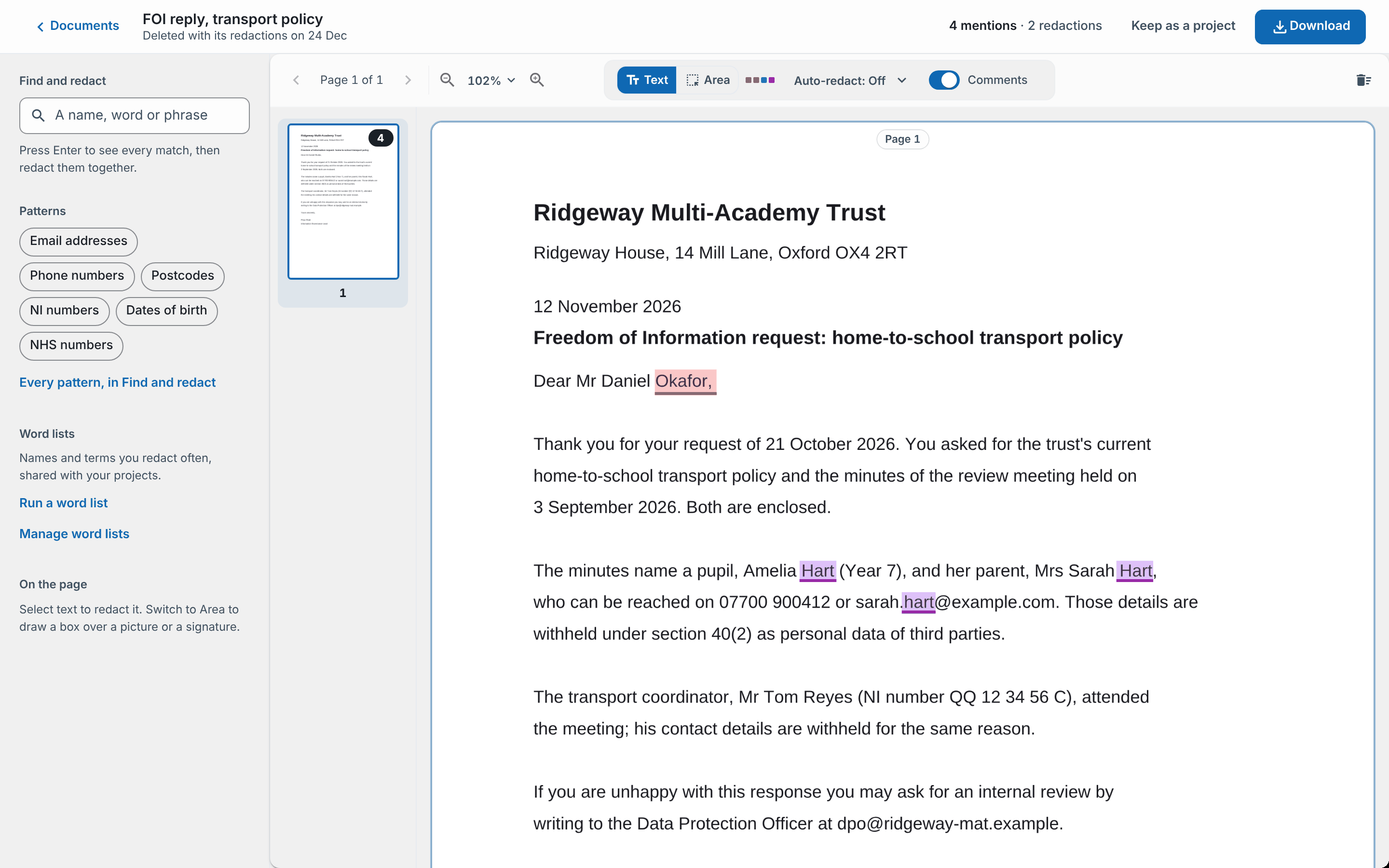
The count in the top bar shows how much is marked. Each page thumbnail shows how much is marked on that page, so you can see at a glance which pages you have been through.
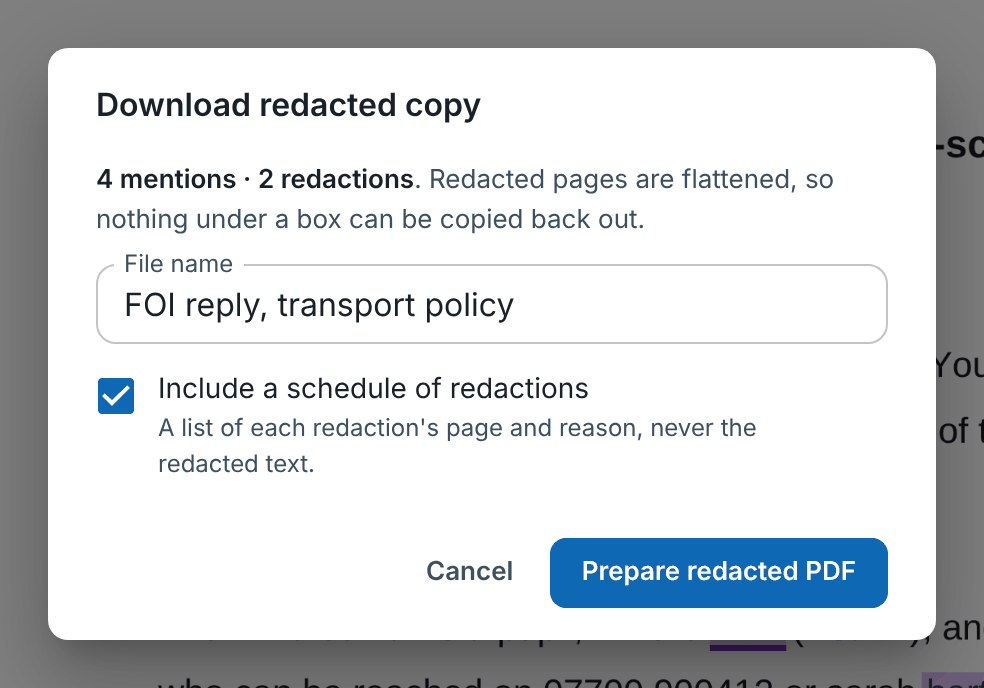
Download. Click Download in the top bar. Check the file name, choose whether to Include a schedule of redactions, then click Prepare redacted PDF.
You can close the dialogue while it prepares. It carries on, and Download in the top bar brings you back to it.
Locking the PDF with a password
If the file is going by email or onto a shared drive, tick Protect the PDF with a password in the Download dialogue. The PDF is locked with AES-256 and only opens with the password.
We make a strong password for you. You can type your own instead (at least 12 characters), or click New password for another.
Save it. Your browser or password manager (1Password, Bitwarden and others) will offer to save it, or click Copy or Save as a text file.
Tick I've saved this password somewhere safe, then click Download protected PDF.
You get a ZIP with the locked PDF inside, the same as any other download. If you included a schedule of redactions, it is in the same ZIP and is not locked. It lists pages and reasons, never the redacted text.
RedactBox doesn't keep the password and can't recover it. Send it separately from the file, for example by phone or text. Your downloads also keep a copy without a password for 24 hours, so you can download it again if you need to.
What you get
A flattened PDF. Redacted pages are flattened, so nothing under a box can be copied back out.
An optional schedule of redactions. A list of each redaction's page and reason, never the redacted text. Useful for an FOI exemption or a tribunal that wants to see why something was withheld.
An optional password. Lock the PDF so only someone with the password can open it.
How long documents are kept
A document and its redactions are deleted after 30 days. The date shows under the document's name and in Your documents, where it turns amber when it is close.
If you need it for longer, click Keep as a project (in the top bar, or next to the document in Your documents). It then becomes one of your projects and is no longer deleted automatically. You can also delete a document yourself at any time from Your documents.
Scanned documents
A scan has no text to select or search, and the document tells you so when it opens. Draw boxes with Area over what needs removing. On Professional Plus, scanned PDFs and images are read with OCR so search and patterns work on them too.
File types and sizes
Office and image files can be up to 50 MB. If one is bigger, save it as a PDF and add that instead.
Example: an FOI reply
The trust's FOI officer has a reply letter and meeting minutes that name a pupil and a parent.
They open Redact a document and drop in the minutes as a Word file.
They type the family's surname into the find box, press Enter and redact every match, then click Phone numbers and Email addresses.
They draw an Area box over a signature on the last page.
They download the PDF with a schedule of redactions, so the reply can cite section 40(2) against each one.
Nothing else to tidy up. The document deletes itself after 30 days.
Related articles
Area Redaction covers drawing boxes in more detail. The Search & Redact, Word Lists and Redactions articles work the same way here as in a project.
Was this helpful?
Still need help? Ask the team