3. Exporting Items
Export your triaged items.
Last updated About 2 months ago
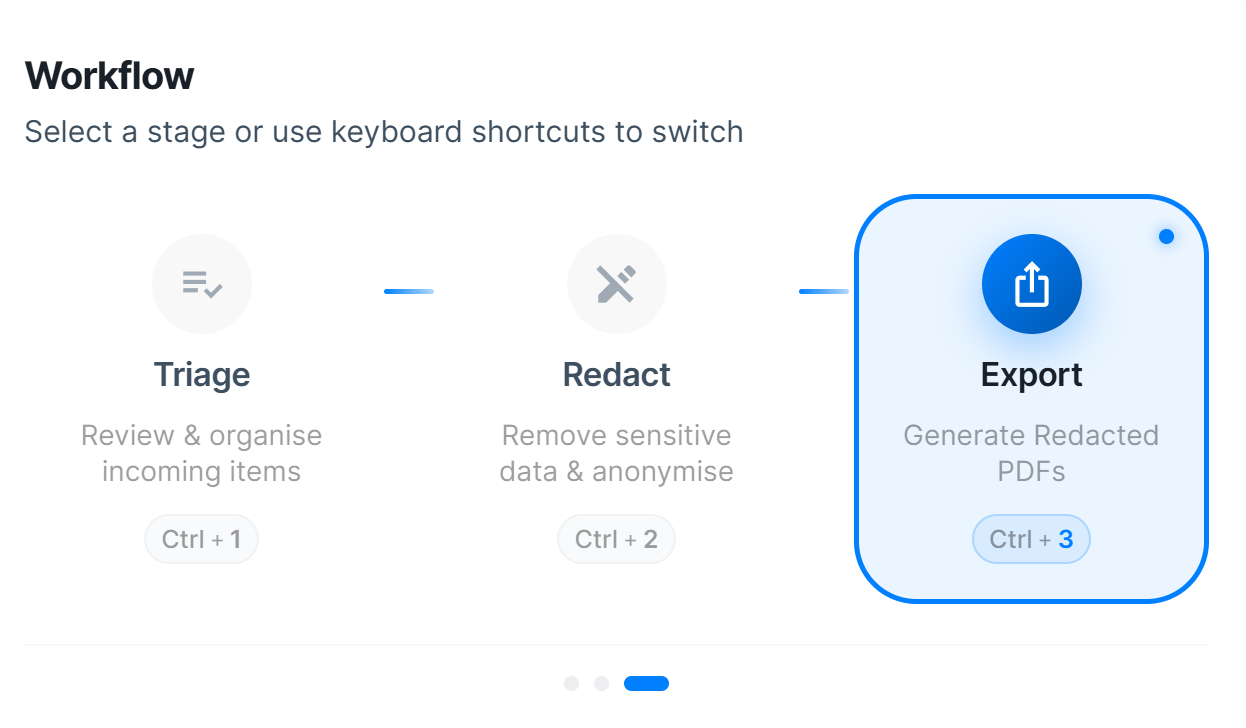
Once you have redacted some emails, you can now export them to PDF files to share with whom you need to.
Export View
When in export mode, you will be able to see all the files that you have processed in Triage and Redact Mode.
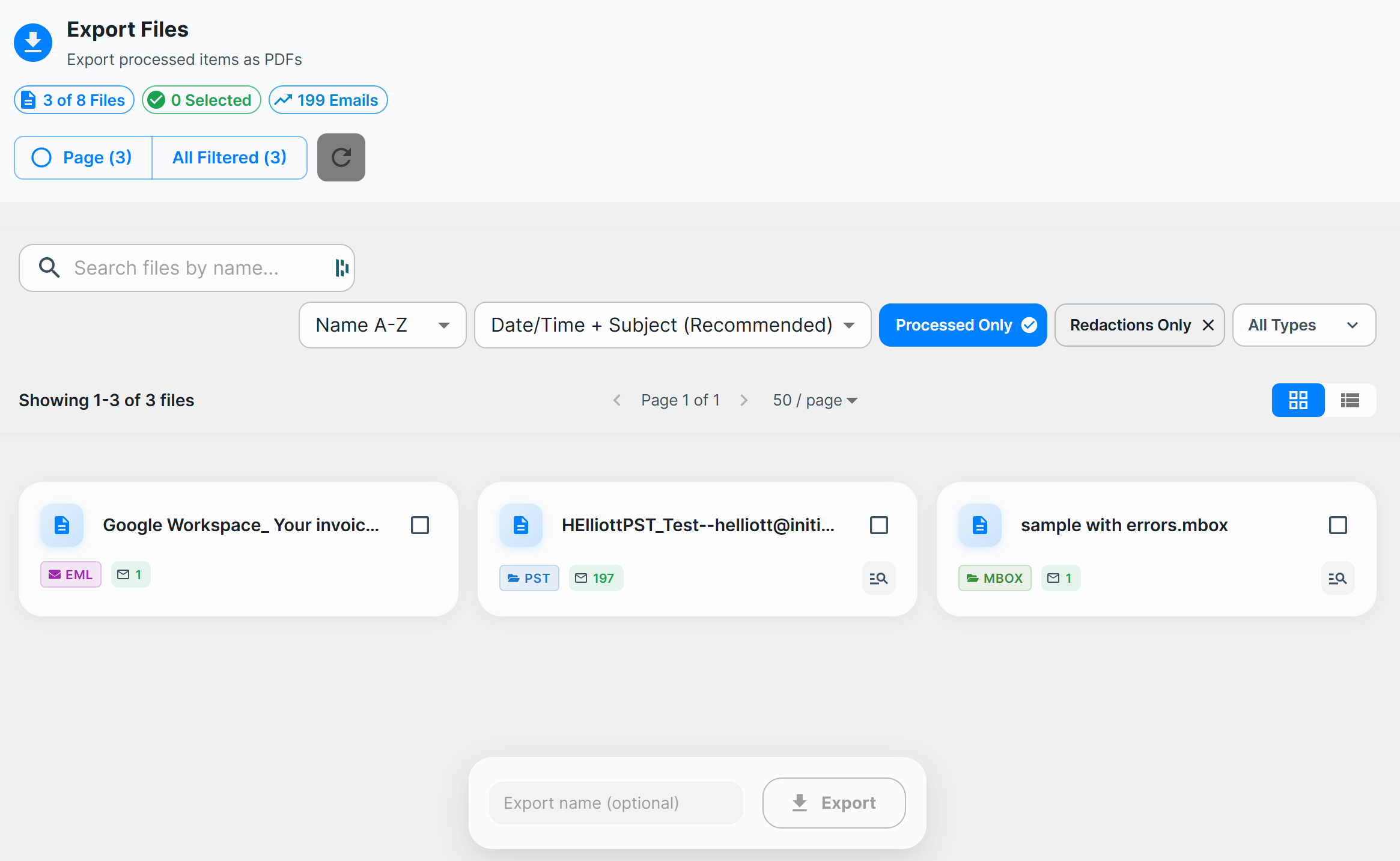
Info: By default, only processed emails are selected. This shows emails that have been processed in triage mode, whether they are redacted or not.
There is an indicator of how many emails there are in the current filter on each file.

You can deselect "Processed Only" to export all emails, whether they are triaged or not. The indicators of how many emails will change.

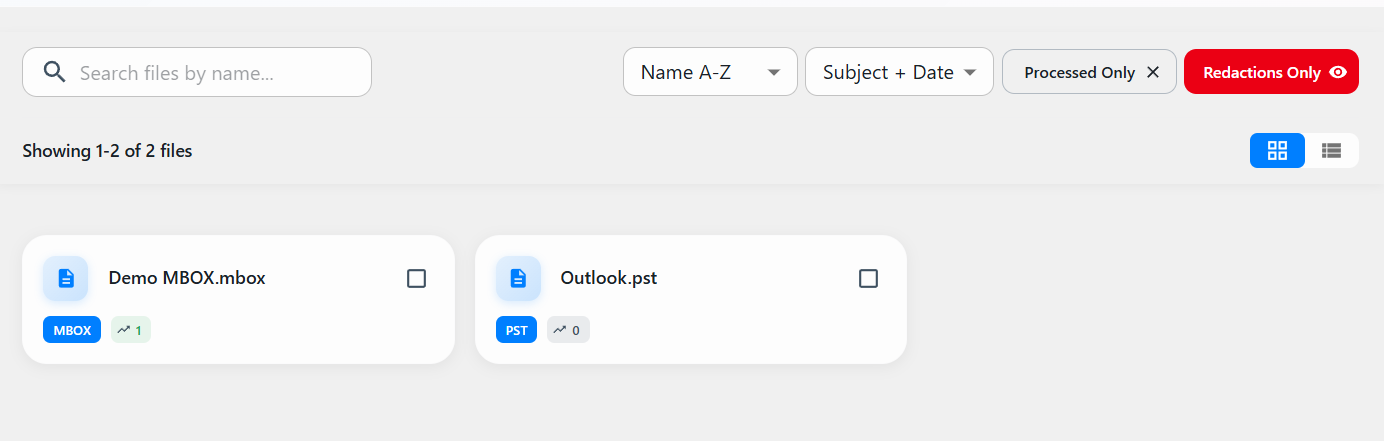
If you select "Redactions Only", you will see that the indicators will change to include only emails that have redactions in them.
Export Emails
Select the files that you want to export.
Info: You can use the filters at the top or individually select the files.
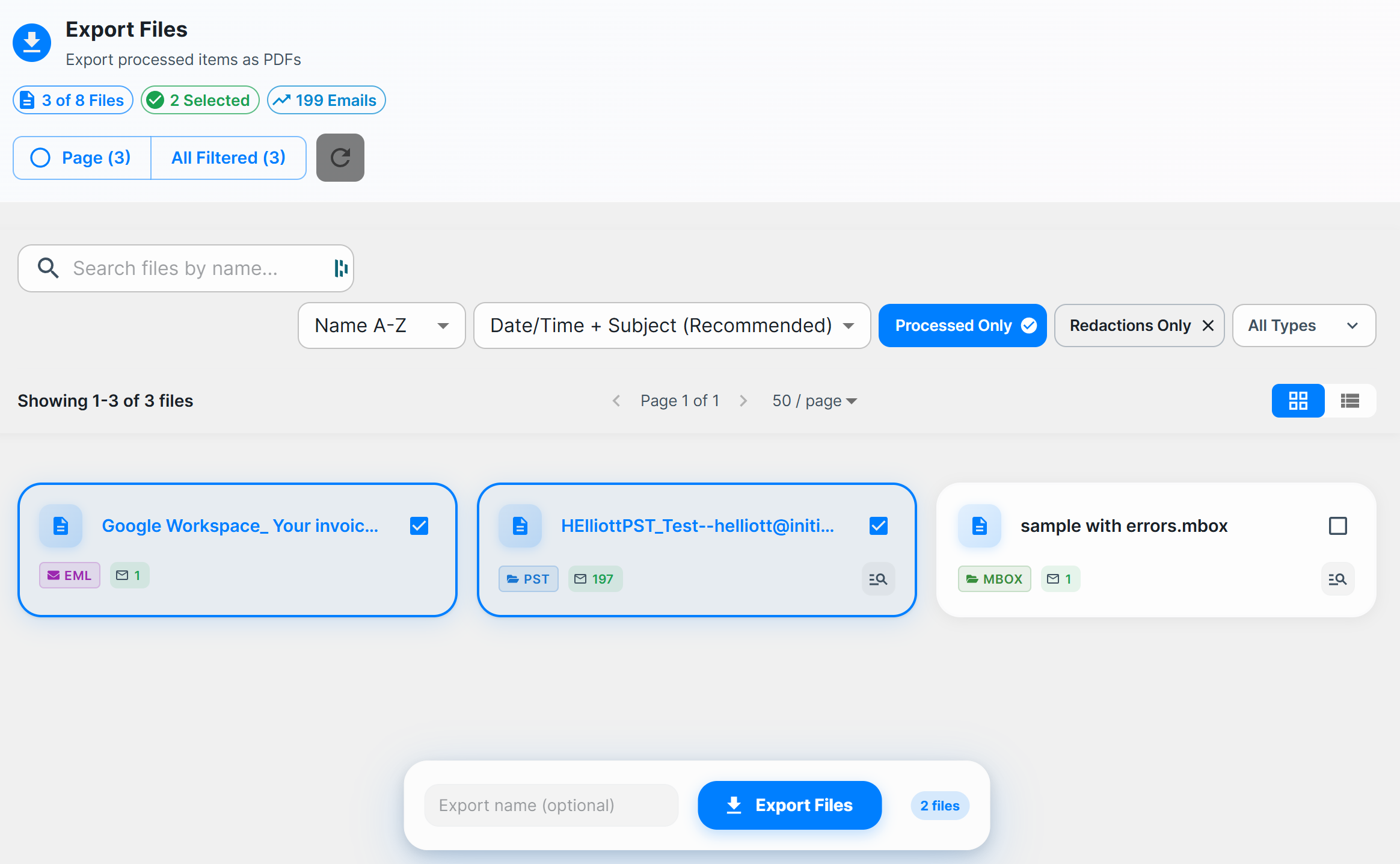
Once you are happy, select Export Files at the bottom to start the export.
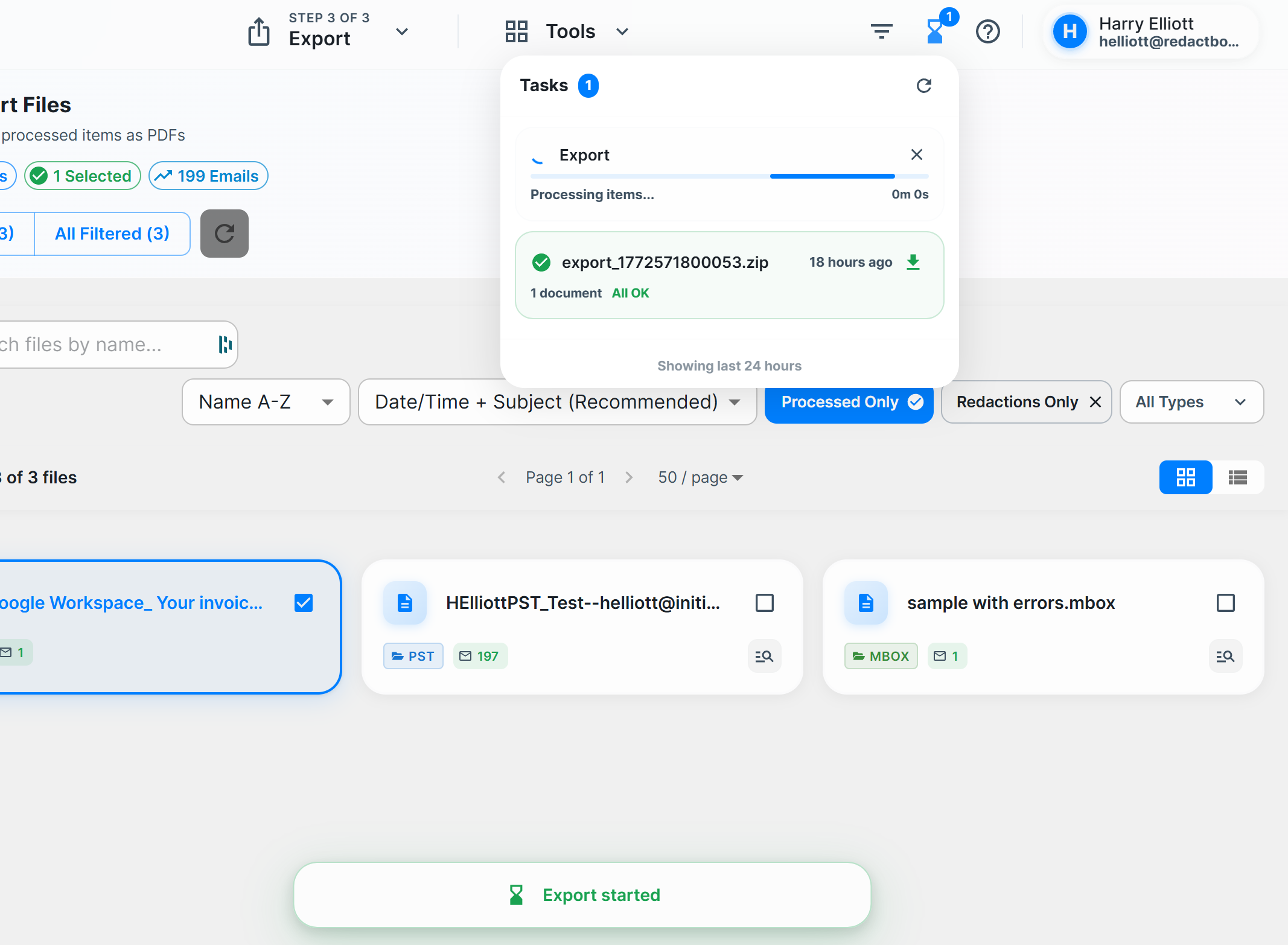
You will see the progress of your export in the tasks menu at the top, which will automatically open.
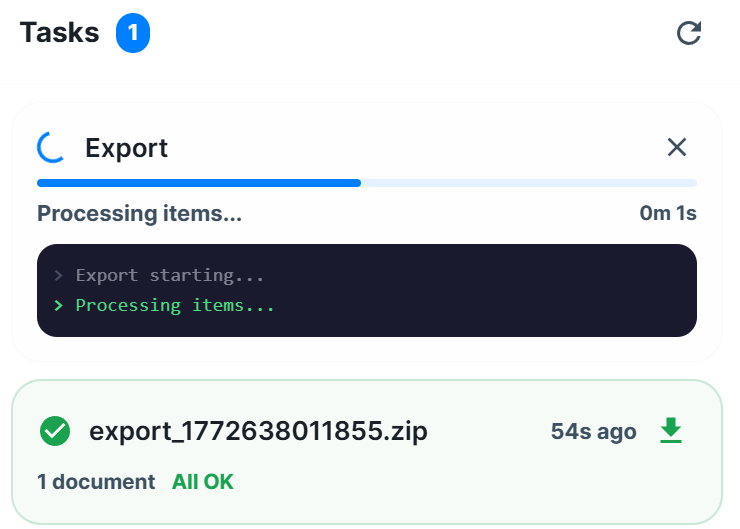
You can hover over the export to see its progress if it is large.
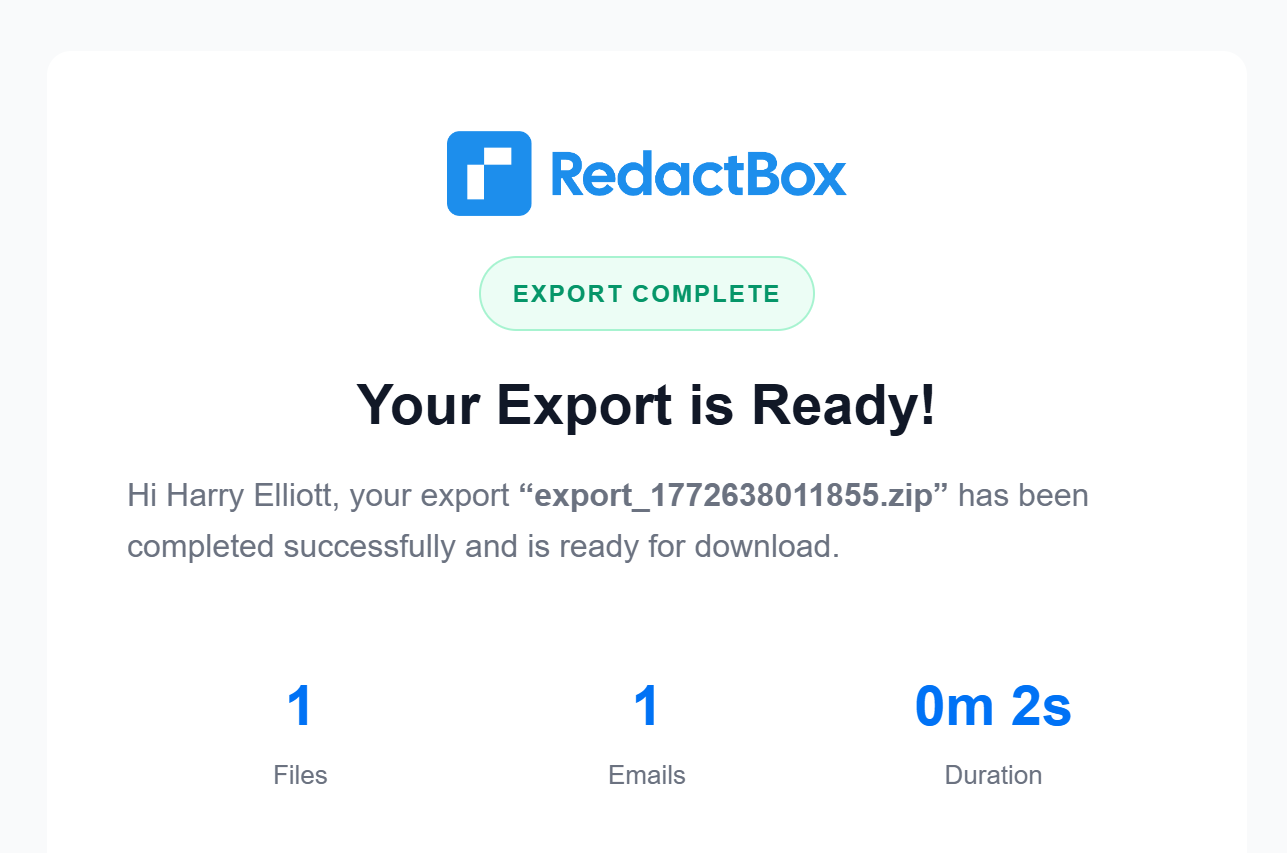
Once done, you will be sent a link to your download via email. It is also available in the task menu.
Make sure you check your spam folder if you cannot find the email.
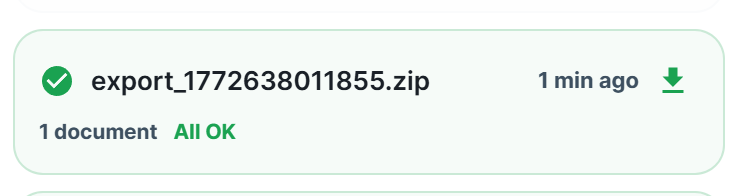
The task menu will show the last 24 hours’ worth of exports.
What stops an export
Two safeguards can hold an export back. Both are deliberate.
A bulk redaction still running — you cannot start an export while one is in progress, so a document cannot leave half-redacted. Wait for the task to finish, then start the export again.
A redaction that cannot be applied — if any redaction fails to render onto the page, the export stops and tells you why, rather than producing the document with a gap in it. An error you can see is always better than a document that looks finished and is not.
Was this helpful?
Still need help? Ask the team