Smart categorise and Same person?
Sort a long list of names into groups with a suggestion for each, and join rows that are the same person.
Last updated 8 days ago
A big subject access request can leave hundreds of names in People and identifiers. Smart categorise reads the whole list once and sorts the names you still have to decide into a handful of groups, each with a suggested next step and the reason for it, based on the ICO's guidance on third-party data. You pick the names, confirm, and one Undo reverses the lot.
Same person? sits beside it. It finds rows that are probably one person written in different ways, so you can join them and decide once.
Smart categorise and ✦ Likely same person come with Professional Plus, and only once the project owner has switched on suggested details for the project. Same person? cards for the same full name or a shared address are on every plan.
Starting a run
Open People and identifiers and click ✦ Smart categorise, next to Find a name or address. It is also in the left-hand list, and on a long list the empty panel offers it too.

If nobody is in Request details yet, RedactBox asks you to add them first: Add who asked first. Anyone in Request details is kept out of every group, so their own details can't be redacted by a group. Add the requester and the person the request is about, press Save, and the button starts the run. Sort without it runs it anyway.
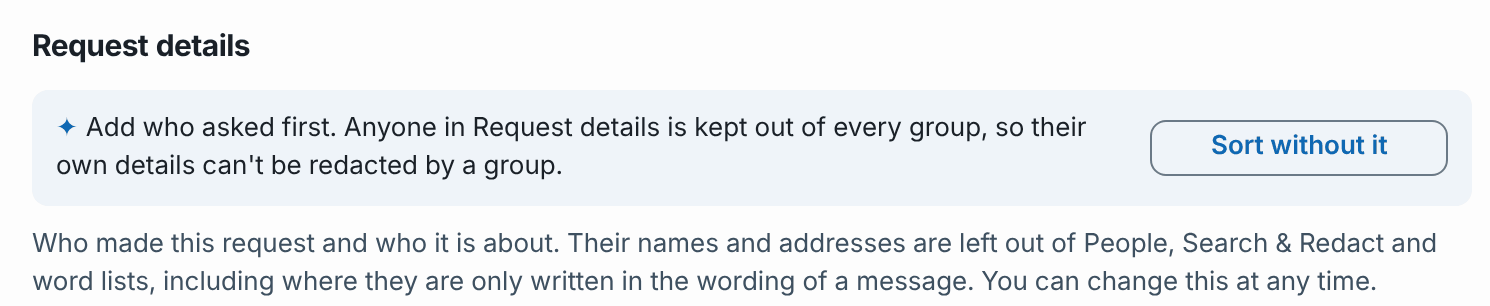
Sorting takes a minute or two and you can keep working. The toolbar shows how far it has got, with Stop. Anyone who can edit the project can start a run. When it finishes it says Sorted into 6 groups, and the groups appear under ✦ Smart categories on the left.
The groups
Not a person. System and no-reply addresses. Usually leave in: not a person, so nothing to redact.
Shared inboxes. Shared inboxes and mailing lists, such as office@ and admissions@. Usually leave in, but check any shared inbox that one named person runs.
Your staff, in their role. Staff names can often be disclosed, but check each one against the balancing test.
Pupils and parents. Other pupils and their families are third parties. Usually redact.
External professionals. Social workers, local authority officers and suppliers. Consider each one against the balancing test.
Likely same person. Names and addresses that look like one person. The next step is Open Same person?.
Not sorted. Names that did not fit a group with enough confidence. Decide them as you would without Smart categorise.
Nobody in Request details is ever put in a group, and nothing is decided for you.
Using a group's suggestion
Click a group on the left, such as Pupils and parents. A band above the list says what it suggests and why.
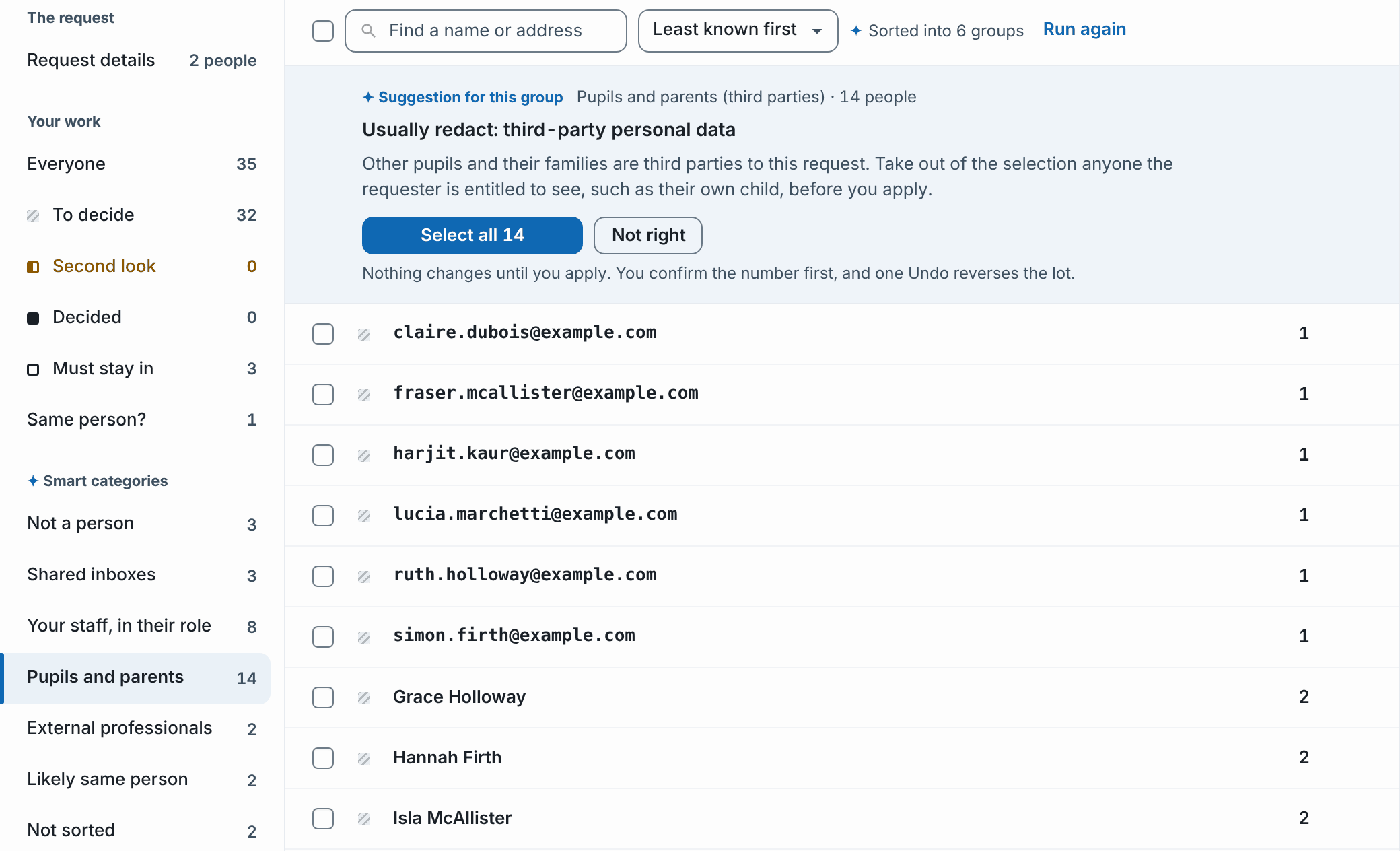
Click Select all 14. Every name in the group is ticked, and the panel on the right lists who is in the run.
Untick anyone who should not be in it, such as the requester's own child or a relative they are entitled to see. Use the row's tick or the cross beside their name on the right.
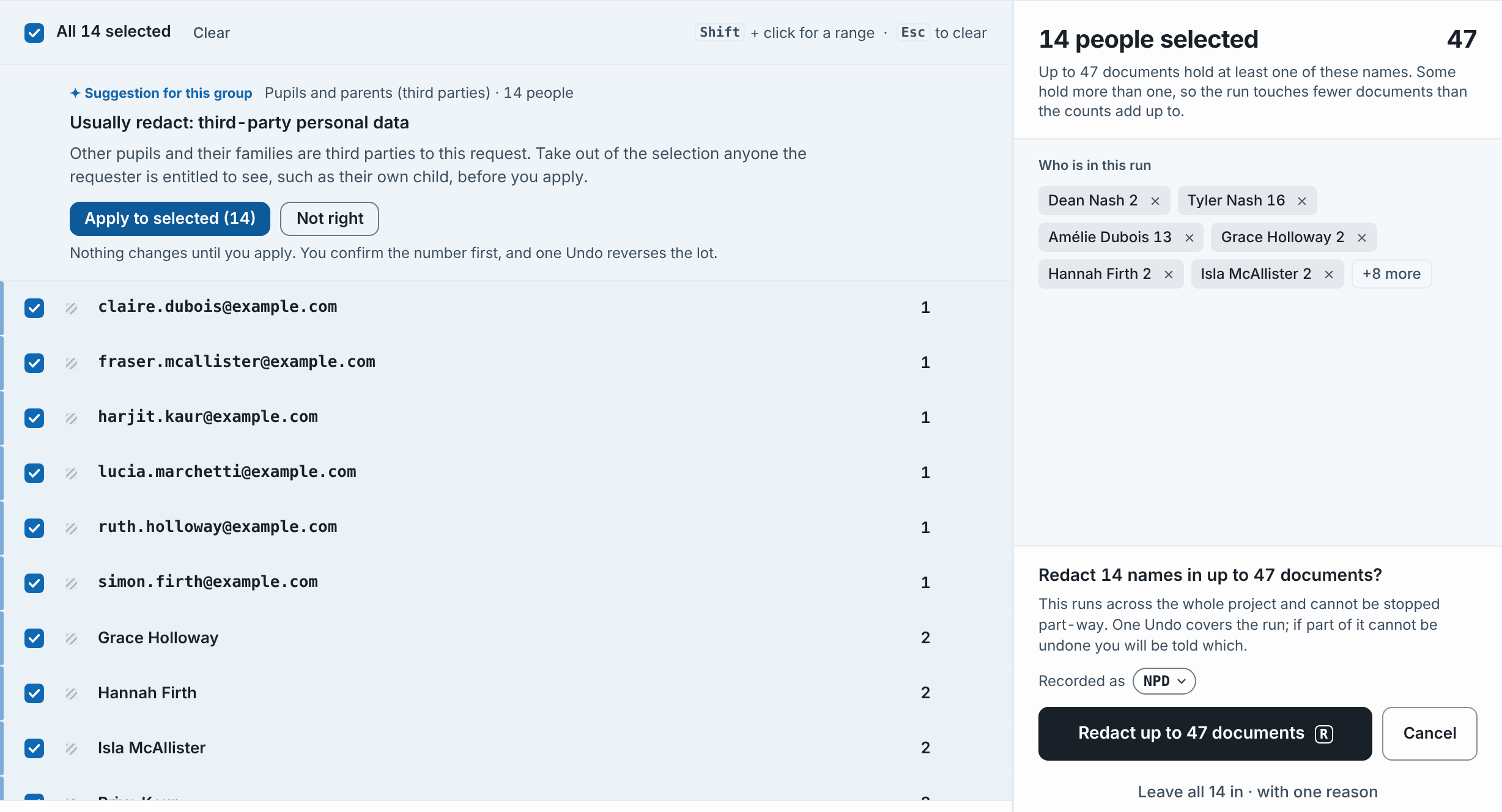
Click Apply to selected (14). The band asks you to confirm the number, such as Redact 14 people in every document they appear in?
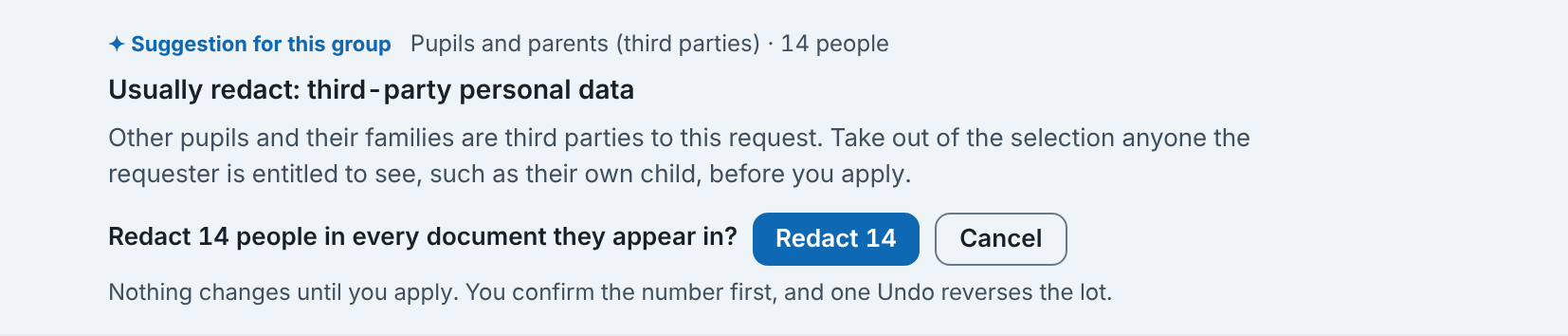
Click Redact 14 (or Leave in 3 for a group that leaves names in).
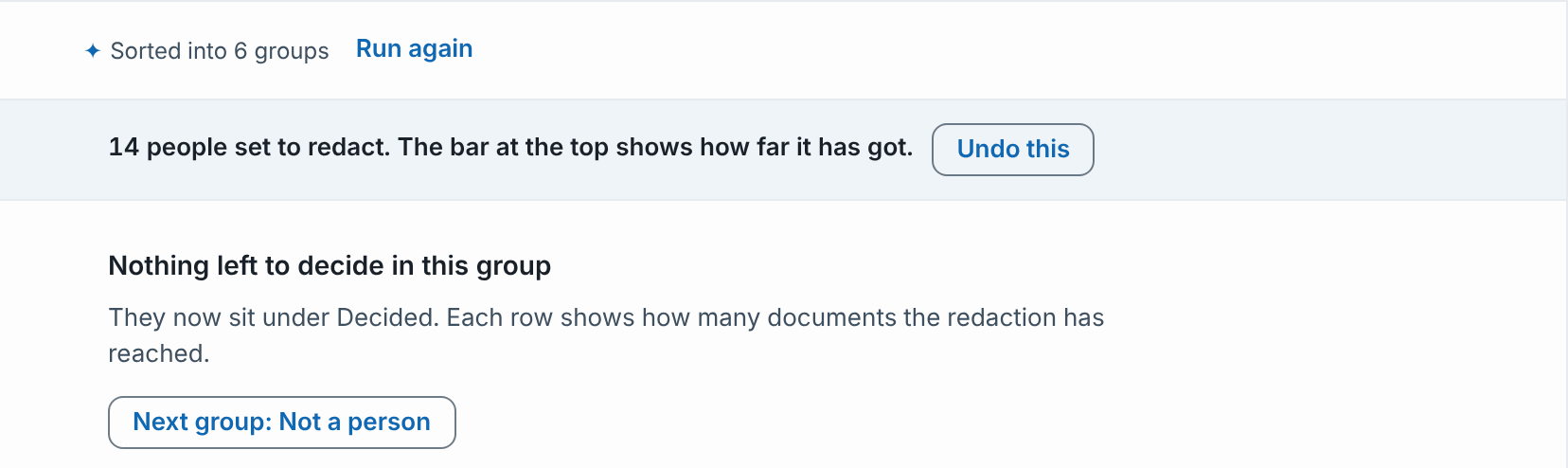
The band then says what happened, such as 14 people set to redact. The bar at the top shows how far it has got., and the group is marked Done. Next group takes you on.
What gets recorded
Pupils and parents are redacted with the reason code NPD, like any other redaction from People.
Not a person and Shared inboxes are left in with the reason Not a person: an automatic or system address or Organisational, not personal.
Staff, External professionals and Not sorted are guidance only. Decide one by one takes you through them.
Undoing it
One Undo reverses everything applied from a group: Undo this in the band, or Undo the last apply on the work bar. If a suggestion is wrong for your request, click Not right. The suggestion is hidden but the group stays, so you can decide it your own way.
If some names could not be sorted
Now and then a batch of names cannot be sorted. RedactBox tries once more, then says so, for example Sorting failed for 150 names. The groups above cover the rest. Nothing was changed. Click Try again to sort the rest. Names that were already sorted are not sent again.
Same person?
Discovery makes a row for each address or spelling, so one person can be several rows. Same person? on the left lists them as cards, and the number beside it says how many there are to check.
On every plan, a card is made for rows with the same full name (ignoring capitals, accents and titles) or an address they share.
On Professional Plus, Smart categorise also finds the harder ones, such as "Mr Hartley" and "Owen Hartley". These cards say ✦ Suggested by Smart categorise.
Joining people
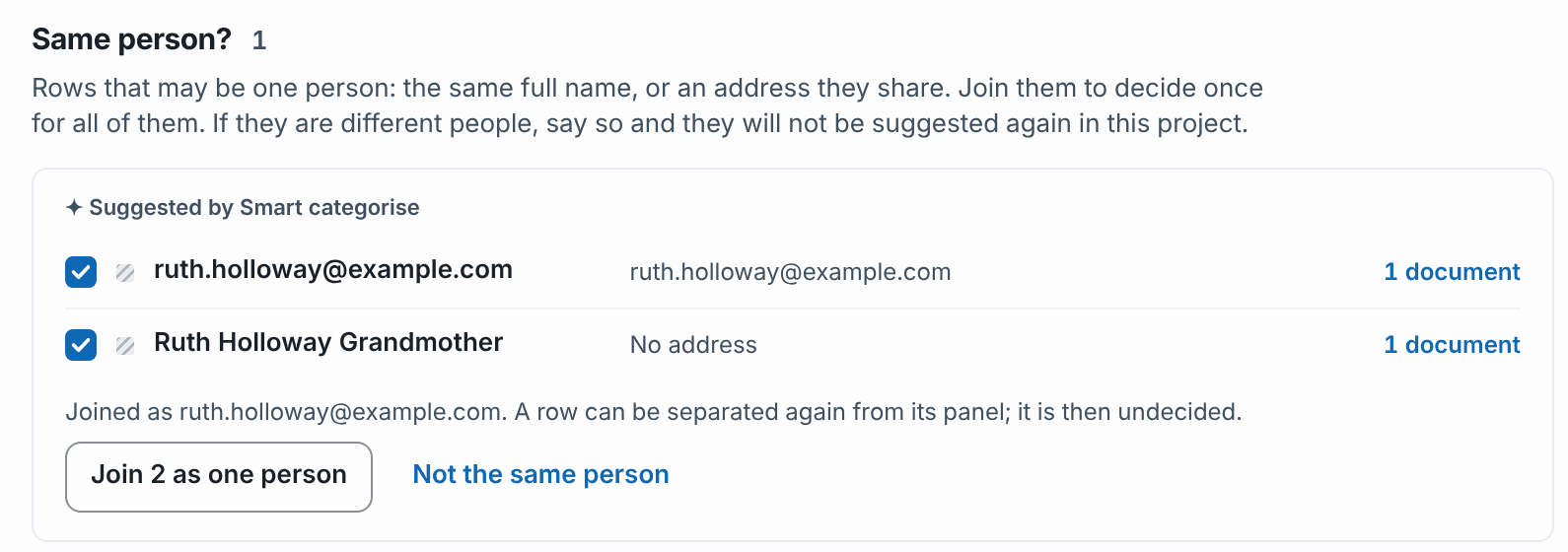
Click Same person? and read each card. Click 1 document to see where a row comes from.
Untick any row that is someone else.
Click Join 2 as one person. The rows become one person, decided once and redacted under every name and address they hold.
If they are different people, click Not the same person. The card is not suggested again in this project unless a new row joins it.
A row already redacted cannot be joined until you undo it: Already redacted. Undo that first to join.
Rows decided differently are not joined, so nobody left in is redacted by accident.
A row in Request details shows Must stay in. The card offers to add the other rows' addresses to that person's entry instead (project owner only).
Changed your mind? A joined row can be separated again from its panel. It is then undecided.
Allowance and privacy
Lookups. Each project owner gets 300 lookups a month, shared with Suggested details. Smart categorise uses one for every 150 names it sorts, counted against the project owner. A batch that fails is given back. System addresses and names already sorted in the last 30 days cost nothing.
What is read. Names and email addresses, plus short passages from your documents around a person's name. Anthropic's Claude reads them, run for us by Google Cloud inside the EU. Your documents are not used to train models.
What is kept. Only which group each name went in, with no document text, for 30 days. Turning Suggested details off in Project settings deletes the groups straight away.
Example: a parent's SAR at a school
A parent has asked for everything the school holds about her son in Year 9. Five staff mailboxes and a class contacts spreadsheet are in the project, and People lists 35 names.
Click ✦ Smart categorise. RedactBox asks for Request details first, so add the mother as Made the request and her son as The request is about them, with their addresses, and press Save. Start the run.
Open Same person? first. The grandmother's email address and her name from the spreadsheet are one person, so join them before anything is redacted.
Open Not a person: postmaster, mailer-daemon and Mail Delivery System. Select all 3, then Apply to selected (3) and Leave in 3.
Open Shared inboxes. The school office and the safeguarding inbox can stay in, so leave them in the same way.
Open Pupils and parents: other pupils from the spreadsheet and their parents' addresses. Check nobody the mother is entitled to see is ticked, then apply and redact them.
Open Your staff, in their role and click Decide one by one. Leave in the Head of Year and the SENCo with a reason, and look harder at anyone named outside their job.
Open External professionals. The CAMHS psychiatrist wrote in her professional role, but her letter is about the pupil's health, so weigh each one.
Work through Not sorted by hand, then check What this means before you export.
See People and identifiers for deciding one person at a time, and Suggested details for a person's phone numbers and addresses.
Was this helpful?
Still need help? Ask the team