Import progress and email me when it's ready
Follow an import in the sidebar and get one email when your files or export have finished importing.
Last updated 8 days ago
While a file imports, its row in the sidebar shows where it has got to, and a whole Google Vault or Microsoft Purview export gets a progress row of its own. A large import can take hours, so you can also ask for one email when everything has finished, then close the tab and get on with something else.
Email me when it's ready is on every plan.
Asking for an email when you upload
In your project, click Add and choose Upload files or Import a whole export.
Add your files. Under them, tick Email me when it's ready.
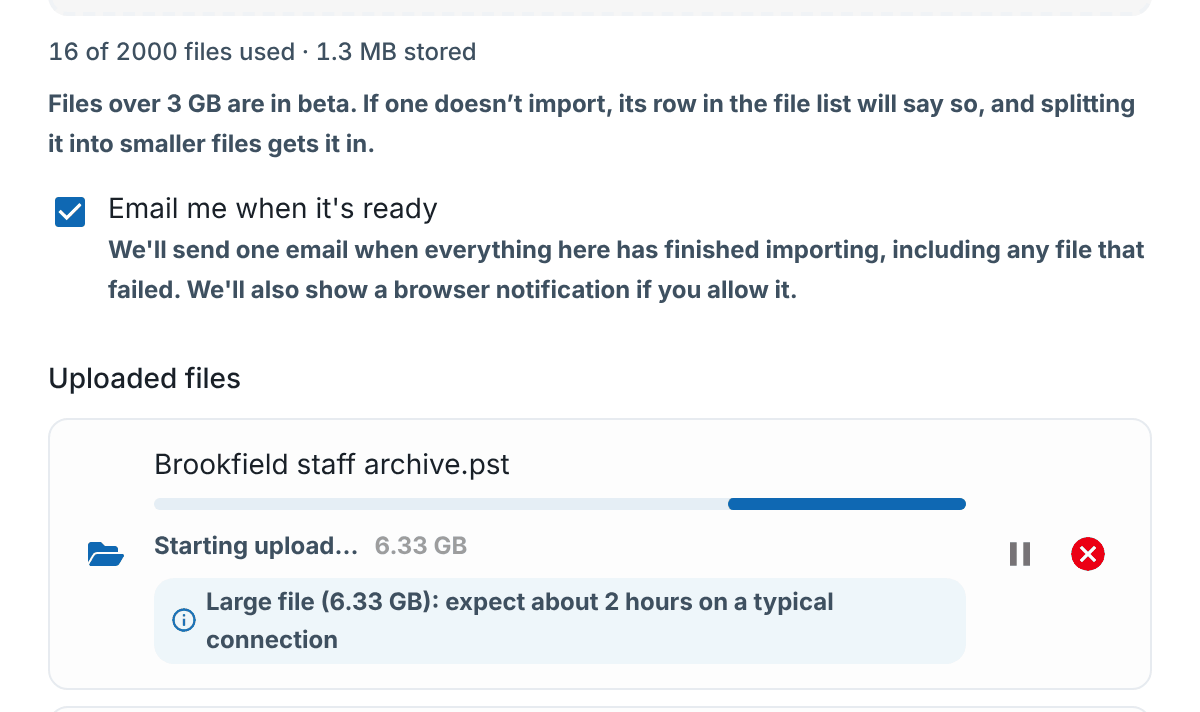
It ticks itself for big files. Until you choose, the box is ticked whenever a file is over 1 GB. Once you tick or clear it yourself, this browser remembers your choice.
One email for the batch. For files, you get a single email when everything you uploaded into the project has finished importing, including any file that failed. For a whole export, you get one email when that export has finished importing, mailboxes and documents included.
A browser notification too, if you allow notifications when RedactBox asks and you are on another tab when it finishes.
Following progress in the sidebar
Each file shows a status pill while it is on its way in. Hover over a pill for more detail.
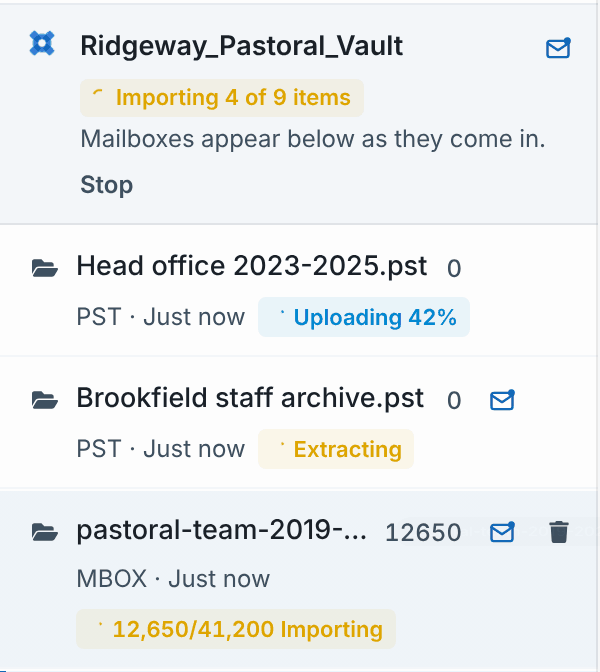
Uploading 42%, the file is still being sent from your computer. If the upload stops (the tab closed or the connection dropped), it says Upload incomplete, with Resume to carry on from where it got to.
Queued, the file is waiting for a free slot and starts on its own.
Extracting (for a PST) or a moving message (for other files), the items are being read out of the file. There are no counts yet in this stage.
12,650/41,200 Importing, the items are going into your project. The count only goes up.
Converting PDFs, then a count such as 1,200/41,200 PDF, the items are being prepared for redaction.
Failed or Partial import, the import stopped. Hover over the badge for what to do next.
A whole export
A Vault or Purview export sits at the top of the mailbox list while it comes in. It says Uploading with how much has gone, then Reading the export, then Importing 4 of 9 items. Its mailboxes appear below it as they are imported, each with its own pill. Stop stops the import, and what has been imported stays.
The export upload carries on if you close the upload window. You can also follow it in Tasks (the hourglass at the top).
Changing your mind after the upload
Every file or export you uploaded that is still on its way in has an envelope on its row. Hover over the row to see it (on a touch screen it is always shown).
Press the envelope to ask for the email. It turns blue, and its tip says We'll email you when this is ready. Press to stop.
Press it again to stop the email.
Only the person who uploaded a file sees its envelope, and the email goes only to them. If they can no longer open the project when the import finishes (a share was removed in the meantime), no email is sent.
What the email says
The email comes from RedactBox, and a reply goes to our support team.
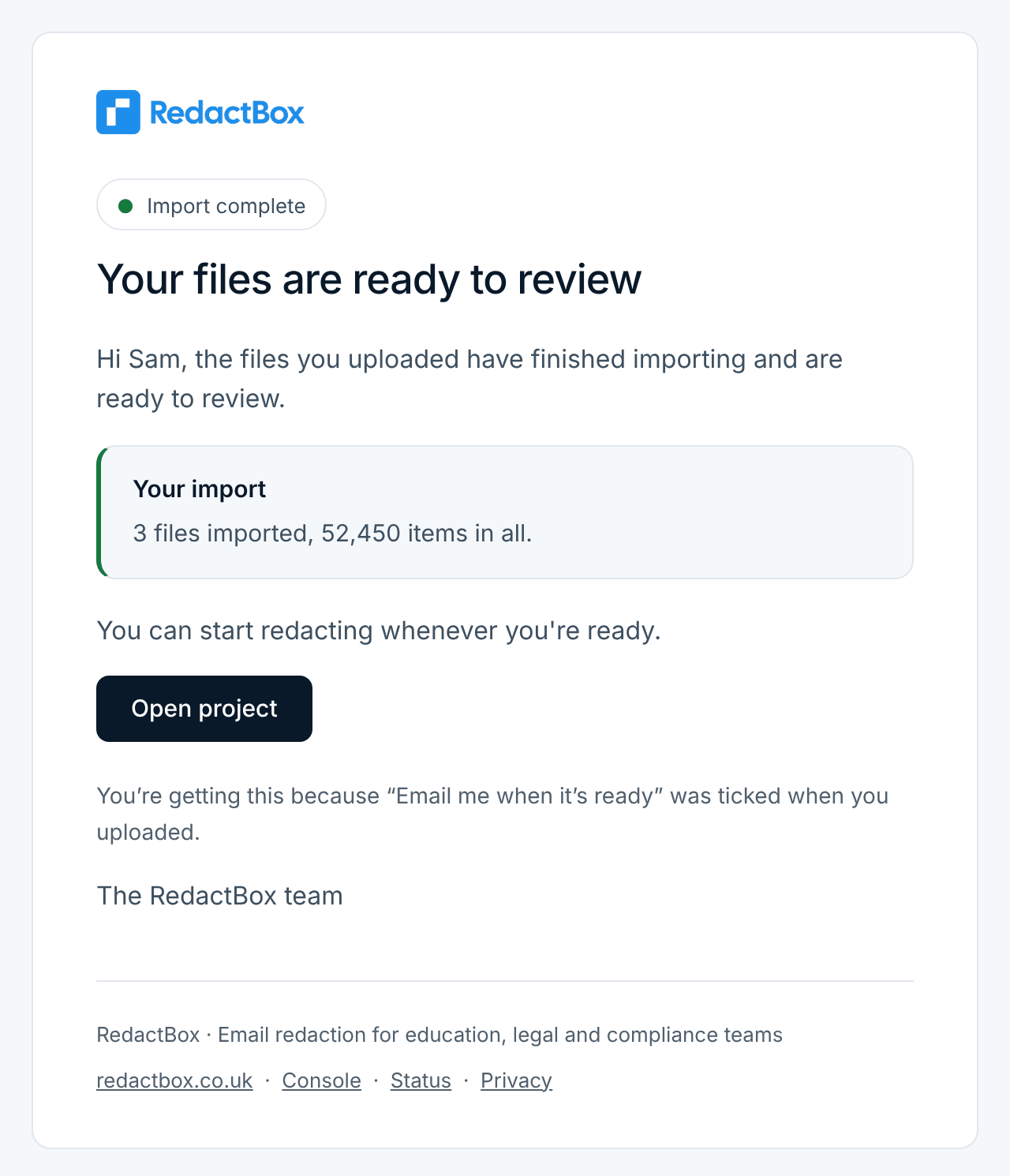
Your file is ready to review (or Your files are ready to review) when everything imported. It says how many files imported and how many items in all.
Your import has finished, with a problem when some files imported and some didn't. It says how many of each.
Your file couldn't be imported (or Your files couldn't be imported) when nothing imported. Nothing else in the project has changed, and you can upload again.
If some items couldn't be prepared for redaction, the email says so and asks you to open the project to retry them. Open project takes you straight there.
The email never contains a file name or a project name, only counts and a link. SAR files and projects are often named after the person they are about, and an email can sit in an inbox or on a phone's lock screen for a long time. Which file is which is in the project, behind your sign-in.
Example: a large Purview export on a Friday afternoon
On Professional Plus, the DPO chooses Import a whole export and drops in a 6 GB Purview export. Email me when it's ready is already ticked.
The export row shows the upload. Once it says Reading the export, they close the tab.
Later, the email arrives: Your files are ready to review. They press Open project and start triage.
Related: Uploading Files, Large files up to 10 GB (beta) and Importing a whole Google Vault export.
Was this helpful?
Still need help? Ask the team