Importing a whole Google Vault export
Drop every file from a Google Vault export into RedactBox at once: mailboxes per account, Drive files under their emails, and Gmail labels kept.
Last updated 8 days ago
You can import a whole Google Vault export in one go: the mail, Vault's own reports and the linked Drive files together. RedactBox checks the files before anything uploads, makes one mailbox per account, files each linked Drive document under the email that shared it, and keeps each account's Gmail labels.
Use this when a Subject Access Request, FOI request or disclosure covers Google Workspace accounts. To export from Vault in the first place, see Getting a Google Vault export into RedactBox.
Before you start
Export from Vault as MBOX. Tick Export linked Drive files if the emails share Drive documents.
Download every file from the export, and from the Drive Link Export if there is one. Leave them as they are: there is no need to unzip anything or rename anything.
Every file Vault gives you starts with the export's name, which is how RedactBox knows they belong together.
Importing the export
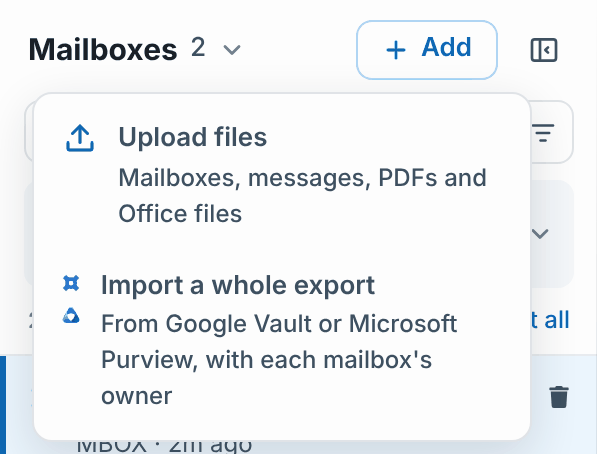
In your project, click Add and choose Import a whole export. In an empty project, you can also click Import an export under the upload button.
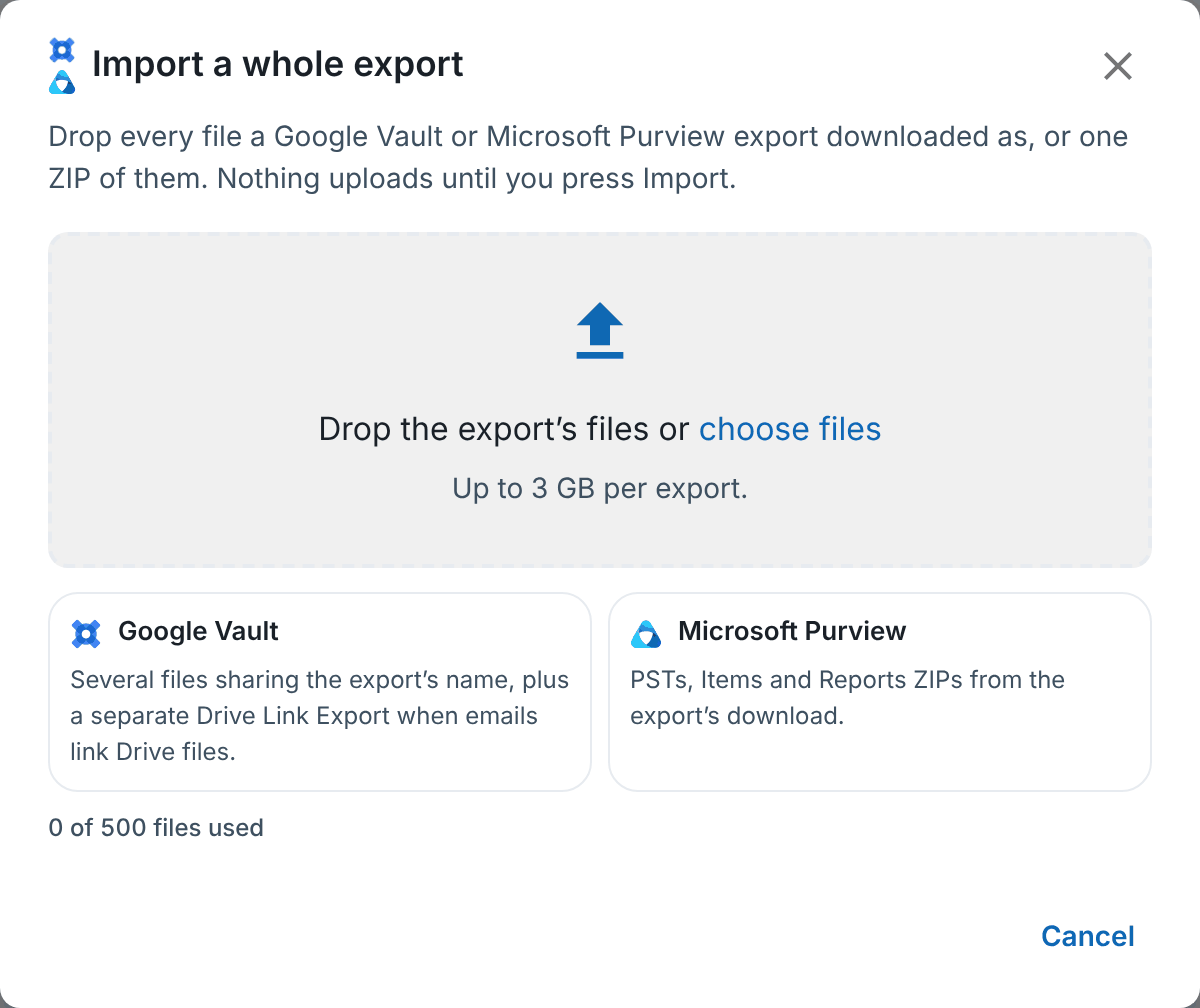
Drop in every file you downloaded, or click choose files and select them all. If you have already put them into one ZIP, drop that ZIP instead.
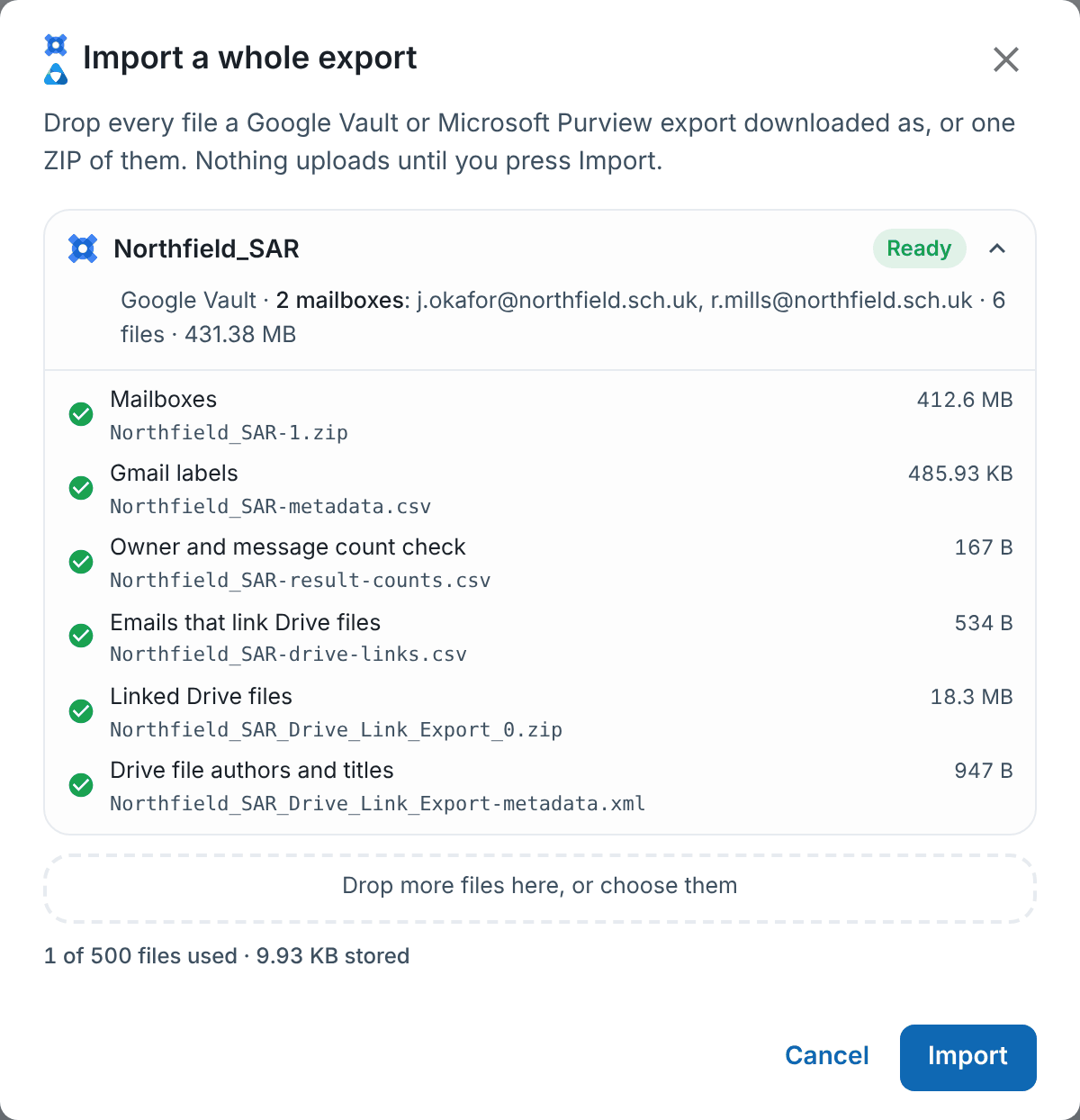
RedactBox checks the files and lists what it found: the accounts in the export, and a line for each part. Nothing uploads yet. When every part is there, the export is marked Ready.
Click Import.
The upload and import carry on if you close the dialogue, and you can leave the page. Follow the import in Tasks (the hourglass at the top), or on the export's own row at the top of the mailbox list. Mailboxes appear in the project as they come in.
Tick Email me when it's ready before you import and you get one email when the export has finished. See Import progress and email me when it's ready.
What each part gives you
Mailboxes (
-1.zip,-2.zipand so on). The mail itself, one mailbox per account. This is the only part you must have.Gmail labels (
-metadata.csv). Each email's labels, such as Inbox, Sent and your own folders, shown as tags on each email in Triage.Owner and message count check (
-result-counts.csv). Confirms whose account each mailbox is, and compares the number of messages Vault exported with the number imported.Emails that link Drive files (
-drive-links.csv). Tells RedactBox which email each Drive file was shared in.Linked Drive files (
_Drive_Link_Export_0.zip). The Drive documents themselves.Drive file authors and titles (
_Drive_Link_Export-metadata.xml). Each Drive file's real title and who wrote it.
If something is missing
If a part is missing, the check says so and tells you what you will lose. For example, without the metadata and result counts, Gmail labels are not shown, and owners come from the mailbox names without being cross-checked.
Click Add files to add the missing part, or Import anyway to carry on without it.
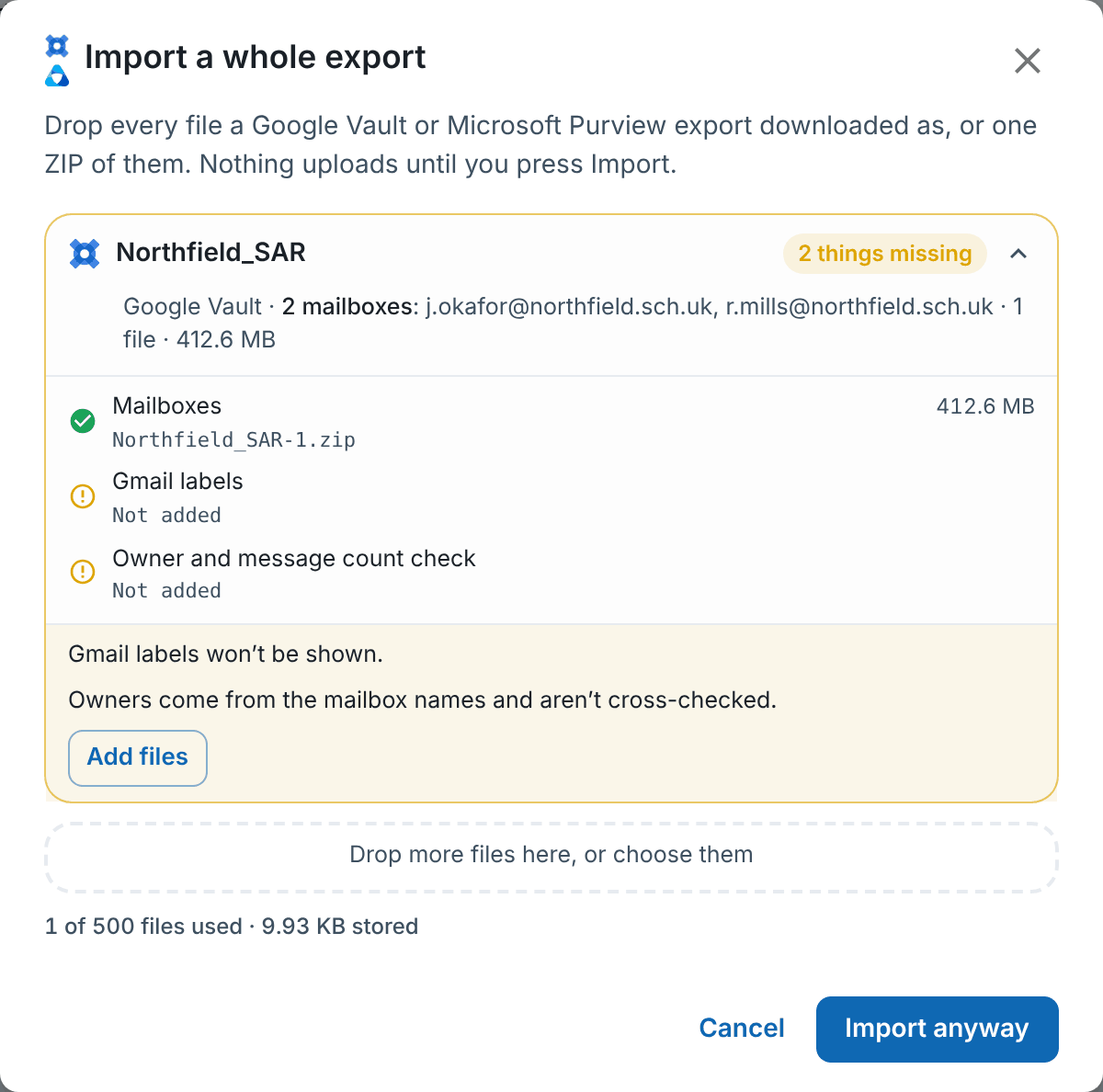
Tip: RedactBox never guesses an owner from a folder name. If you only upload the mailbox ZIP, the owner comes from the name Vault gave each mailbox, and is marked as not confirmed.
What you get
One mailbox per account, named after the account, so you can see whose mail is whose.
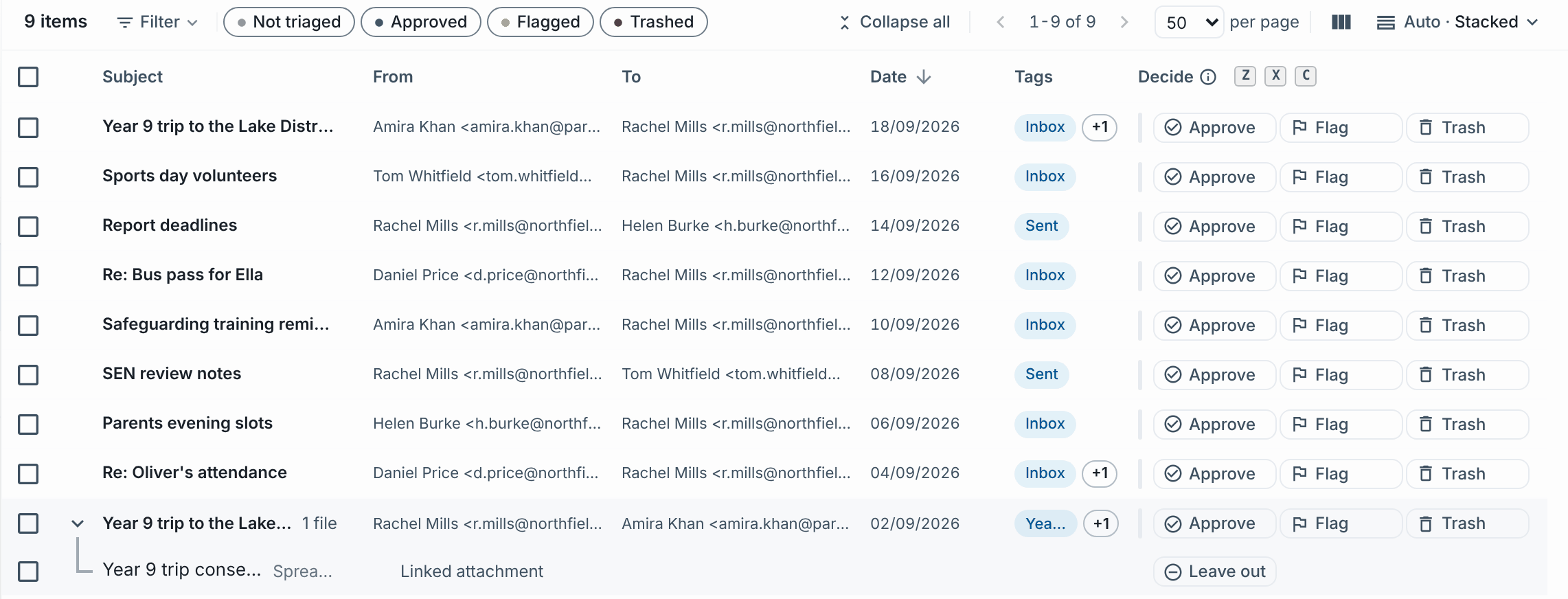
Drive files under their email. Each linked Drive document appears under the email that shared it, marked Linked attachment. Word, Excel, PowerPoint and other files are converted so you can redact them like any other document, and you can leave one out without leaving out the email. A Drive file with no email to sit under goes to Documents.
Gmail labels as tags on each email in Triage.
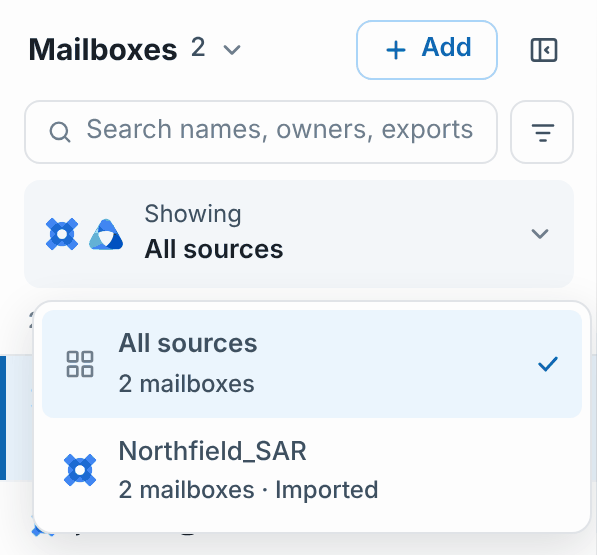
The Showing menu above the mailbox list lets you show one export at a time, or everything. Each export shows where its import has got to. Its ⋯ menu has Notes from the export, which lists anything worth checking, such as a mailbox whose message count does not match Vault's, or an account Vault exported that is not in the upload.
Limits
On Professional, a whole export can be up to 3 GB, and each converted Drive file up to 50 MB. On Professional Plus, an export can be up to 10 GB (over 3 GB is in beta).
If an export is bigger than your plan allows, split it in Vault into smaller exports (for example, a few accounts at a time) and import each one into the same project.
Example: a SAR covering two staff accounts
The Workspace administrator searches both accounts in Vault, exports as MBOX with linked Drive files, and downloads all six files.
The data protection lead opens a new project, chooses Import a whole export and drops in all six files. The check shows Ready.
Two mailboxes appear, one per account. The shared trip spreadsheet sits under the email that linked it.
The lead checks Notes from the export, triages and redacts as usual, then exports.
Was this helpful?
Still need help? Ask the team