Export Individual Emails & Documents
Learn how to select and export specific emails from your files instead of exporting everything. Browse emails within a file, pick the ones you need, and produce a focused export.
Last updated 8 months ago
RedactBox allows you to export entire files or hand-pick specific emails from within a file. This is useful when you only need to produce a subset of emails — for example, a handful of relevant messages from a large mailbox.
Selecting Emails & Documents for Export
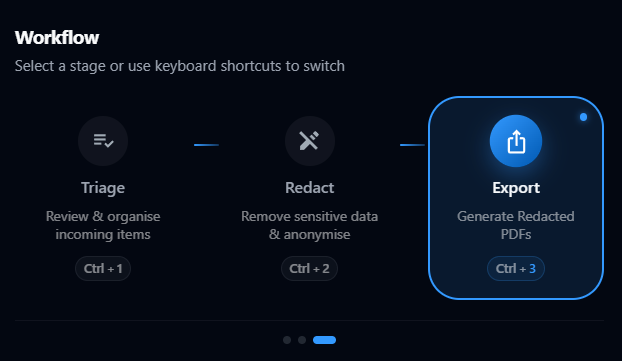
Step 1: Switch to Export Mode
Click the mode selector in the header and choose Export. This opens the Export view where all your project files are displayed as cards.
Step 2: Browse Emails & Documents in a File
Each file card has a Browse button (folder icon). Click it to open the Email Drawer — a panel showing every email & document inside that file.
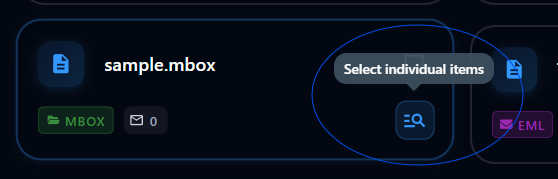
From here you can:
Select individual items by clicking their checkbox or row
Select a range by clicking one item, then holding Shift and clicking another
Select all on the current page using the checkbox in the table header
Select all items in the file by clicking the "All X" button that appears once every item on the page is selected
Tip: You can use the filters and search within the drawer to narrow down items before selecting. This is handy for large files with hundreds or thousands of emails or documents.
Step 3: Confirm Your Selection
Click Done to close the drawer. The file card now updates to show how many items you've chosen — for example, "12 of 340" — and the browse button highlights to indicate a partial selection.
Step 4: Export
The floating action bar at the bottom shows your total selection. Click Export Selection to start the export. Only your chosen items will be included in the final ZIP.
Whole File vs Individual Selection
You can mix both approaches in a single export:
Whole file — click the file card's checkbox to include every item
Individual emails — use the browse drawer to pick specific ones
Tip: If you select a whole file after picking individual item from it, the individual selection is replaced. This keeps things simple and avoids duplicate exports.
Tracking Your Export
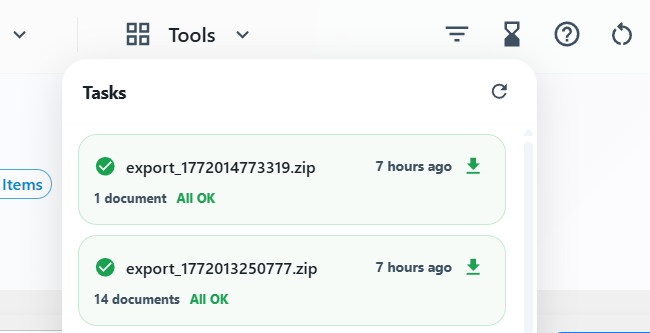
Once you click export, a new task appears in the Tasks dropdown (top-right of the header). You can track progress in real time — including which item is currently being processed — and download the ZIP when it completes.
When to Use Individual Export
For targeted productions: When a solicitor or regulator has requested specific emails or documents rather than an entire file, pick only the relevant messages.
For large files: If you have a file with thousands of emails but only a few dozen are relevant, individual selection saves time and produces a smaller, more focused export.
For re-exporting failures: If a previous export had a handful of failed items, you can browse the file, select just those emails, and export them separately.
Was this helpful?
Still need help? Ask the team