Word Lists — Bulk Search and Redact from a List
Last updated 5 months ago
What are Word Lists?
Word Lists let you save sets of terms — names, email addresses, phrases, or any text — and apply them in Search & Redact. Instead of searching one term at a time, paste your list and redact everything in one pass.
Creating a Word List
Open Tools in the header and click Word Lists
Click New List in the left panel
Give your list a name (e.g. "Executive Names" or "Client Emails")
Add terms in the editor:
Type directly — one term per line
Paste a comma-separated list — it's automatically split into individual terms (e.g. pasting "John Doe, Jane Smith, Bob Wilson" becomes three separate terms)
Import a file — click the upload icon to import from a CSV or TXT file. Terms are merged with any existing ones and deduplicated
Click Create to save your list
The term count updates live as you type or paste, so you can see exactly how many terms will be searched.
Per-term match flags
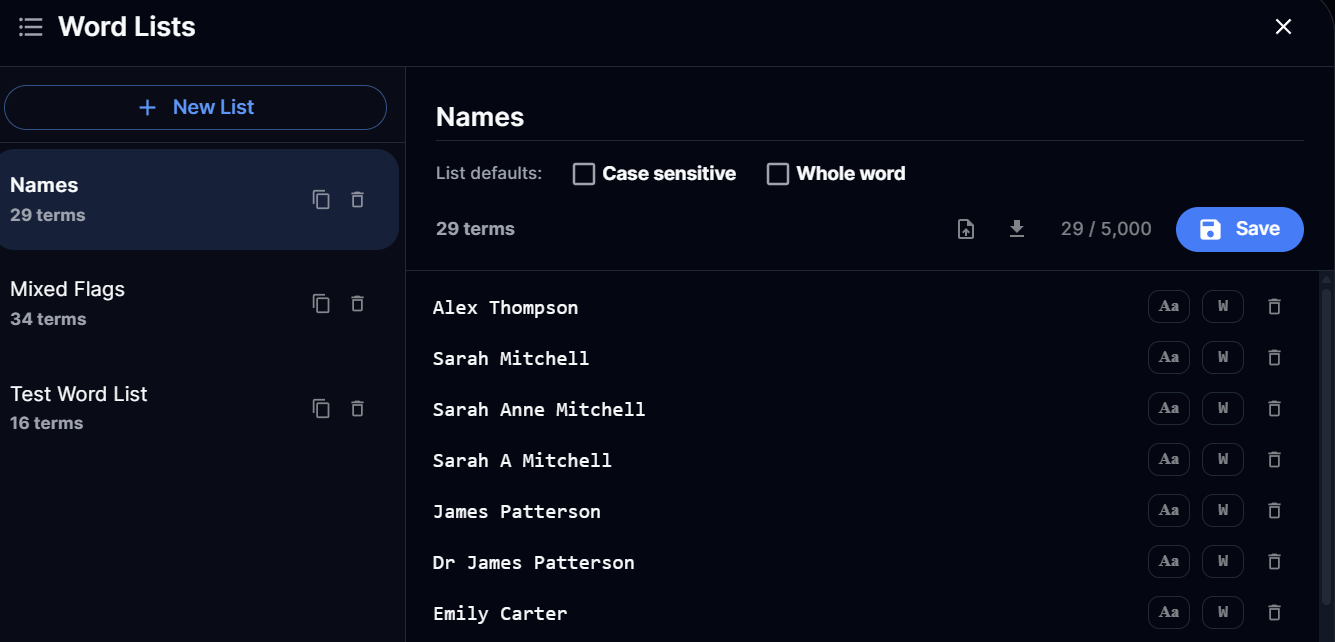
Each term in a list carries its own case-sensitive and whole-word flags. This means one list can mix terms that should match strictly with terms that should match loosely:
Add "Smith" as case-sensitive + whole-word — it'll redact "Smith" but not "smith" or "blacksmith"
Add "@company.com" as case-insensitive + contains — it'll catch every address at that domain
The list also has its own defaults for new terms, so you only need to override on the exceptions. Toggle the per-term flags from the icons next to each term in the editor.
Using a Word List in Search & Redact
Open Tools > Search & Redact (or press Ctrl+Shift+F)
At the top, switch the source from Type term to Word list
Select your list from the dropdown — the search runs automatically
Results are grouped by term, showing how many matches each term has and across how many items
Review the results, then click Redact to apply redactions for all matching terms
Scope and status filters apply to the whole list. Case and whole-word matching are taken from each term's own flags — the dialogue-level Case / Whole-word toggles are ignored in Word list mode.
Inspecting a single term
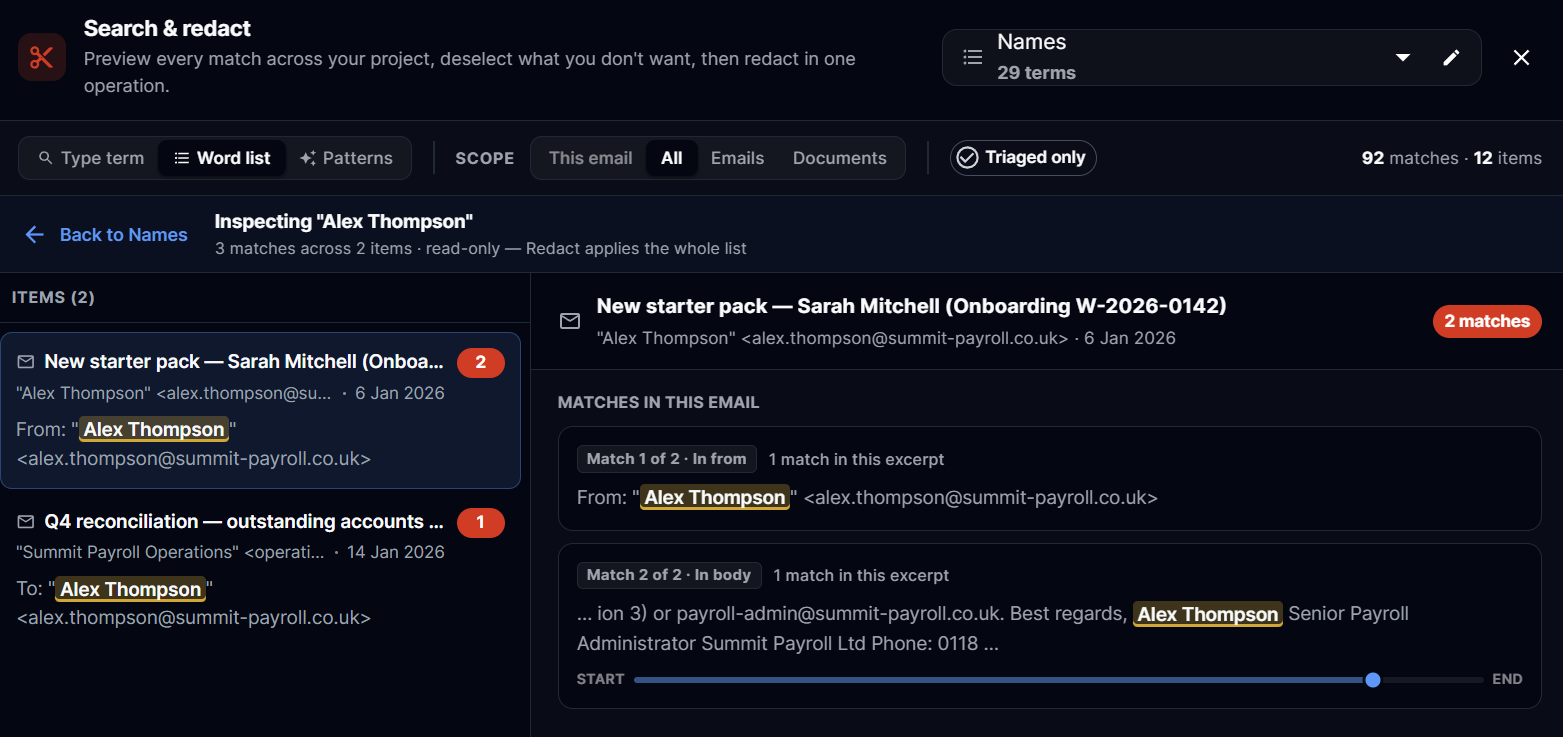
Click any term inside a word list to drop into a read-only inspector scoped to just that term. You see the same snippet layout, field labels, and position bar as Search & Redact — useful when you want to sanity-check what a single entry is matching across a project before you commit to redacting it.
Managing Your Lists
From the Tools > Word Lists manager, you can:
Edit — select a list and modify the name, default flags, or terms, then click Save
Duplicate — click the copy icon next to any list to create a variation
Delete — click the delete icon once to arm, click again to confirm (auto-cancels after 3 seconds)
Export — click the download icon in the editor to save a list as a TXT file
Each project can have up to 50 word lists, with up to 1,000 terms per list.
When to Use It
You've received a list of individuals whose personal information needs to be removed before disclosure. Paste the names into a word list, set "Smith" as case-sensitive + whole-word (so you don't accidentally redact "blacksmith"), apply the list in Search & Redact, and redact every occurrence across all files in one action — instead of searching each name individually.
Was this helpful?
Still need help? Ask the team