Search to Redact
Find and redact specific text across all your emails and documents.
Last updated 4 months ago
This article explains how to use the Search to Redact feature to systematically find sensitive information and redact all occurrences at once.
Opening Search to Redact
Open your project
Click the Search icon in the tools menu (or press Ctrl/Cmd + Shift + F)
The Search to Redact dialogue opens
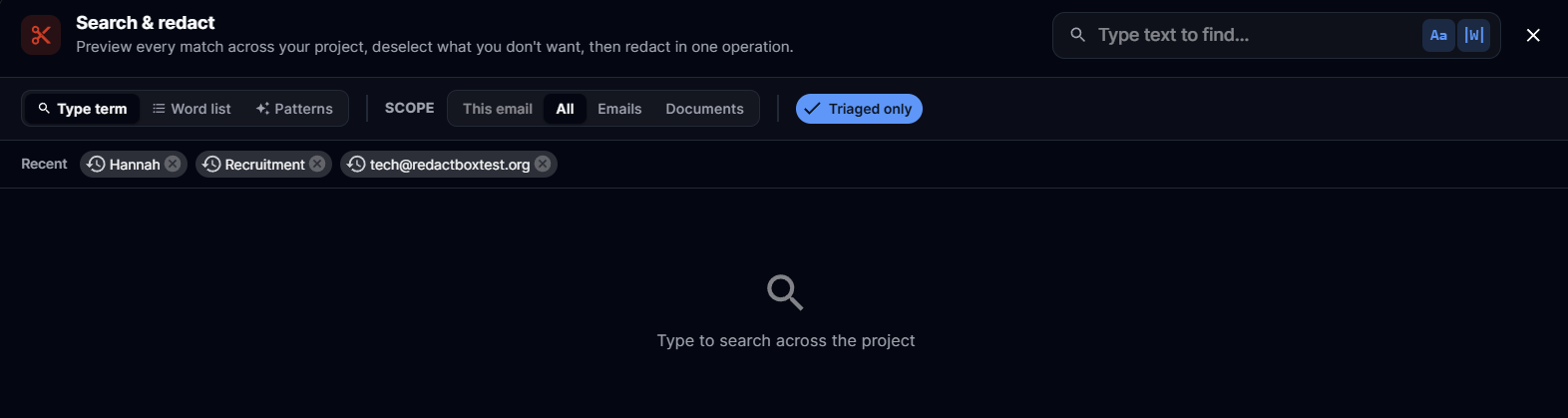
Three search modes
At the top of the dialogue, switch between three sources:
Type term — type a single search term
Word list — pick a saved list and search every term in one pass (see Word Lists)
Patterns — pick a pre-built PII pattern (emails, postcodes, NI numbers, etc.)
The two-pane workspace
Results appear in a list on the left and a full preview on the right. Click any row and the preview fills with that item's snippets immediately — the rest of the matches stream in behind it, so you don't wait on a blank pane.
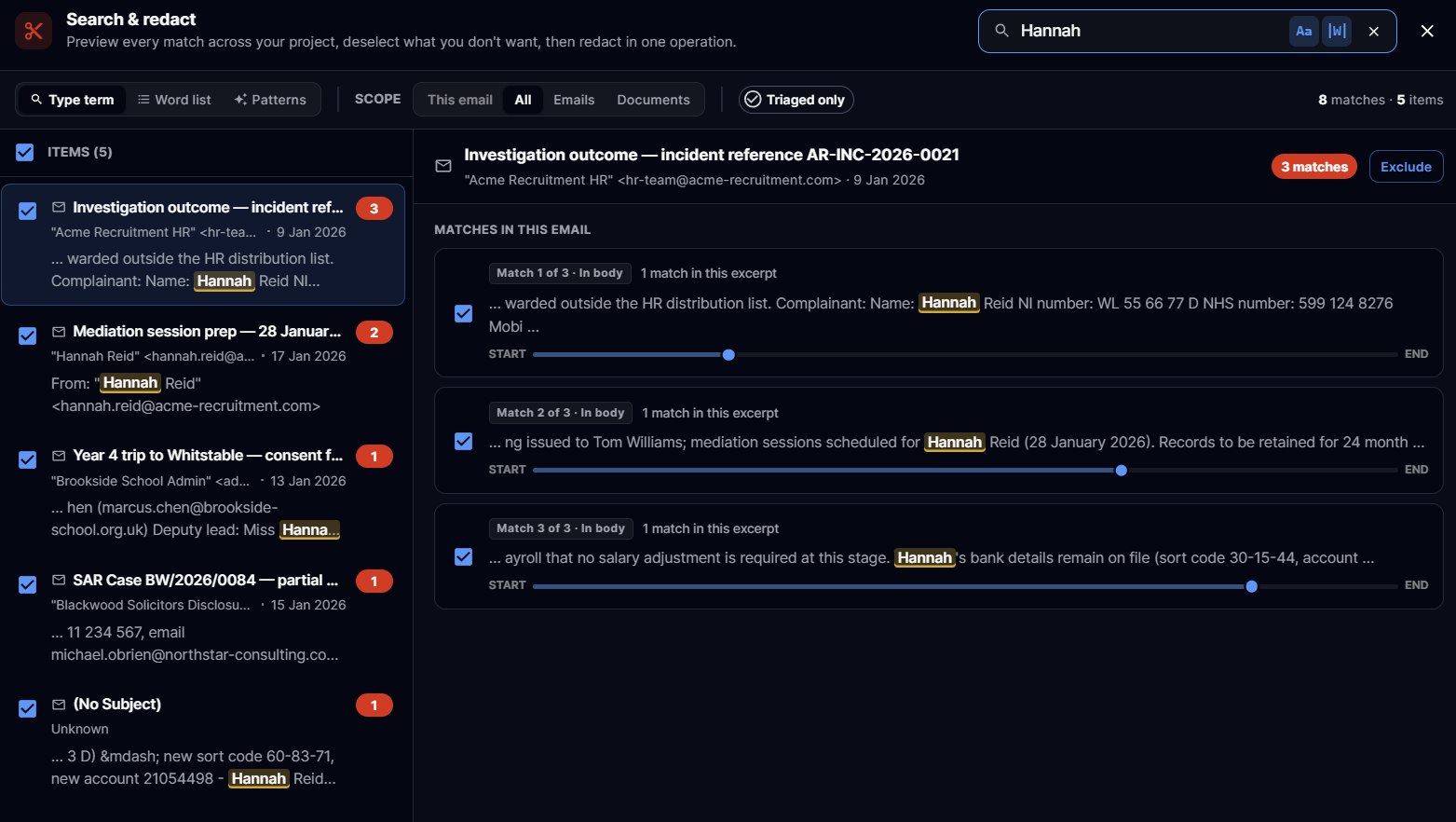
Each row shows:
The item subject and sender
The number of matches
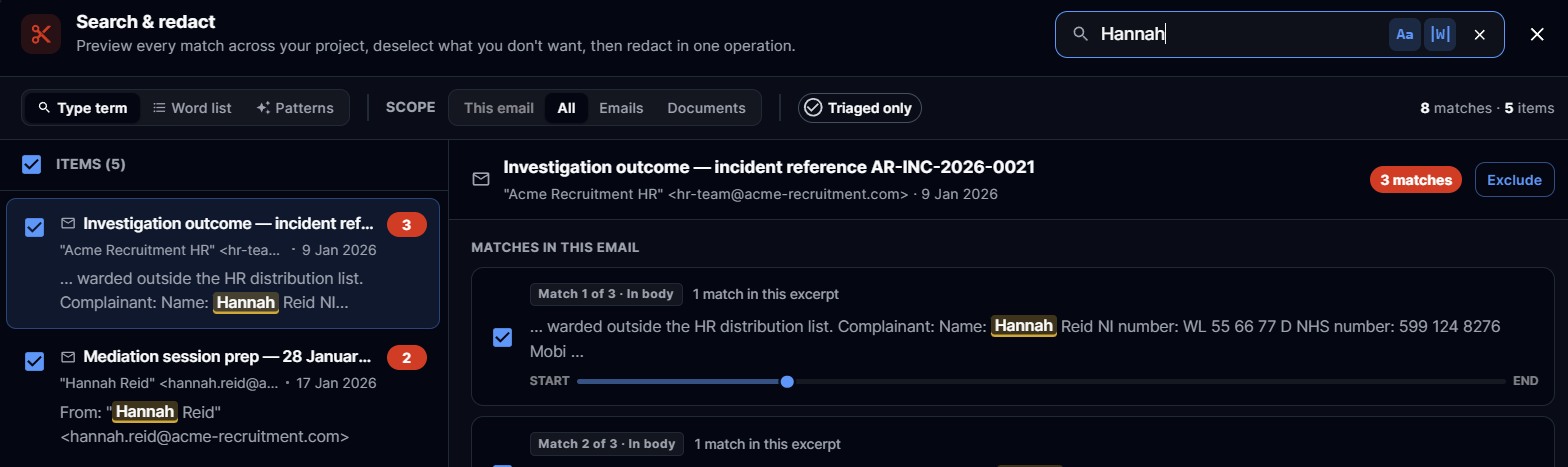
Each snippet is labelled Match N of M · In subject / body / from / to, so you know which field the hit is in
A small position scrubber bar under each snippet shows roughly where the match falls in the document (hover for an exact percentage)
Multi-select with Shift+click
Click one row, then Shift+click another row to select the range. Useful when you want to include or exclude a batch from a redaction.
Recent searches
Recent search chips at the top of the dialogue remember your last queries — one click to re-run them.
Searching for Text
Type the text you want to find in the search box
Results appear automatically as you type
The results list shows items containing your search term
Common Patterns — one-click PII
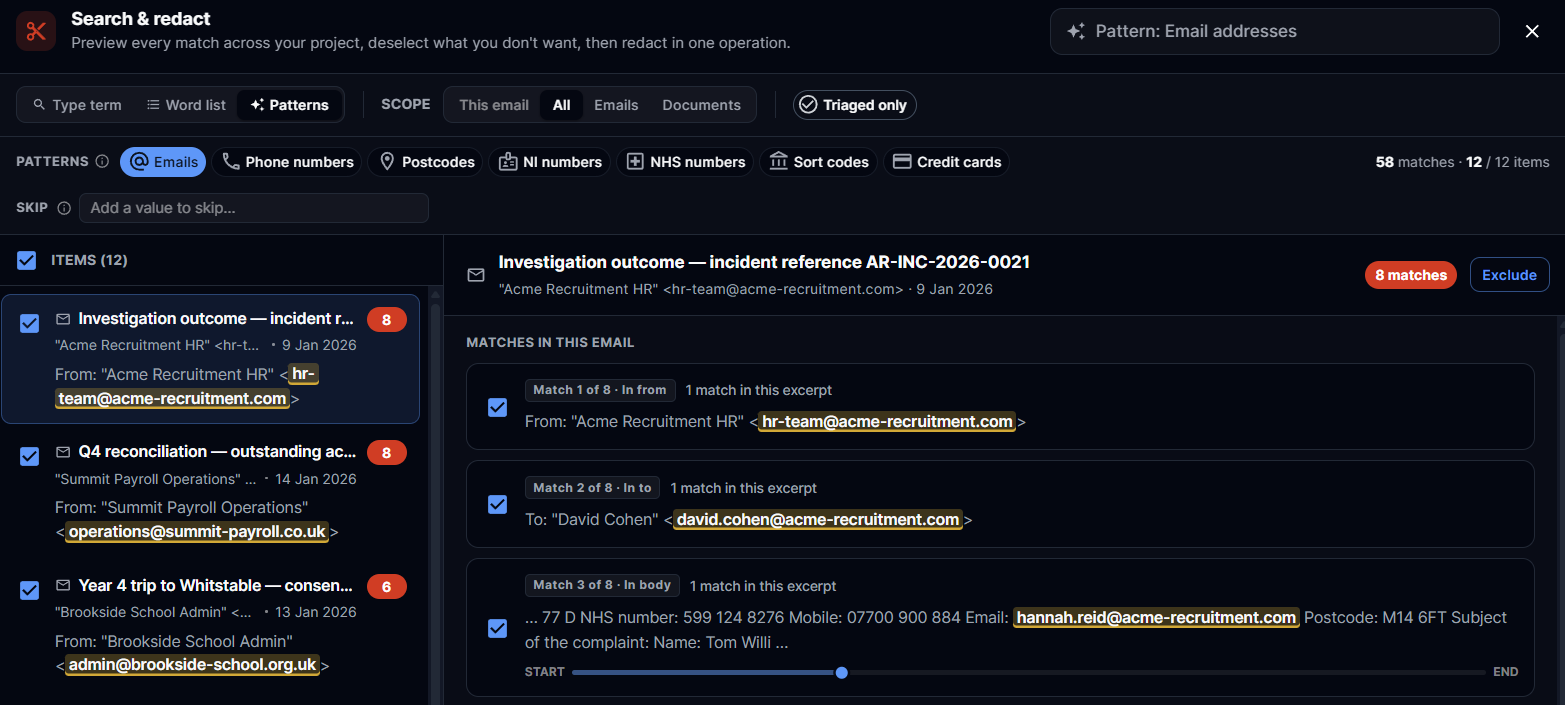
Switch to the Patterns tab and pick a chip to run a project-wide search for that pattern:
Email addresses
UK phone numbers
UK postcodes
National Insurance numbers
NHS numbers
Sort codes
Credit card numbers (Luhn-validated to cut false positives)
Patterns are heuristic — credit cards are validated, but the others can produce false positives, so always review the matches before redacting.
Configuring Your Search
Scope
Choose where to search using the scope chips:
This Email/Document — search only the currently open item
All Emails & Documents — search everything in your project
Emails Only — search only email files
Documents Only — search only uploaded documents

Status Filter
Triaged only (default) — search only items you've already processed
All items — search everything, including unprocessed items

Case Matching
Exact case (default) — "John" only matches "John", not "john"
Any case — "John" matches "John", "john", and "JOHN"
In Word list mode, you can override case matching per term — see the Word Lists guide.

Word Matching
Whole word (default) — "mark" only matches the word "mark", not "marketing"
Contains — "mark" matches "mark", "marketing", and "bookmark"
In Word list mode, you can override word matching per term — see the Word Lists guide.

Redacting Search Results
Review the search results to ensure they're correct
Use Shift+click to multi-select rows you want to include or exclude
Click Redact [N] Matches

Review the confirmation showing the search term, items affected, and total matches to be redacted
Click Confirm to apply all redactions
Tip: For bulk redactions across many items, progress shows in the header and you can cancel if needed. Pattern searches stop at a 200,000-match safety cap — if you hit it, narrow your scope and re-run to redact the remainder.

After Redacting
A notification confirms the redactions were applied
An Undo button appears for approximately 10 seconds
Redacted text displays with a coloured overlay in the preview, and is baked in at export

Tips for Effective Searching
For names: Use Exact case + Whole word to prevent "John" matching "Johnson".
For email addresses: Use the Email addresses pattern, or Any case + Contains to catch every address at a domain.
For phone numbers: Use the UK phone numbers pattern, or Contains to search for partial numbers like "555-123".
For specific phrases: Use Exact case + Whole word to ensure "Project Alpha" doesn't match "Project Alphabet".
Troubleshooting
No results found?
Check your scope settings
Try Any case if capitalisation might differ
Try Contains if the text appears within larger words
Ensure items have finished processing
Too many results?
Use Exact case to reduce unwanted case variations
Use Whole word to exclude partial word matches
Narrow your scope to Triaged only