Getting a Microsoft Purview export into RedactBox
Export mailboxes and OneDrive files from Purview eDiscovery (standard), and know which of the downloaded files to upload.
Last updated 8 days ago
This guide shows you how to export mailboxes and OneDrive files from Microsoft Purview eDiscovery and get them into a RedactBox project. Use it when a Subject Access Request, FOI request or disclosure covers Microsoft 365 accounts.
Everything here works with standard eDiscovery. You do not need eDiscovery (Premium) or a review set.
Creating a case
Sign in to the Microsoft Purview portal with an account that has the eDiscovery Manager role, and open eDiscovery.
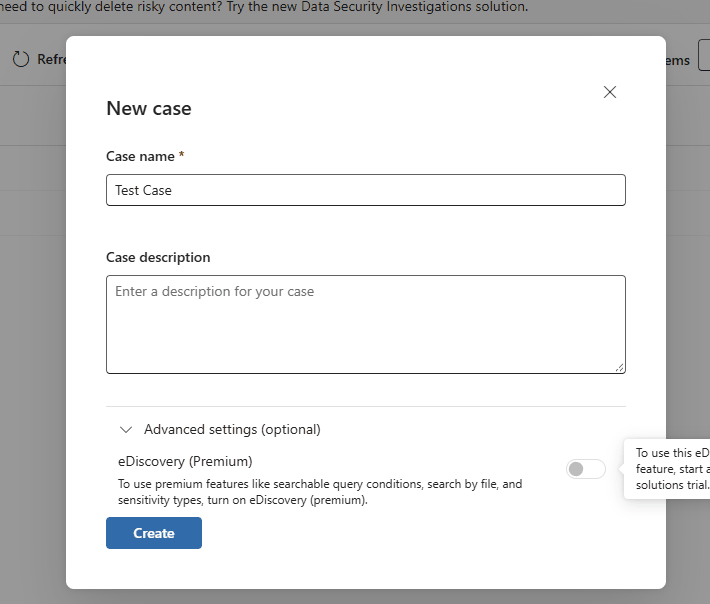
Click Create case, give it a name (the requester's reference works well), and click Create. Leave eDiscovery (Premium) turned off.
Searching
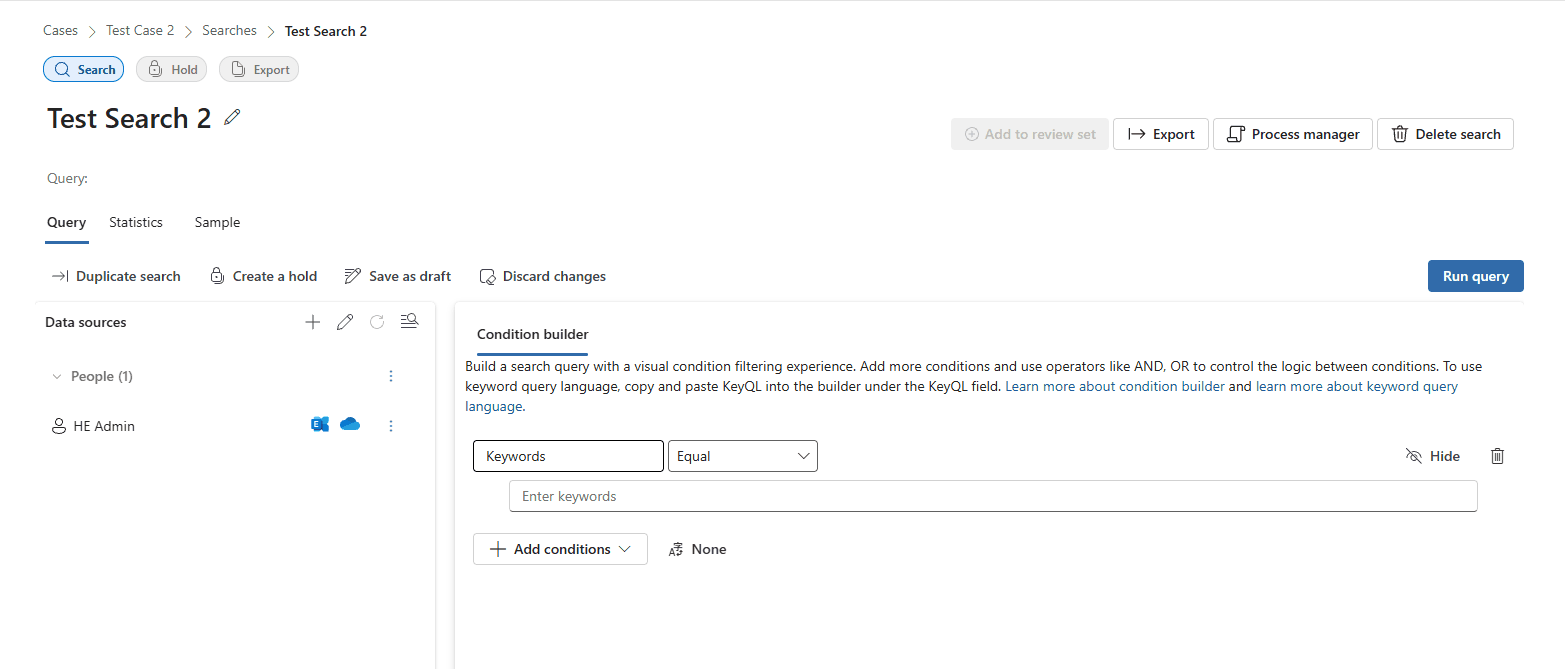
In the case, create a search and give it a name.
Under Data sources, add the people whose mail and files you need. Each person's mailbox and OneDrive are included.
Use the Condition builder to narrow the search, for example by date or keywords.
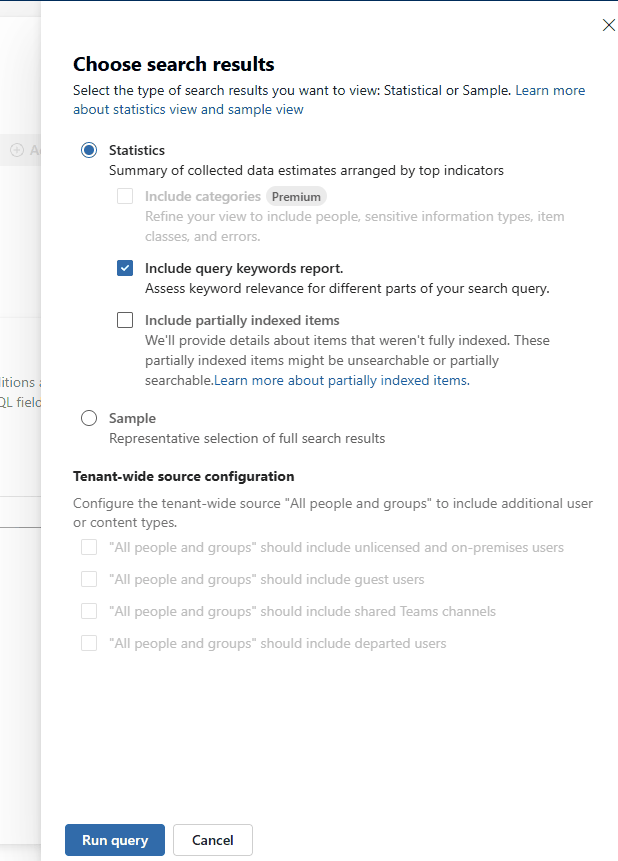
Click Run query, choose Statistics, and click Run query again. The statistics show how many items matched in each location.
Exporting
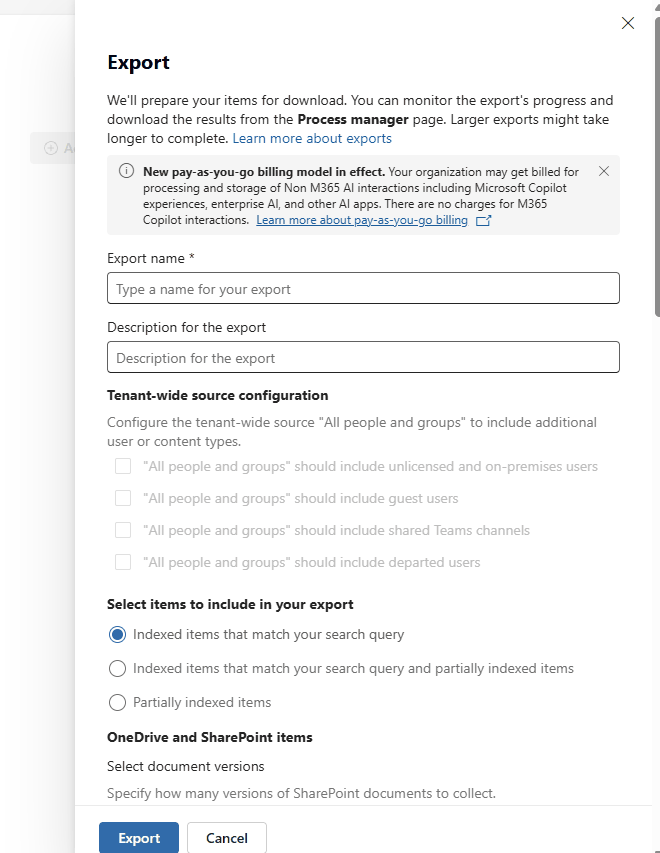
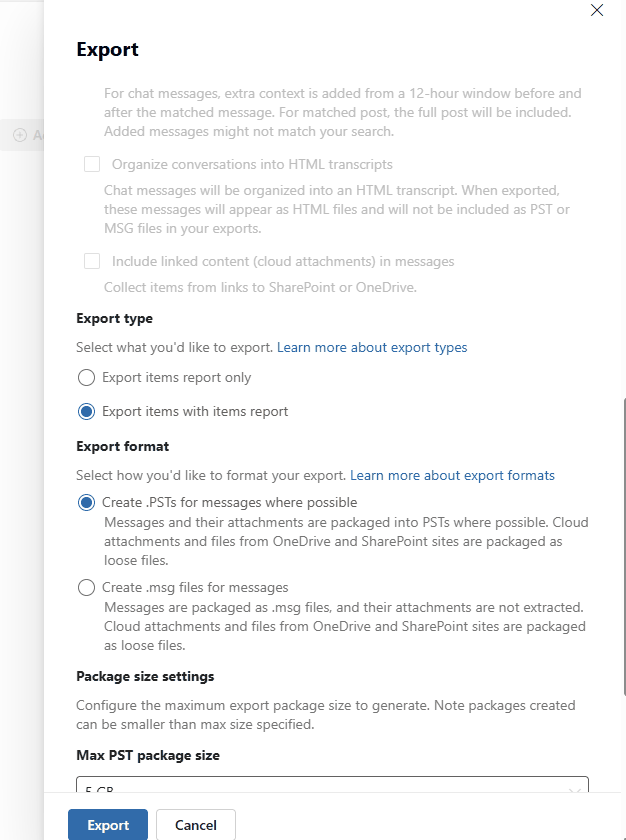
When the results look right, click Export at the top of the search. Most of the settings can stay as they are. These are the ones that matter for RedactBox:
Export name. Every file Purview produces carries this name, so make it something you will recognise.
Select items to include in your export. Leave it on Indexed items that match your search query unless you have a reason to include partially indexed items.
Export type. Choose Export items with items report.
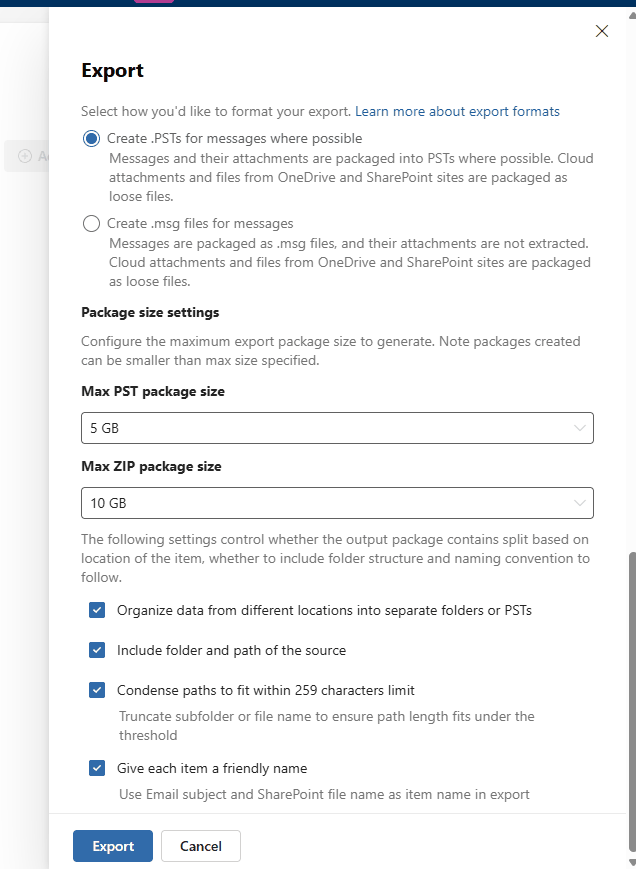
Export format. Choose Create .PSTs for messages where possible. The .msg option makes every email its own file, which quickly runs past the number of files a project can hold, and it does not extract attachments.
Max PST package size. Choose 2 GB. A RedactBox file can be up to 3 GB on Professional (10 GB on Professional Plus, in beta over 3 GB), and Purview's default of 5 GB can produce a PST that is too big to upload.
Keep Organize data from different locations into separate folders or PSTs ticked. Each mailbox then gets its own PST, named after the mailbox, so you can see whose mail is whose.
Click Export.
Downloading the export
Open Process manager from the search and click your export once its status is Completed.
Under Export packages, tick every file and click Download. Allow pop-ups for the Purview site if your browser blocks them.
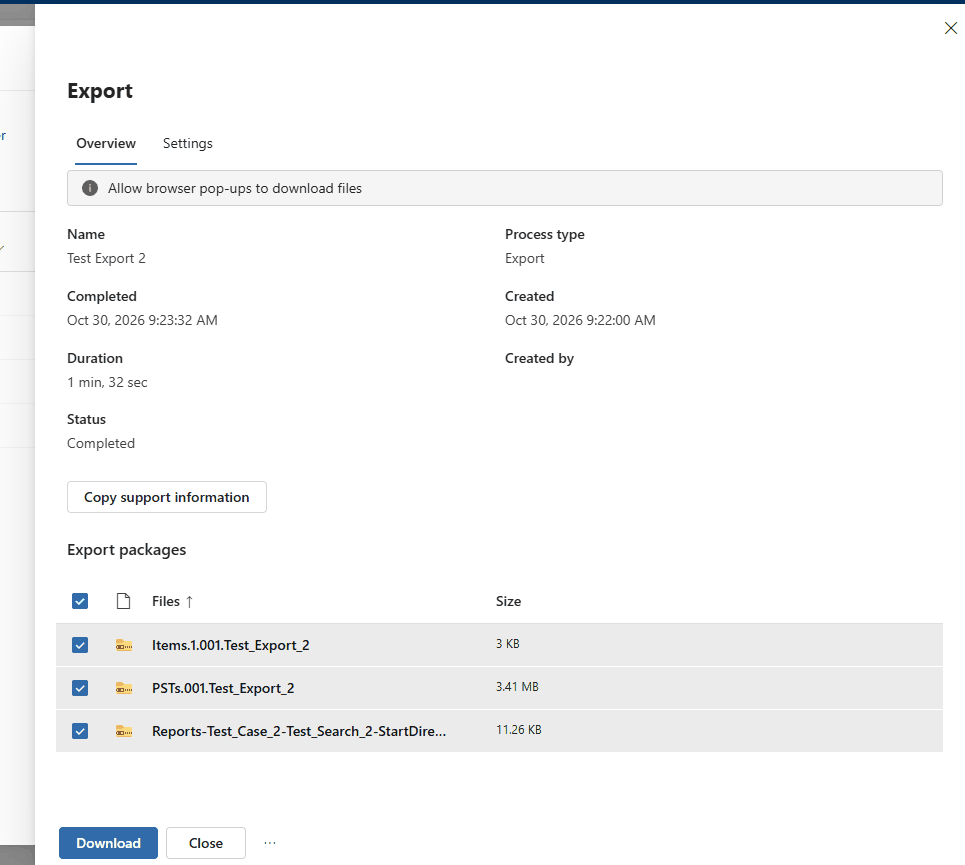
Tip: Purview keeps an export for 14 days. Download everything before then, or you will need to export again.
Importing the whole export
The quickest way in. There is no need to unzip anything.
In your project, click Add and choose Import a whole export. In an empty project, you can also click Import an export.
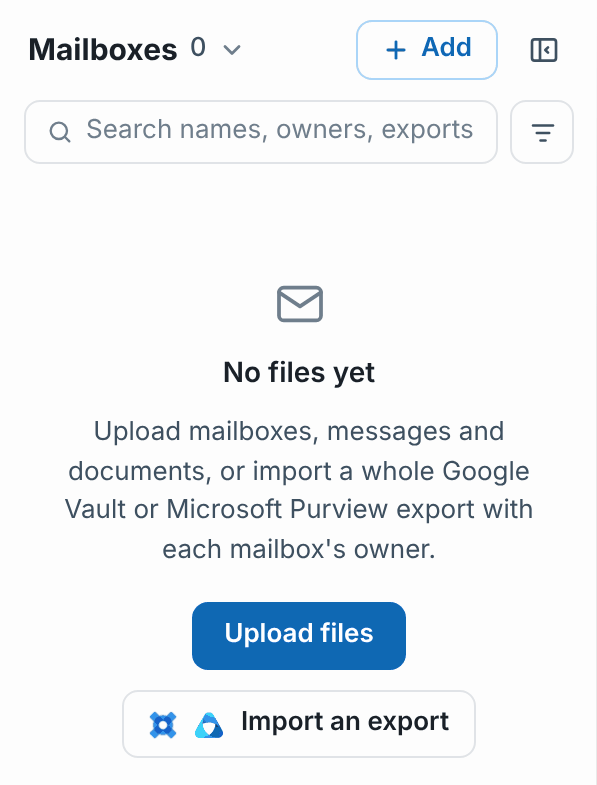
Drop in every package you downloaded: the PSTs, Items and Reports ZIPs.
RedactBox checks them before anything uploads, and lists the mailboxes it found. When every package is there, the export is marked Ready. Click Import.
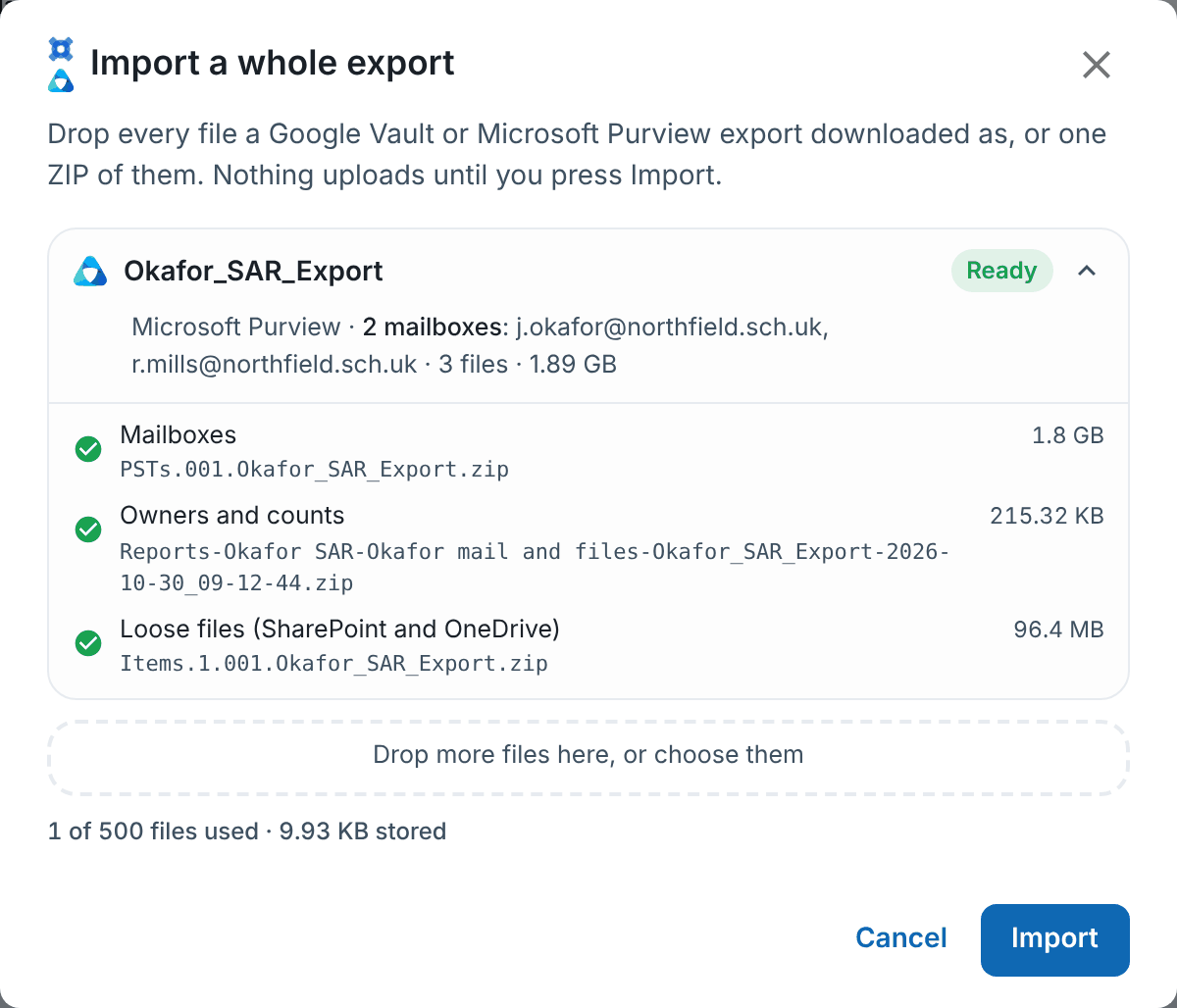
Each PST becomes its own mailbox, named after the mailbox. The OneDrive and SharePoint files from the Items package go to Documents, converted so you can redact them. The Reports package confirms whose mailbox each PST is and lets RedactBox compare its counts with what was imported. Without it, owners come from the PST names and are not cross-checked, and loose files have no owner. SharePoint system lists are left out for you.
The upload and import carry on if you close the dialogue, and the export's row at the top of the mailbox list shows where it has got to. Tick Email me when it's ready to get one email when it has finished (see Import progress and email me when it's ready). Any count that does not match is listed under Notes from the export, in the export's ⋯ menu above the mailbox list.
On Professional, a whole export can be up to 3 GB, and on Professional Plus up to 10 GB (over 3 GB is in beta). With a 2 GB PST package size, most exports of a few mailboxes fit; for a bigger one, export a few mailboxes at a time.
What Purview gives you
Each package is a ZIP, named after the export.
PSTs, for example
PSTs.001.<export name>.zip. Inside, anExchangefolder holds one.pstper mailbox, named after the mailbox's email address.Items, for example
Items.1.001.<export name>.zip. These are the loose files from OneDrive and SharePoint, in folders that follow each file's original location.Reports, starting
Reports-. A set of CSV files describing the export: every item exported, the locations searched with their item counts, the settings used and a summary.
Uploading the files yourself
If you would rather not import the whole export, you can upload the parts by hand.
The emails
Unzip the PSTs package.
In your project, click Upload and drop in the
.pstfiles from theExchangefolder. Each one becomes its own mailbox in the project.
See Uploading Files for the upload dialogue itself.
The OneDrive and SharePoint files
Unzip the Items package.
Upload the files into the same project. They appear in Documents mode, not with the emails.
PDFs upload as they are.
Word, Excel, PowerPoint, RTF, text and image files are converted to PDF when you upload them, so you redact them like any other document.
Spreadsheets also open in the spreadsheet grid, so you can redact cell by cell and export a redacted
.xlsx. See Redacting spreadsheets cell by cell.
Each converted file can be up to 50 MB. Mailboxes can be up to 3 GB each on Professional, and up to 10 GB on Professional Plus (over 3 GB is in beta).
Purview sometimes includes SharePoint list exports, such as a file ending AllItems.aspx.csv inside a Lists folder. These are system lists, not documents the person wrote. Leave them out unless the request covers SharePoint lists.
Files to keep but not upload
When you upload by hand, keep the Reports package with your case records. Do not upload its CSV files, as RedactBox would treat each one as a spreadsheet and add it to your documents.
Two of the reports are useful to read yourself:
Locations lists each mailbox and OneDrive that was searched, with how many items matched in each. Compare it with the counts RedactBox shows for each mailbox.
Items lists every exported item, including its original path and any that failed to export. Check its Status column before you tell the requester the disclosure is complete.
Example: a solicitor's disclosure covering one employee
The firm's Microsoft 365 administrator creates a case, adds the employee as a data source and searches from the start of the relevant period.
They export with PSTs, a 2 GB package size and the items report, then download all three packages.
The paralegal opens a new project, chooses Import a whole export and drops in all three packages. The mailbox and the OneDrive documents arrive together, with the owner confirmed from the Reports package.
They redact the emails, switch to Documents to redact the files, and export everything together.
Was this helpful?
Still need help? Ask the team